
Your first publisher and embed code
Goal
Start showing Youtarget ads on your site.
In the dashboard, a publisher is one ad placement on your site: a format, its settings and its own embed code. To show ads in two places on a page or in two formats, add two publishers.
Before you start
- A publisher account: see Sign up and sign in.
- Access to your site code or to an admin panel where you can paste HTML.
- An ad format that suits your site:
| Format | What the visitor sees | Where to place the code |
|---|---|---|
| Direct link | A jump to the advertiser's page | A link, a button or a traffic source |
| Popunder | The advertiser's page opens in a new tab on click | Once per page |
| Banner | An image or HTML banner of a set size | Where the banner should be |
| Video (outstream) | A video ad in a block on the page | Where the player should be |
| Multiformat | A banner or a video, whichever pays more | Where the block should be |
| Interstitial | A full-screen banner over the page | Once per page |
Steps
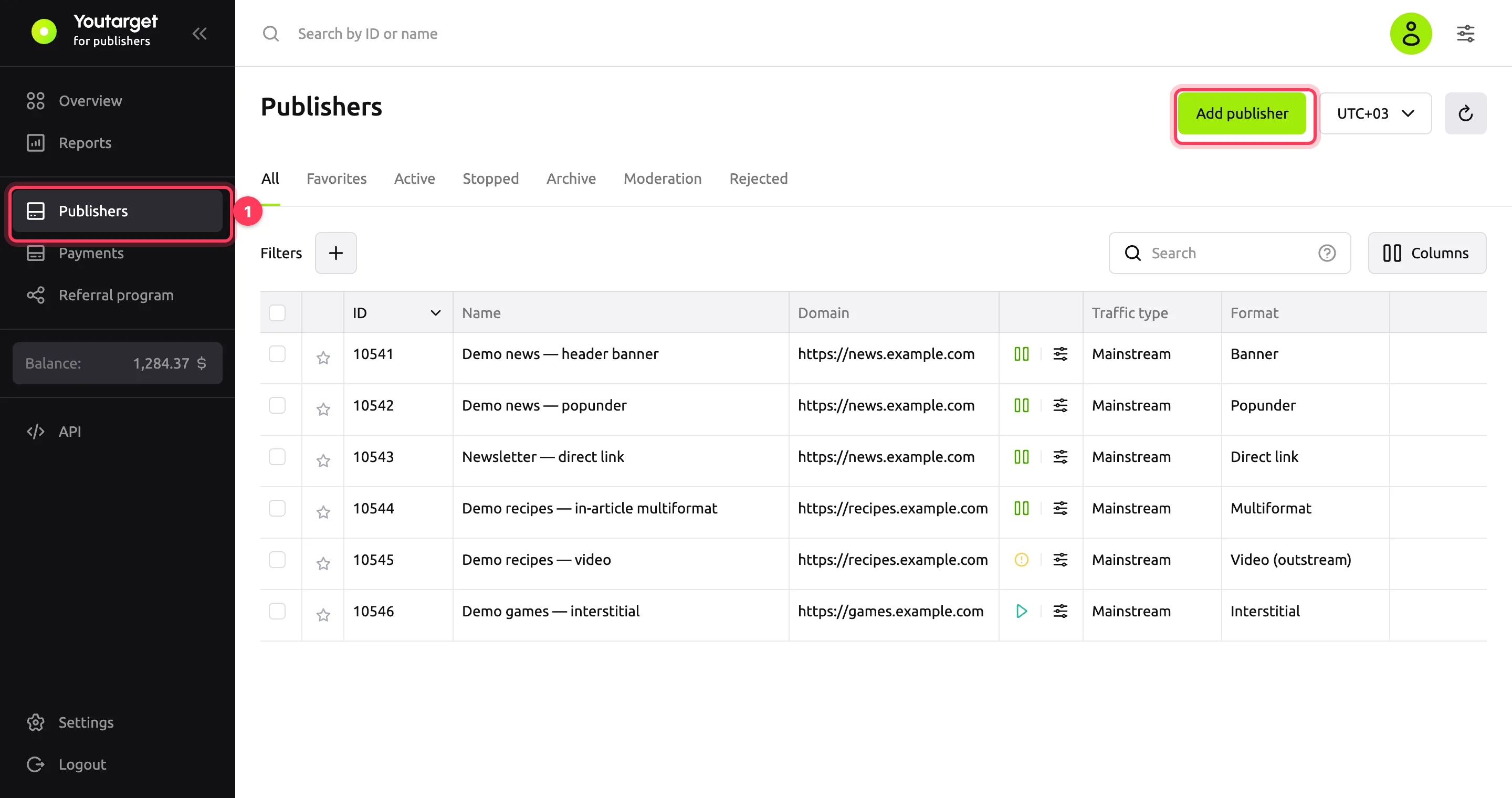
In the left menu, open Publishers and click Add publisher.
In the Format group, select the format. You cannot change the format after you save: for another format, add a new publisher.
Fill in the General group:
- Name: how the publisher is named in the dashboard and in reports, for example "example.com — header banner".
- Traffic type: Mainstream or Adult. Select Adult if your site has adult content: this decides which ads are shown. You cannot change the traffic type after you save.
- Domain: the full site address with
https://, for examplehttps://example.com. - Floor price (CPM): the minimum price per 1,000 impressions in US dollars. Lower bids do not win. Leave it blank for no limit.
- Traffic-back URL: where to send the visitor if there is no ad. Works for the direct link and popunder.
If the format has a Format settings group, check it. The default values are fine to start with. The format page explains each setting.
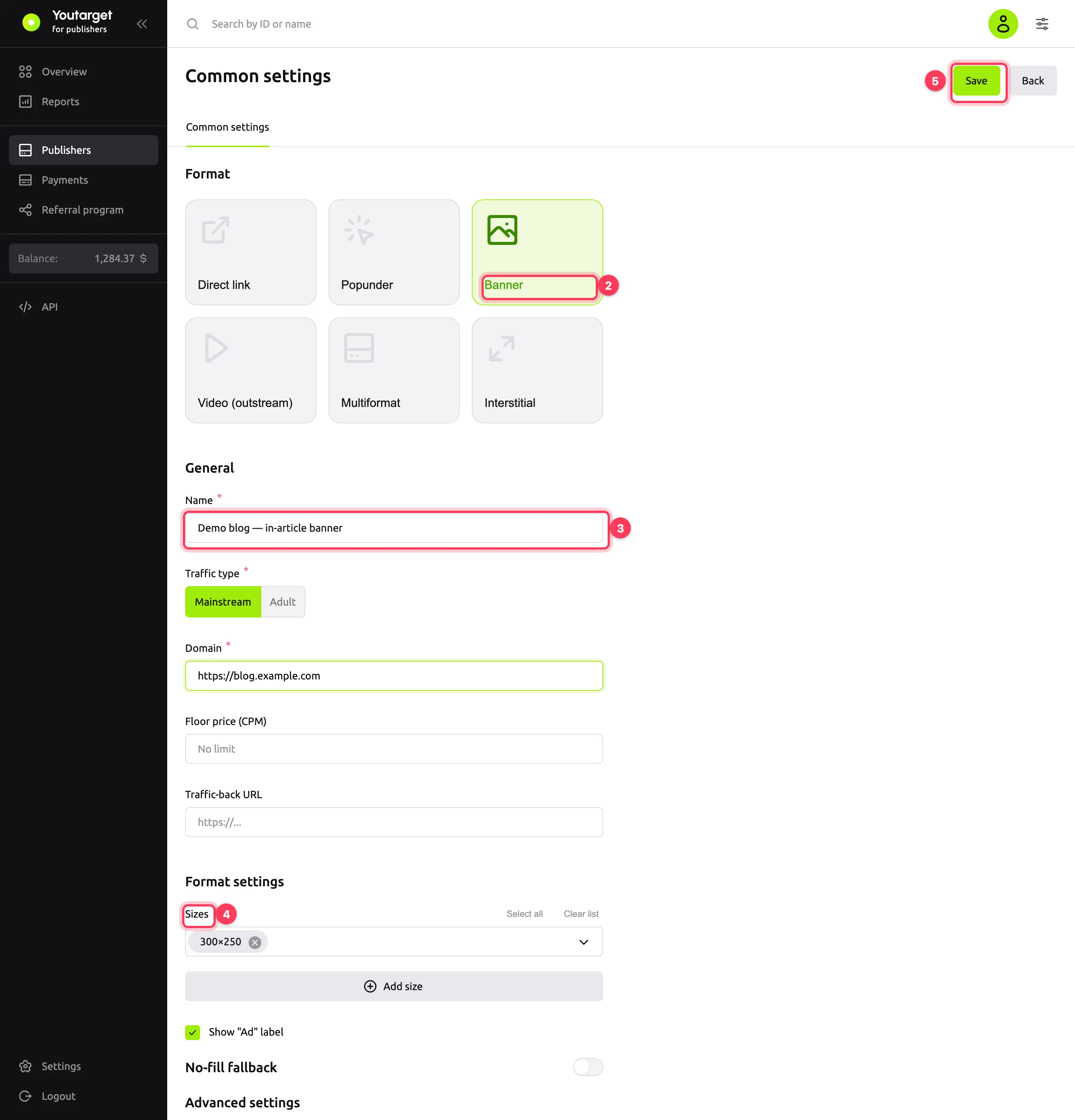
Click Save. The dashboard opens the Embed code window.
Click Copy code and paste the code on your site. Where exactly: see the table above and the format page.
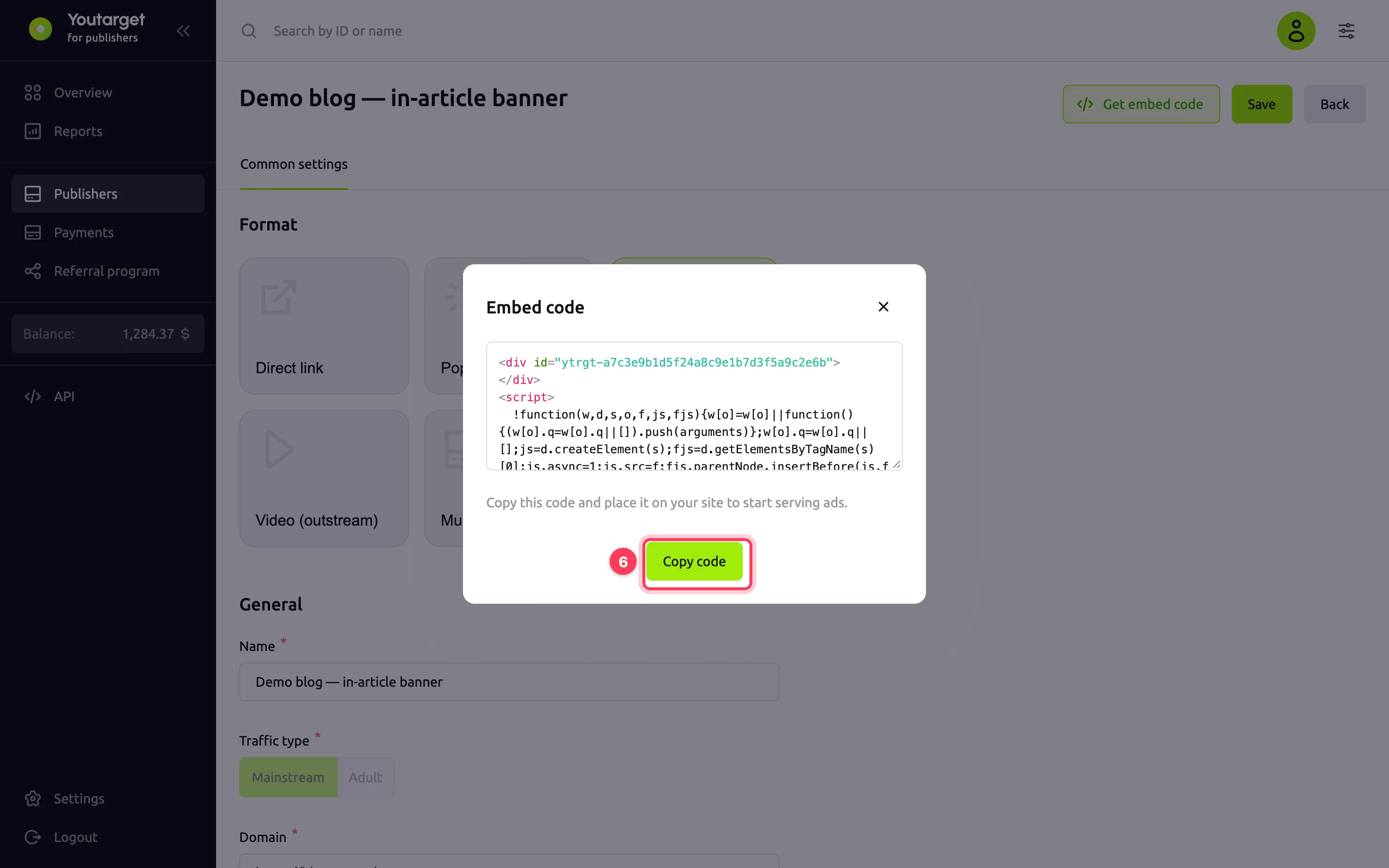
You can open the code again later with the Get embed code button on the publisher page or with the Get code item in the publisher menu in the Publishers list.
WARNING
Copy the code from the dashboard: it contains the addresses and IDs of your publisher. Code examples in the documentation use made-up addresses and will not work.
Result
The publisher appears in the Publishers list with the Moderation status. After the review, the status changes to Active and impressions start. If the publisher is rejected, the status is Rejected: ask your account manager for the reason.
You can see the first impressions and revenue right in the publisher list: click Columns and turn on Impressions and Publisher profit. These columns show data for the last 7 days, including today. For detailed statistics, go to the Reports section.
Troubleshooting
| Symptom | Cause | Fix |
|---|---|---|
| The Domain field is highlighted in red | The address has no https:// | Enter the full address: https://example.com |
| Sizes are highlighted in the banner settings | A size is empty, or no size is set | Delete the empty row or enter the width and height |
| The publisher is active, but there are no impressions | The code is not on the page, is placed twice, or bids are below the floor price | Go through the checks in No impressions or revenue |
Next steps
- Fine-tune the format: format reference.
- Learn the revenue metrics: Metrics.