
Profile and password
Goal
Set your name or company name and a contact, and change your dashboard password when you need to.
Before you start
- Your current password, if you want to change it.
- A list of scripts and services that work with the dashboard through API tokens. After you change the password, the tokens stop working and you have to replace them.
Steps
Edit your profile
At the bottom of the left menu, click Settings.
Go to the Common settings tab if another tab is open.
In the Full name or organization name field, enter your name or company name. Up to 128 characters.
In the Telegram or Teams field, enter a contact where you can be reached, for example
@demo_buyer. Up to 128 characters.Click Save.
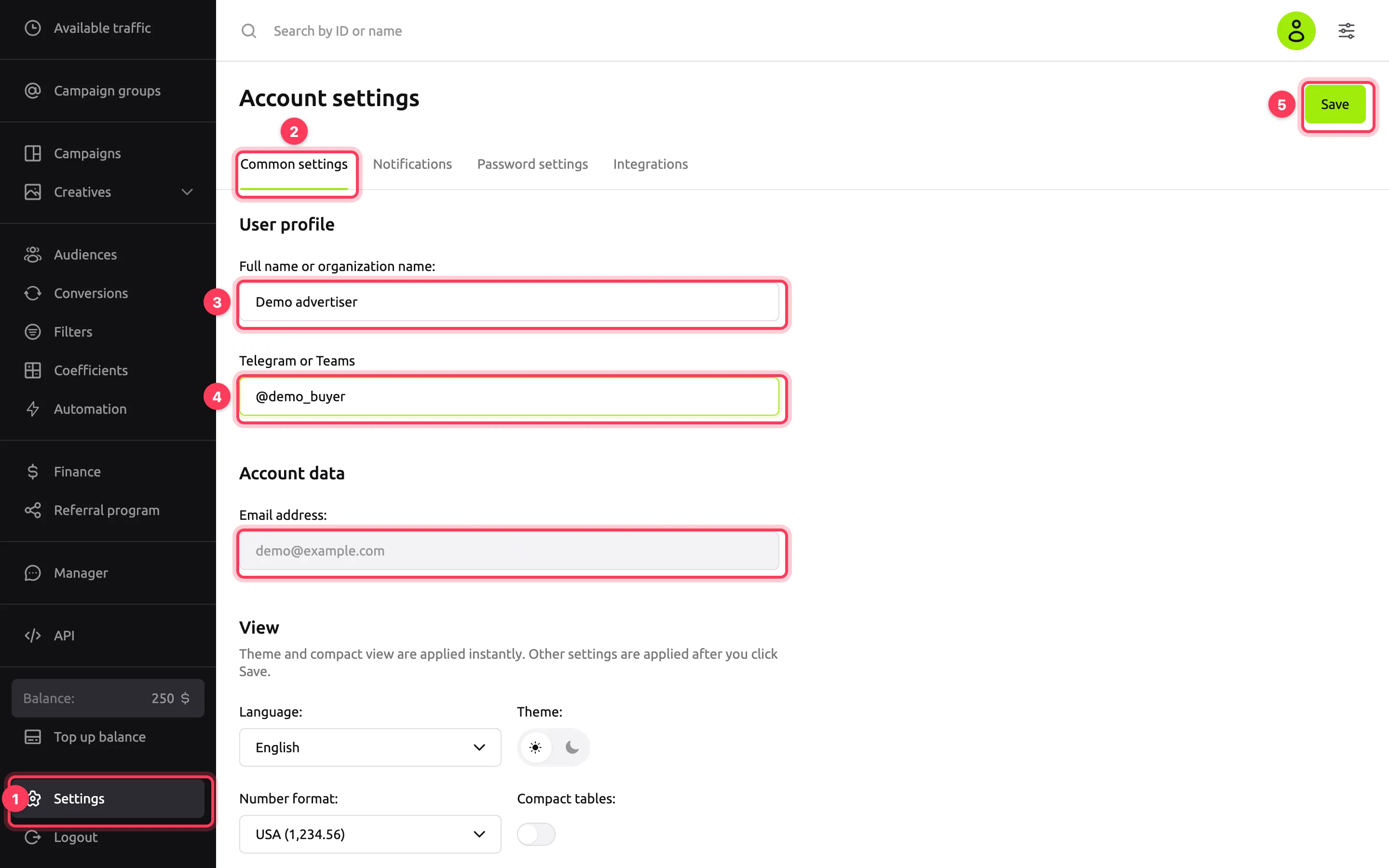
The Account data block shows the email you use to sign in. You cannot change it in the dashboard: contact your manager.
The View block holds the language, number format, time zone, theme, compact tables and currency in statistics. For what each setting does, see View settings.
Change your password
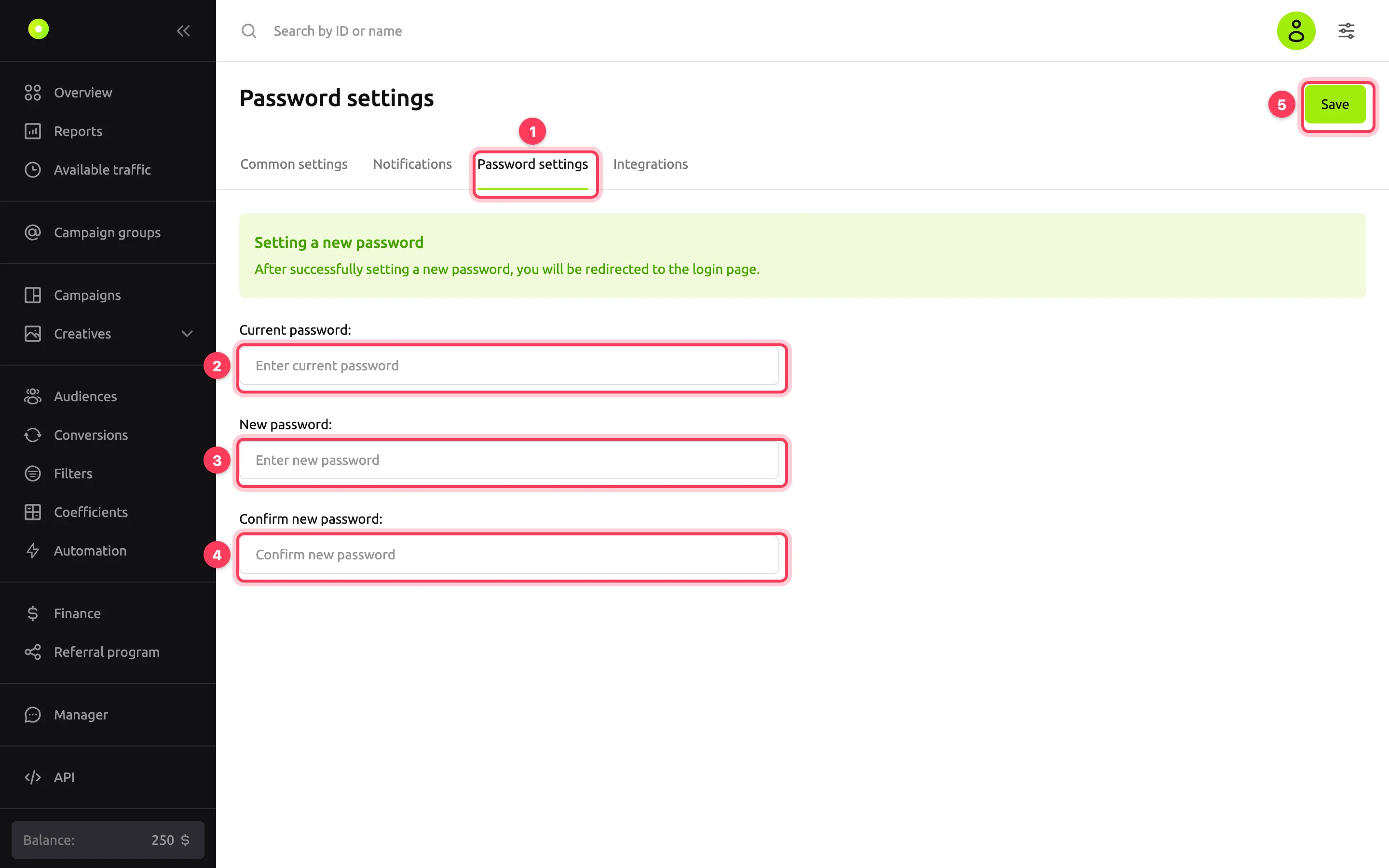
In Settings, go to the Password settings tab.
In the Current password field, enter the password you signed in with.
In the New password field, enter a new password. Requirements:
- at least 8 characters;
- contains digits, lowercase and uppercase Latin letters;
- no Cyrillic letters;
- not digits only, not similar to your email, and not on the list of common passwords;
- different from the current password.
In the Confirm new password field, enter the new password again.
Click Save.
Result
After you save the profile, the message "Changes successfully saved" appears.
After you change the password, the same message appears and the dashboard opens the sign-in page. Sign in with the new password.
What else happens after a password change:
- Sessions on other devices and in other browsers end: you have to sign in there again too.
- All API tokens stop working, even if they are still listed on the Integrations tab. Create new tokens and replace them in your services. For how, see Use the API.
- An AI assistant connected via MCP keeps working. To disconnect it, revoke its access.
Troubleshooting
| Symptom | Cause | Fix |
|---|---|---|
| The Email address field is grayed out and cannot be edited | Only a manager can change the email | Contact your manager |
| "Passwords do not match" under Confirm new password | The new password and the confirmation differ | Enter the same new password in both fields |
| "Incorrect current password" under Current password | The current password has a typo | Check the keyboard layout and Caps Lock. If you do not remember the password, sign out and restore it with the Recover access. link on the sign-in page |
| "Password must contain numbers, lowercase and uppercase letters" under Confirm new password | The password has no digit, lowercase or uppercase Latin letter | Add the missing characters |
| "Будьте внимательны: в пароле нельзя использовать кириллицу" under Confirm new password. The dashboard shows this message in Russian: it means Cyrillic letters are not allowed | The password contains Cyrillic letters, for example because a Cyrillic keyboard layout was on | Switch the layout and enter the password again |
| "This password is too short. It must contain at least 8 characters." under Confirm new password | The password is shorter than 8 characters | Use a longer password |
| "This password is too common." or "This password is entirely numeric." under Confirm new password | Such a password is easy to guess | Choose another password that meets the requirements in step 3 |
| "The new password must be different from the current one" under Confirm new password | The new password matches the current one | Choose another password |
| After the password change, scripts and integrations get an authorization error | The password change disabled the API tokens | Create new tokens and replace the old ones |