
Sign up and sign in
Signing up takes a couple of minutes. You need an email address, a Telegram or Teams contact and your address: country, postal code and city.
If someone invited you with a referral link, start signing up from that link so that the invitation counts. For how the program works, see Invite an advertiser through the referral program.
Sign up
Open the advertiser dashboard and click Sign up. on the sign-in page.
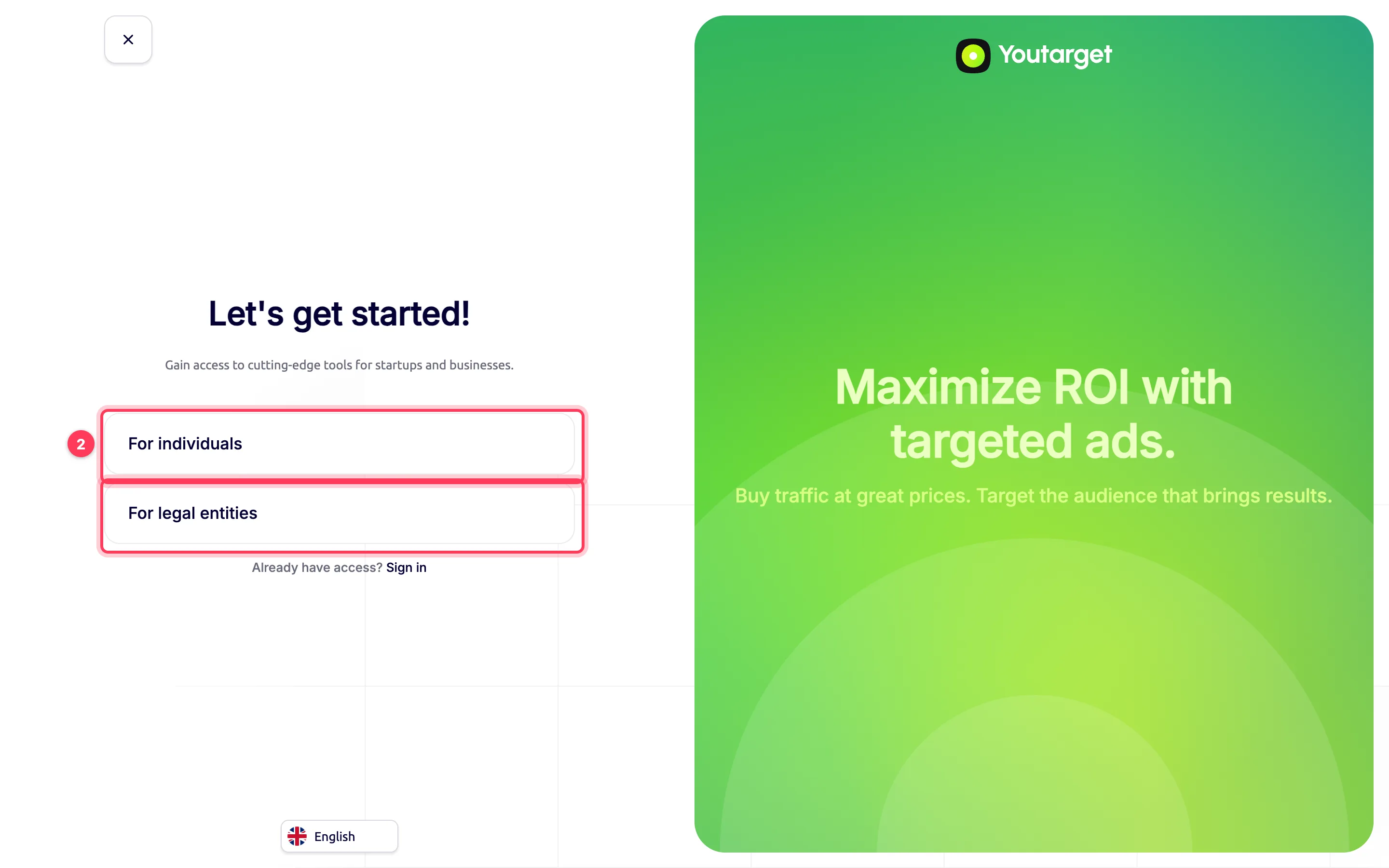
Select For individuals or For legal entities.
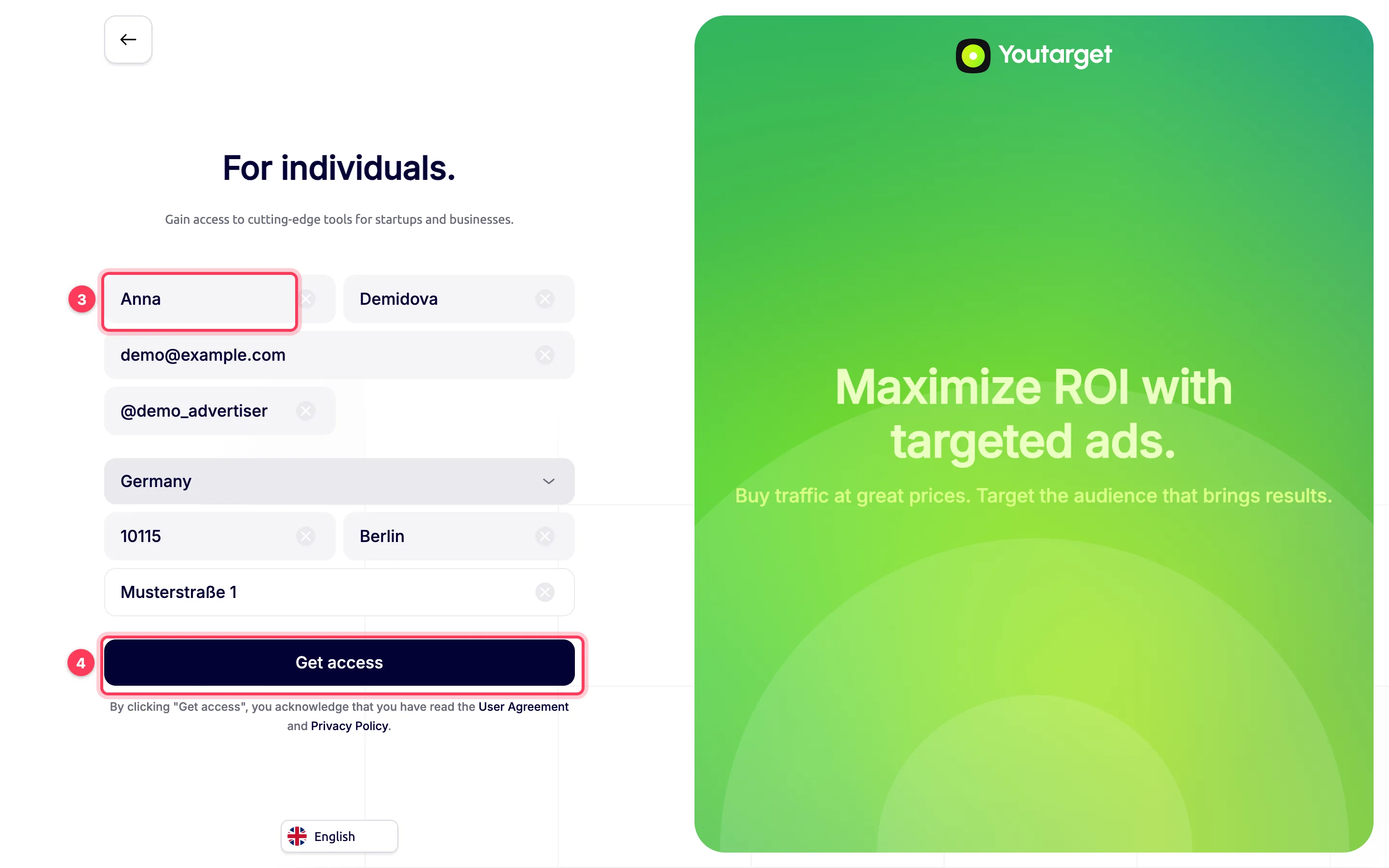
Fill in the form: first name, last name, email, Telegram or Teams contact (up to 100 characters), country of residence, postal code, city and address. A legal entity must also enter the company name and tax number: without them, sign-up fails.
Click Get access. By doing so, you confirm that you have read the User Agreement and Privacy Policy.
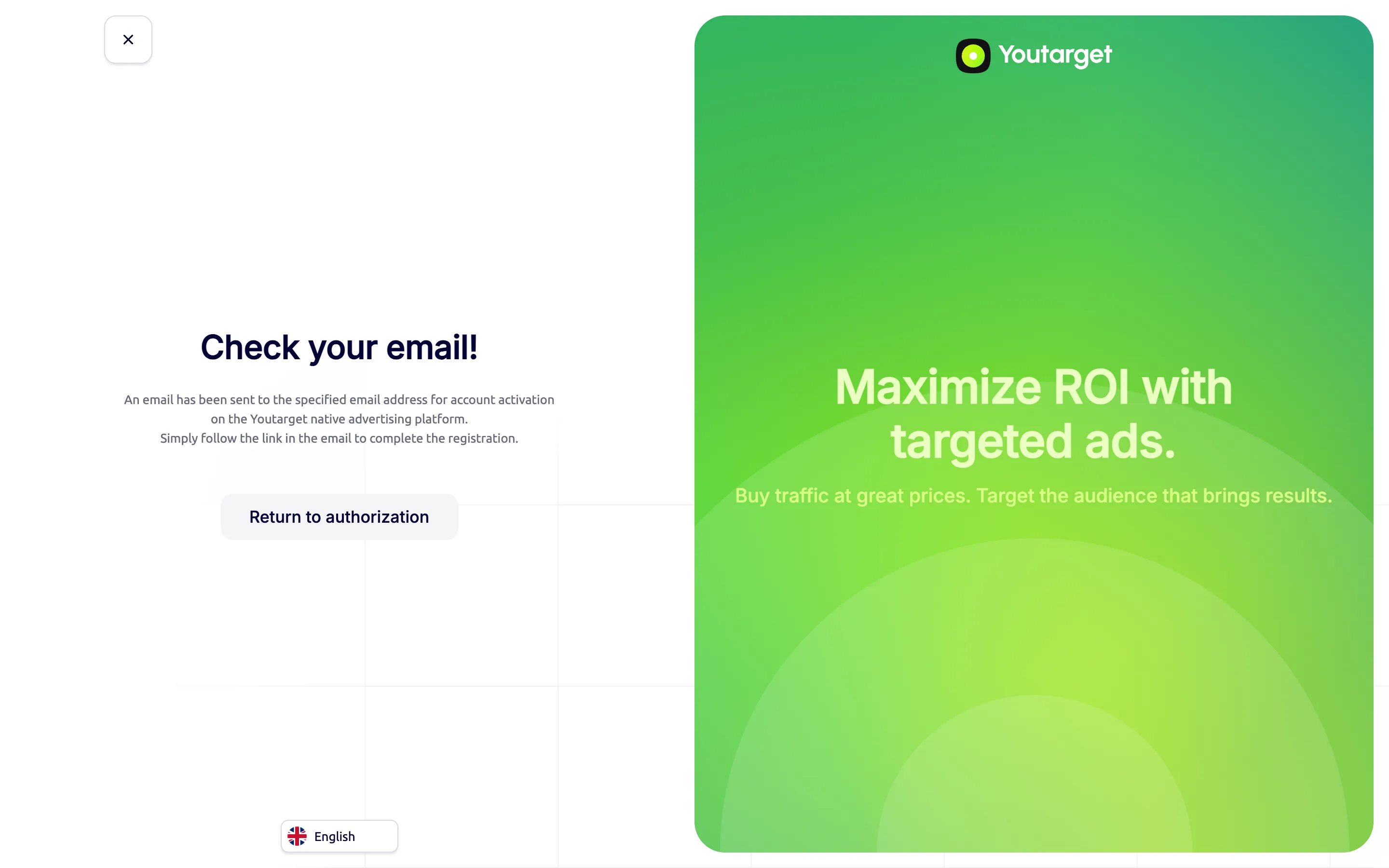
Open the email sent to the address you entered and follow the activation link.
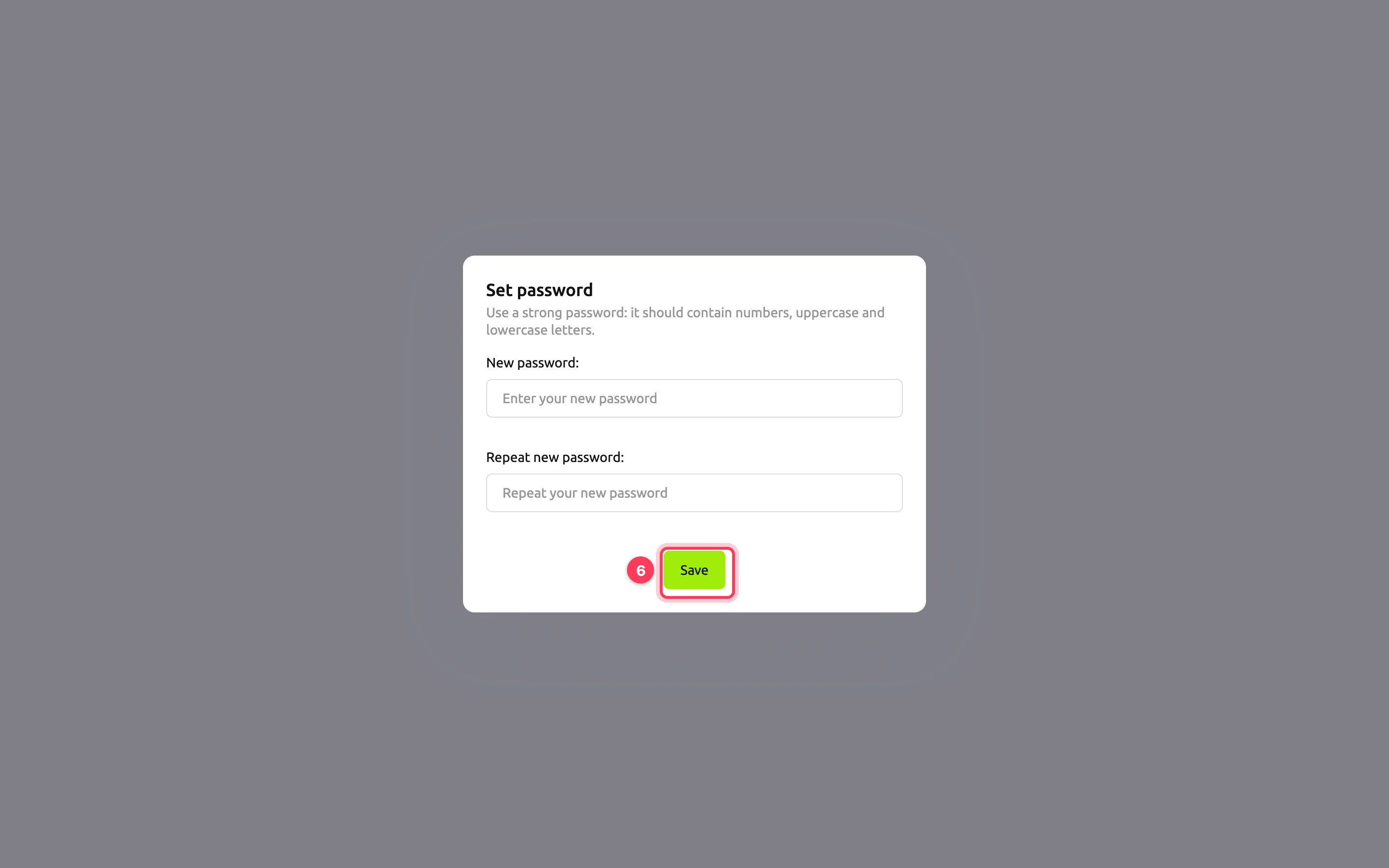
The dashboard asks you to set a password. Enter it twice and click Save.
The campaign list opens. To find your way around, read the dashboard overview.
TIP
If a form field turns red and "Please check the correctness of the entered data" appears at the top, the field is empty or filled in incorrectly. For example, the email is missing the @ symbol.
Password requirements
- At least 8 characters.
- Contains numbers, lowercase and uppercase Latin letters.
- No Cyrillic letters.
- Not numbers only, not similar to your email and not on the list of common passwords.
Sign in
- Open the advertiser dashboard.
- Enter your email and password and click Sign In.
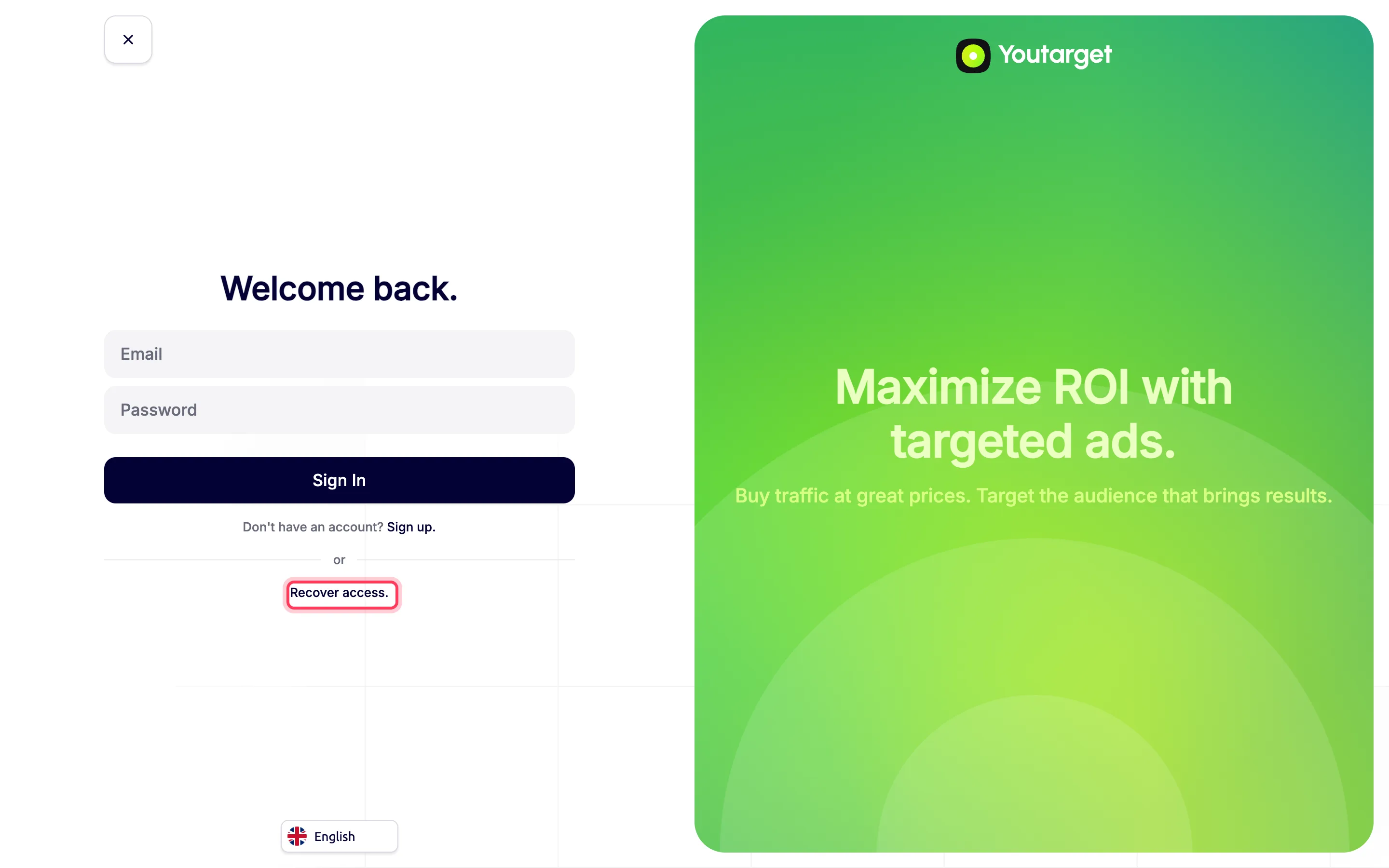
If you forgot your password, click Recover access., enter your email and click Get instructions. The email contains a link: follow it, set a new password and click Set password.
To change your password after you sign in, open Settings → Password settings. For details, see Profile and password.
Sign out
In the left menu, click Logout.
Sign-up and sign-in errors
| Message | What to do |
|---|---|
| User … already exists and is activated | An account with this email already exists. Sign in or recover your password |
| User … already registered another way | The account with this email was not created through the sign-up form, for example, an agency created it. Sign in with this email or recover your password |
| Registration with this email provider is not allowed. Please use a different email. | Use an email address from a different provider |
| Invalid email | Check the address for typos or extra spaces |
| Password must contain numbers, lowercase and uppercase letters | Add the missing characters |
| A message in Russian: "Будьте внимательны: в пароле нельзя использовать кириллицу" | The password contains Cyrillic letters. Switch the keyboard layout and enter the password in Latin letters |
| Passwords do not match | Enter the same password in both fields |
| Incorrect email or password | Check the keyboard layout and Caps Lock. If that does not help, recover your password |