
Work as an agency: clients and shared access
Goal
Run campaigns for several clients in one account and give each client access to only their own campaigns and statistics.
Before you start
- A Youtarget advertiser account that you own. You do not need a separate agency account: shared access is available in a regular advertiser account.
- One campaign groupA folder for one advertiser's campaigns with shared settings and limits. per client. To create a group, open Campaign groups, click New campaign group, enter a name and click Save general settings. Create the client's campaigns in their group: in the campaign form, select it in the Campaign group field. To learn how to create a campaign, see Your first campaign in 15 minutes.
- The client's email. The platform creates a new user for this email, so it must not already have an account.
Steps
In the left menu, click Settings.
Go to the Shared access tab. It lists the users you have given access to.
Click Add user.
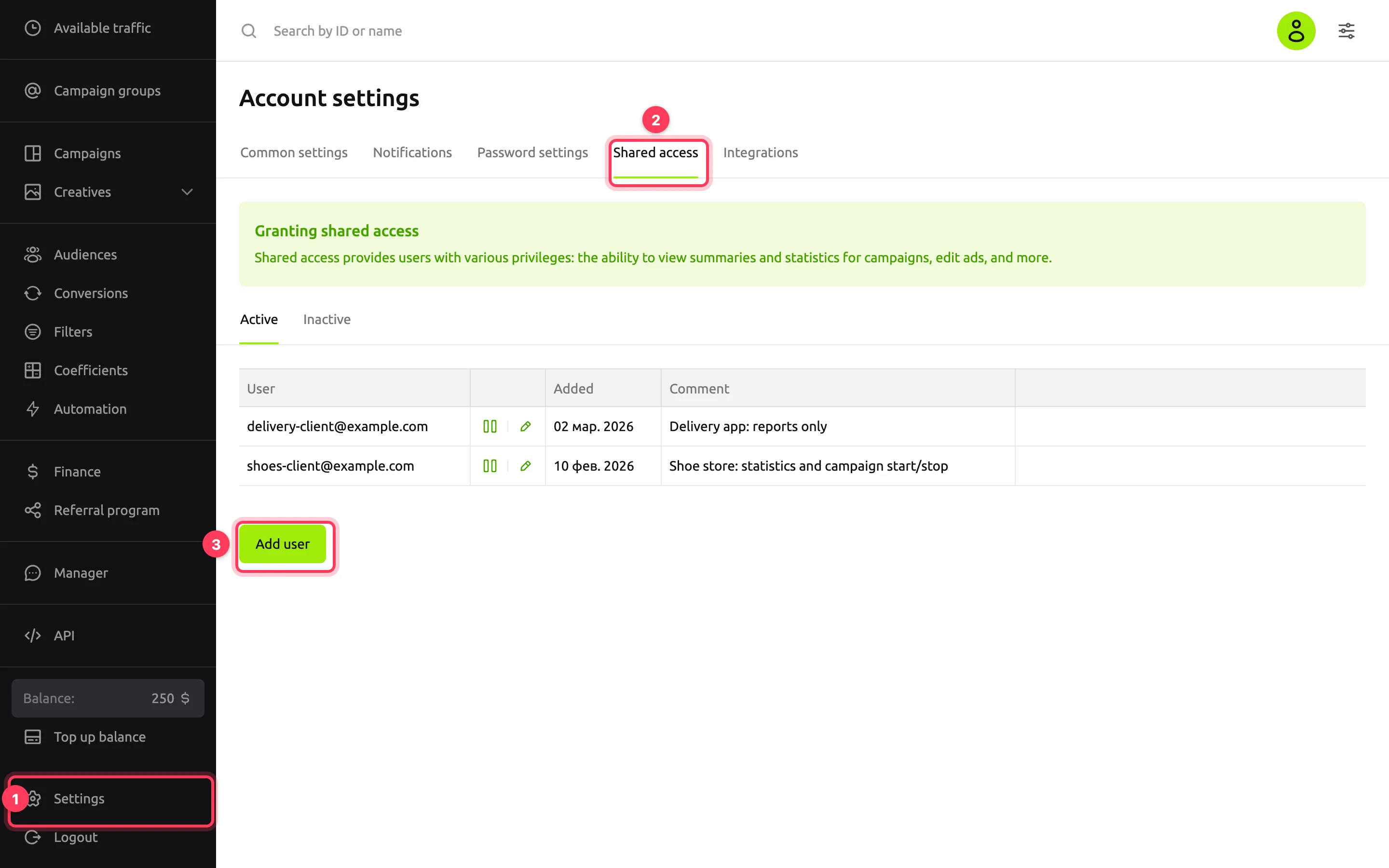
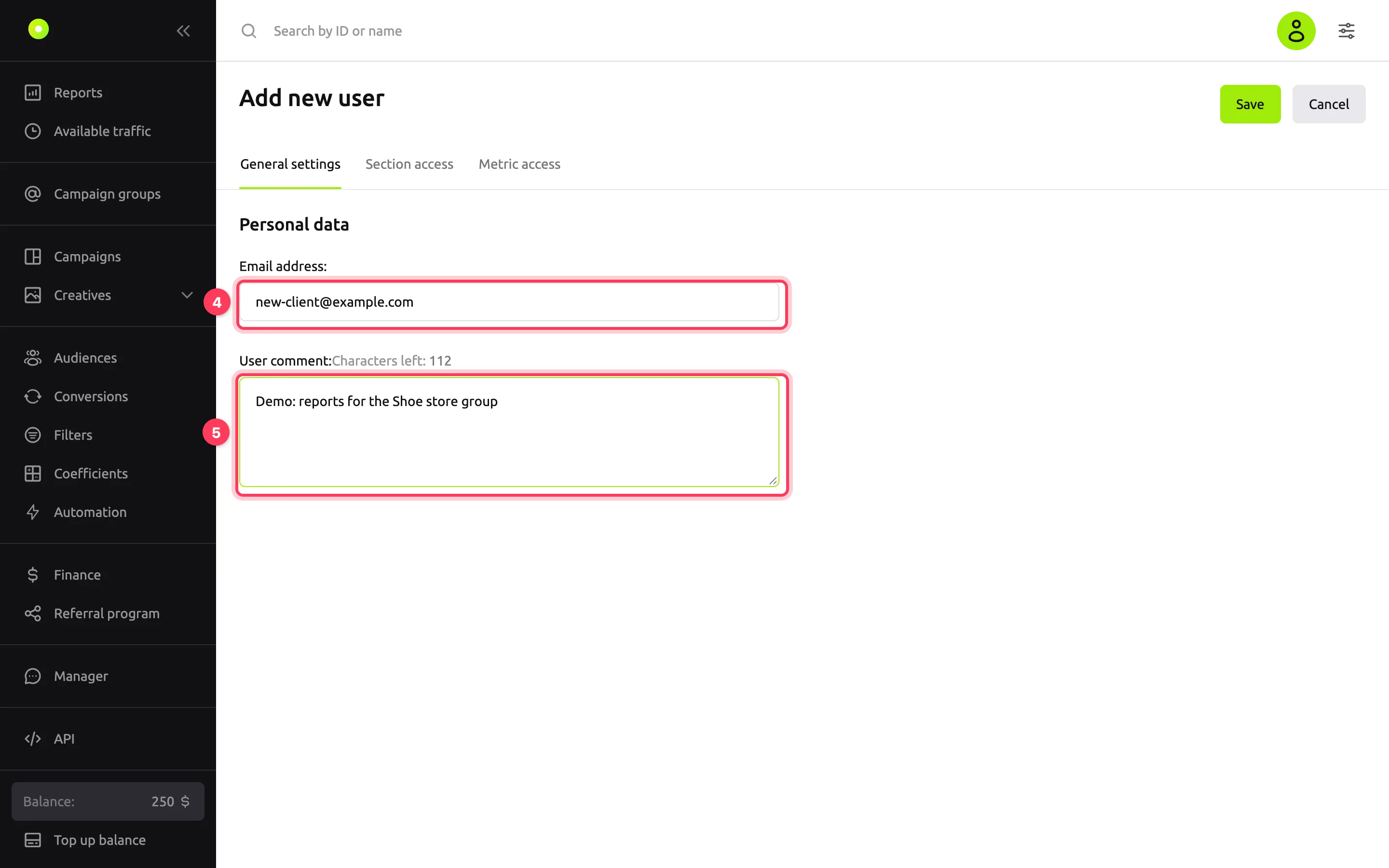
In the Email address field, enter the client's email.
In the User comment field, write who the user is and what they can access. The comment can be up to 150 characters; the counter above the field shows how many are left.
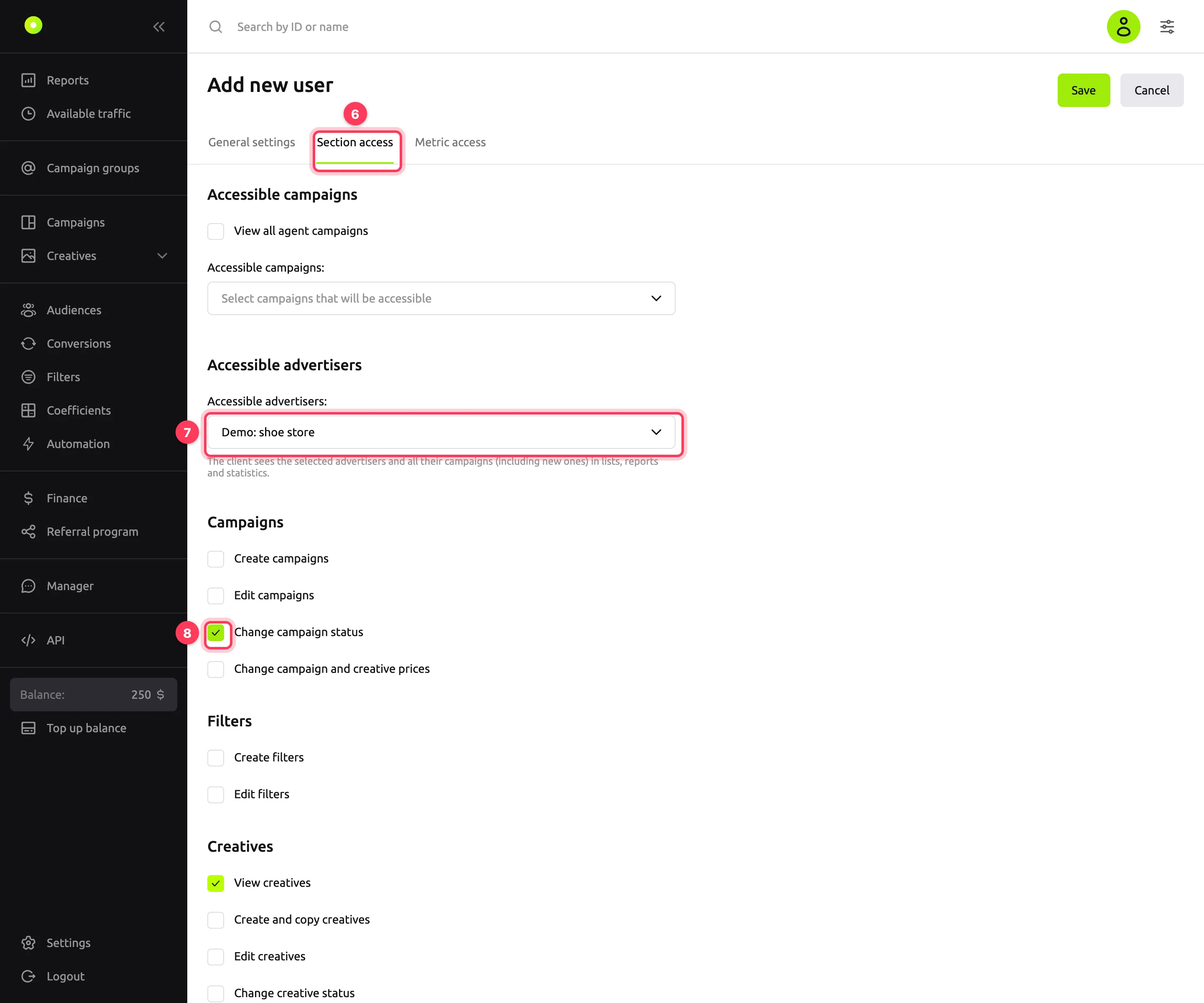
Go to the Section access tab.
Choose which campaigns the client will see. Use one of the options:
- View all agent campaigns: all your campaigns;
- Accessible campaigns: only the selected campaigns;
- Accessible advertisers: selected campaign groups as a whole (the English interface calls campaign groups "advertisers" here). The client sees all campaigns of the group, including new ones.
If you select View all agent campaigns, the Accessible campaigns and Accessible advertisers fields are hidden, and the campaigns and groups selected in them are cleared.
Select what the client can do. Permissions are grouped by section: Campaigns, Creatives, Filters, Audiences, Pixels, Postbacks, Selective coefficients, Balance. The list contains only the permissions your account can pass on to a client. Campaign and creative permissions become available once you select campaigns in step 7.
Besides create and edit permissions, the sections have separate permissions: Segment targeting, Upload creative media files, Bulk edit creatives, Change creative limits, Create HTML5 banners. Without Upload creative media files, the client cannot upload an image or video to a creative, even if they can create creatives. Some permissions select others: for example, Create HTML5 banners selects Create and copy creatives.
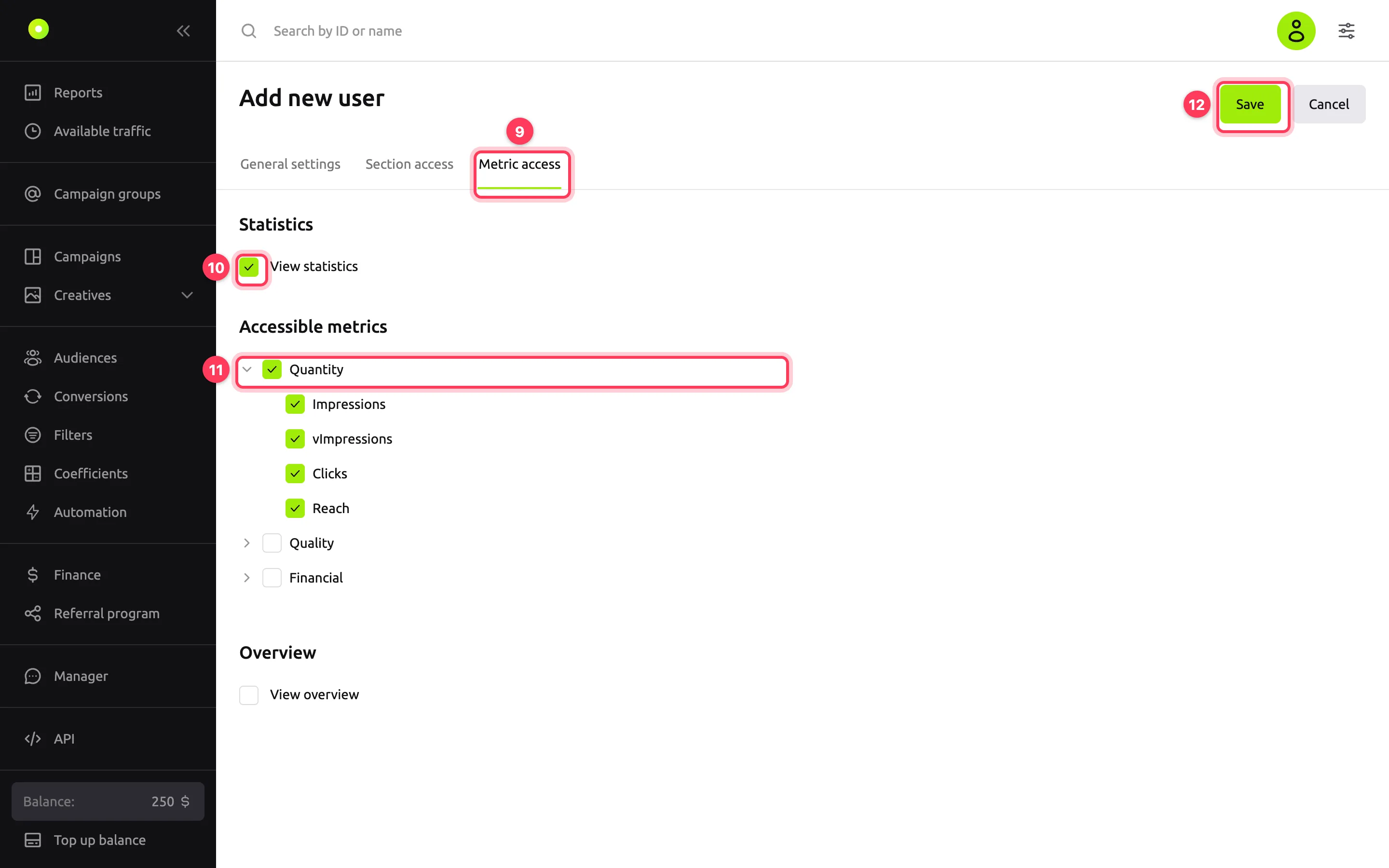
Go to the Metric access tab.
Select View statistics so that the client can see reports. The View overview permission opens the Overview section to the client and works only together with View statistics: the statistics permission is selected automatically.
In the Accessible metrics block, select which metrics the client will see: Quantity, Quality, Financial or individual metrics inside the groups. The arrow on the left expands a group.
Click Save.
Result
The dashboard opens the Edit user card, and the client appears on the Shared access tab in the Active list. The client receives an email with a password. The client signs in to the dashboard with their email and this password and can change the password in Settings on the Password settings tab.
What the client sees:
- Only the campaigns and groups you shared with them, in lists, reports and statistics.
- Only the sections and actions selected on the Section access tab, and the metrics from the Metric access tab.
- Your account balance, only with the View agent balance permission. The client cannot top up the balance and does not have the Finance and Referral program sections or the Shared access tab.
- Without the Change campaign and creative prices permission, an agency client cannot change prices and does not have the Limits tab in campaigns or the Coefficients section. If you select Create campaigns or Create and copy creatives, the price permission is selected automatically: you cannot create a campaign or creative without a price.
To change access, click the pencil in the client's row. To turn off access, click ⏸: the client moves to the Inactive list and loses access to the dashboard. To restore access, click ▶ in the Inactive list.
Troubleshooting
| Symptom | Cause | Fix |
|---|---|---|
| "Enter an email in the format [email protected]" under the Email address field | The address contains a typo | Check the address: it must have a name, @ and a domain |
| "User with such email already exists" under the Email address field | An account with this email already exists | Enter another client email |
| After Save: "To complete this operation, you must fill out the internal contract" | Your account's contract has not been processed yet | Wait a few minutes and save again. If the error persists, contact your manager |
| Checkboxes for campaign and creative permissions are gray and cannot be selected | No campaigns are open to the client | Select View all agent campaigns or choose campaigns or groups |
| "Price changes can only be granted together with creating or editing campaigns or creatives" on the Section access tab | The price permission is selected without create or edit permissions | Select creating or editing campaigns or creatives, or clear the price permission |
| A new email in the client card was not saved | The client's email cannot be changed after creation; only the comment and access are saved | Turn off the old client and add a new user with the right email |
| No Shared access tab in Settings | Only the account owner has this tab. Agency clients do not see it | Sign in with the owner account |
| The client cannot see reports | View statistics or metrics are not selected | Open the client card and select them on the Metric access tab |
| The client creates a creative but cannot upload an image or video | Upload creative media files is not selected | Open the client card and select this permission on the Section access tab |
Next steps
- Limit spend of the client's campaigns.
- Set up a postback so that the client sees conversions in statistics.