
Top up your balance
Campaigns spend money from your account balance. When the balance runs out, the system pauses campaigns and resumes them on its own after you top up. For the full list of checks, see No impressions.
Your current balance is at the bottom of the left menu, in the Balance line. All amounts in the dashboard are in the account currency.
Top up
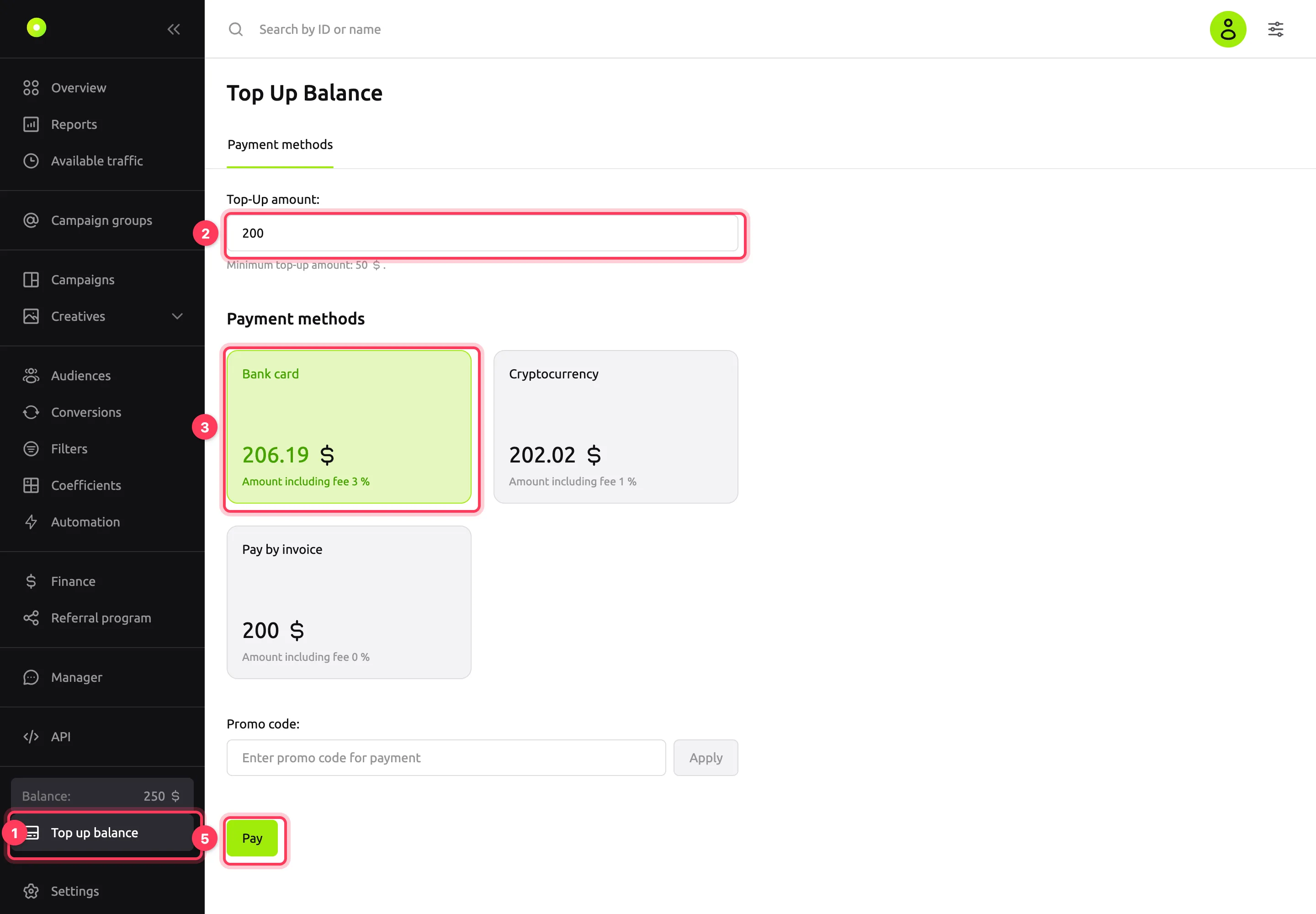
In the left menu, click Top up balance. The Top Up Balance page opens.
Enter the amount in the Top-Up amount field. The minimum amount is $100 or the equivalent in the account currency, and it is shown under the field. If you enter less, the dashboard raises the amount to the minimum. The maximum is 9,999,999: if you enter more, the dashboard lowers the amount to the maximum.
In the Payment methods block, select a method. The method card shows the fee and the amount to pay: the fee is added to the amount you entered.
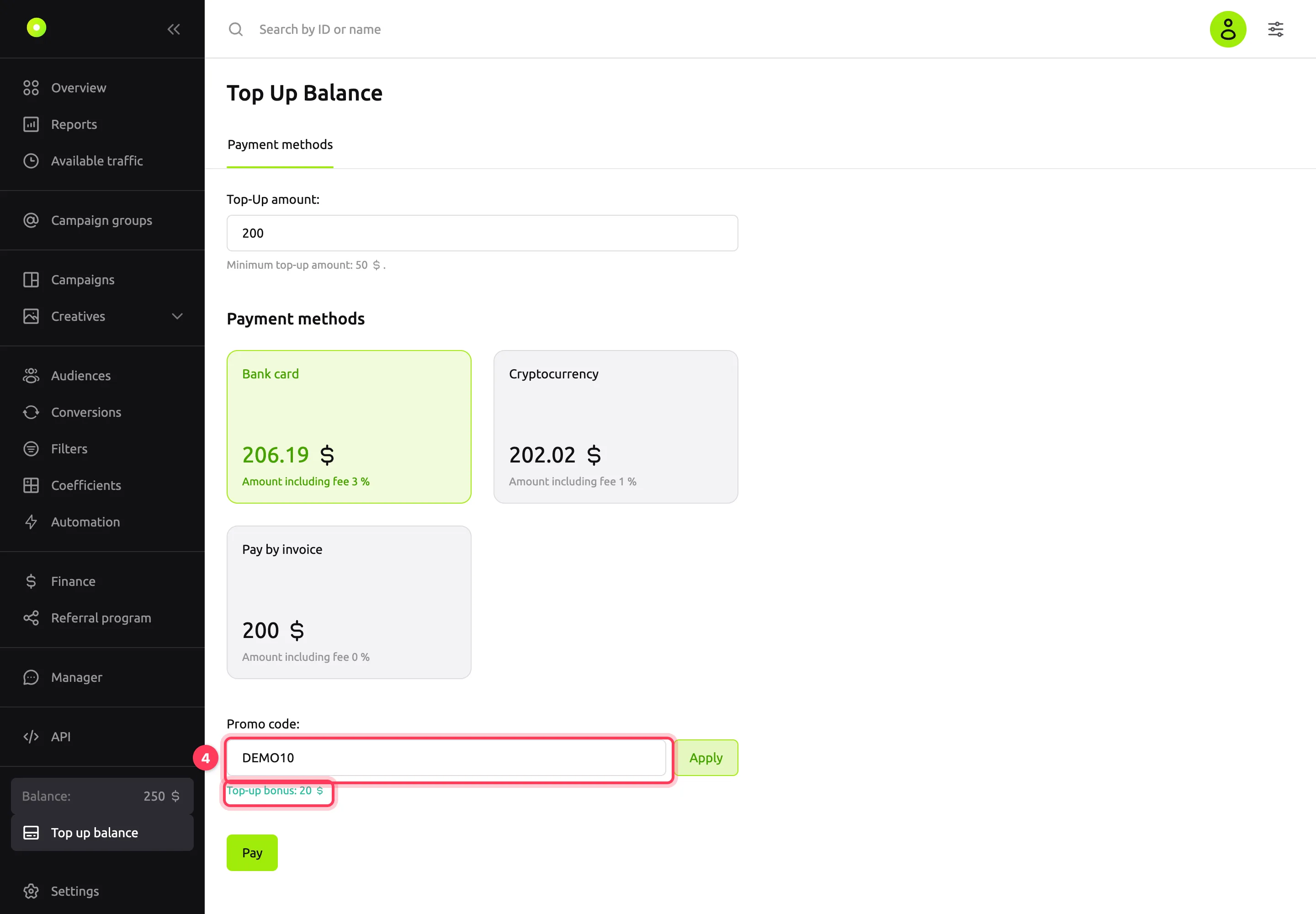
If you have a promo code, enter it in the Promo code field and click Apply. The bonus amount appears under the field. For details, see "Promo code" below.
Click Pay. The dashboard opens the page of the selected payment method. Complete the payment there.
After the payment, you return to the dashboard:
- Payment Completed: after 5 seconds, you are taken back to the Top Up Balance page.
- Payment Failed: the payment did not go through. Contact your manager: click Manager in the left menu.
The set of payment methods depends on the account. If instead of the methods you see "Payment methods will be available 5-10 minutes after your offer/contract is processed by the system", wait and refresh the page.
Promo code
A promo code gives a top-up bonus: a percentage of the amount or a fixed sum. The terms appear under the field after you click Apply, for example "10% bonus, up to $50, for top-ups from $100". If you have already entered the amount, the dashboard calculates the bonus right away: "Top-up bonus: $20".
- A promo code works with all methods except payment by invoice. When you select payment by invoice, the Promo code field disappears.
- If you enter a promo code and click Pay right away, the dashboard checks the code first. If the code does not work, the payment does not start: correct or delete the code.
- The bonus arrives as a separate line in the operation history: "Promo code bonus" with the code, and the payment method is Promo code.
Promo code errors:
| Message under the field | What to do |
|---|---|
| Promo code not found | Check for typos |
| This promo code has expired | The code no longer works |
| You have already used this promo code | A code can be applied only once |
| This promo code has reached its activation limit | The code no longer works |
| This promo code is valid for the first top-up only | The code works only for the first top-up of the account |
| This promo code is valid for top-ups from … to … | Change the amount so that it falls within the range |
| This promo code is valid for top-ups from … | Raise the amount to the one shown or more |
| This promo code is valid for top-ups up to … | Lower the amount to the one shown or less |
| The top-up amount is not eligible for this promo code | Change the amount. The promo code terms are shown under the field |
| Too many attempts, please try again later | Wait and try again |
| Could not apply the promo code | Try again. If the error repeats, contact your manager |
Operation history
In the left menu, open Finance. The Operations table lists top-ups, promo code bonuses and referral program payouts.
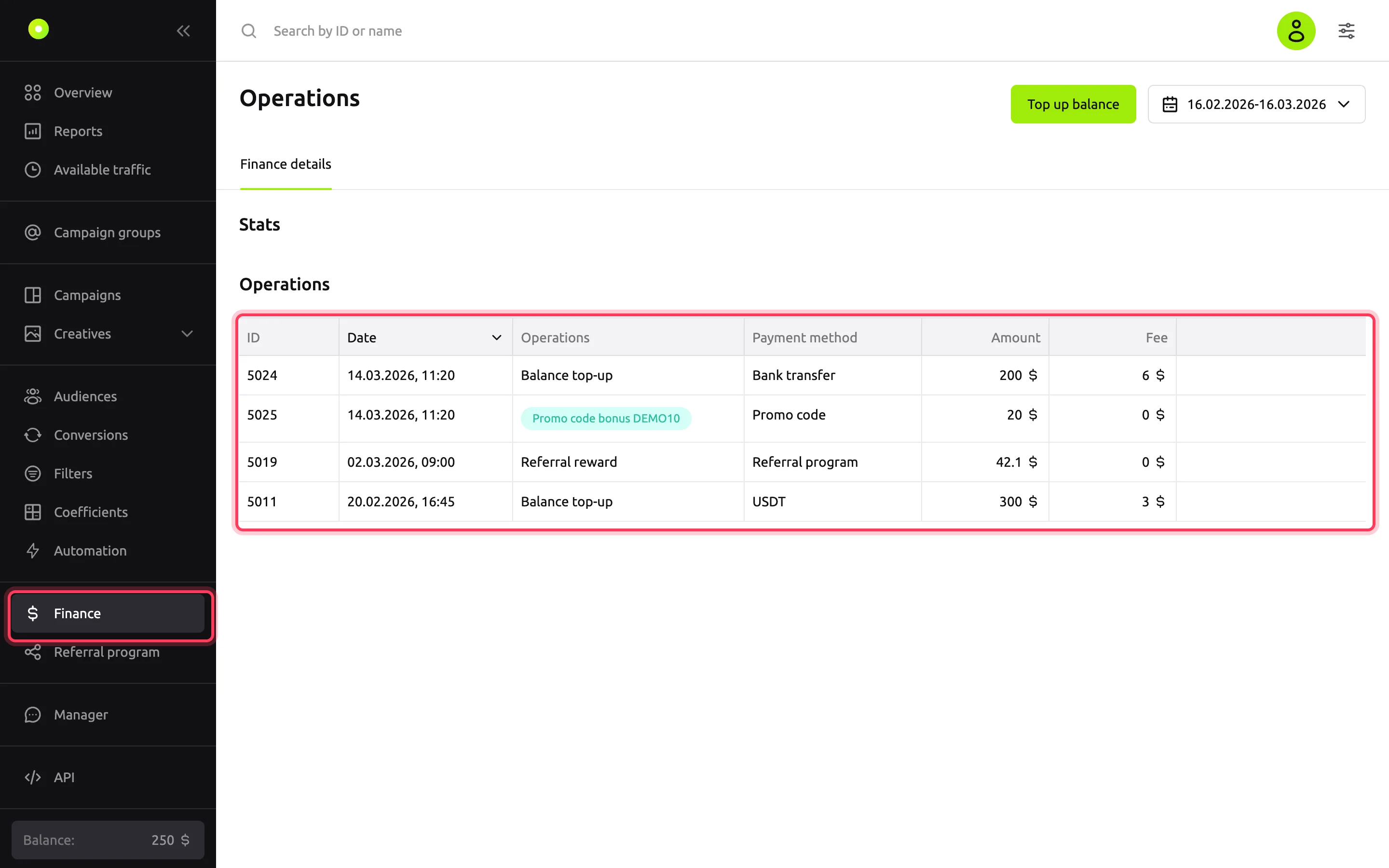
- ID and Date: the operation number and date.
- Operations: the operation description. A promo code bonus is marked with a badge showing the code.
- Payment method: how the money arrived. Top-ups made by a manager are marked "Via manager", referral program payouts are marked "Referral program".
- Amount and Fee: in the account currency.
Select the period in the top right corner. The Top up balance button there opens the top-up page.
Troubleshooting
| Symptom | Cause | Fix |
|---|---|---|
| The amount in the Top-Up amount field changed on its own | The amount entered is below the minimum or above 9,999,999 | Enter an amount from $100 (or the equivalent in the account currency) to 9,999,999 |
| The menu has no Top up balance and Finance items | You are an agency client, or a manager runs your account | Contact the agency that gave you access, or your manager |
| After the payment, the dashboard shows "Payment Failed" | The payment service declined the payment | Contact your manager (Manager in the left menu) |
| The balance is topped up, but the campaign is not running | Another condition holds the campaign: status, launch period, schedule | Go through the No impressions checks |
Next steps
- Launch your first campaign.
- Limit your spend with a daily or all-time budget.