
Manage the campaign list
Goal
Find the campaigns you need, change a price without opening the settings, start or stop several campaigns at once, move unneeded ones to the archive and bring them back.
Before you start
- At least one campaign. To create one, see Your first campaign in 15 minutes.
Steps
Open Campaigns in the left menu and select a tab: All, Favorites, Active, Stopped, Rejected or Archive. For what each status means, see Campaign and creative statuses.
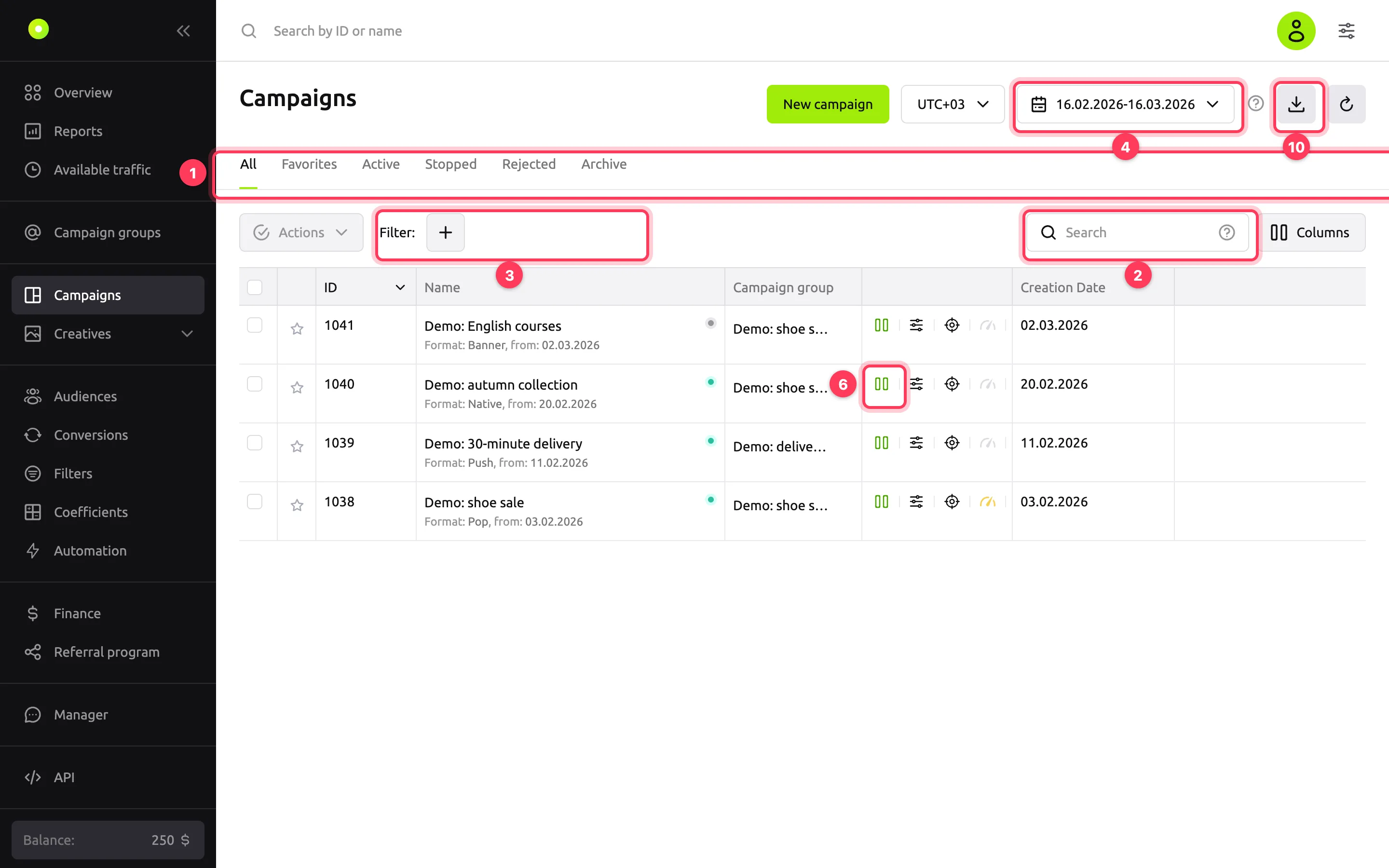
To add a campaign to the Favorites tab, click the star at the start of its row. Favorites are stored in the browser: on another device or after you clear site data, the tab is empty.
Find a campaign in the Search field. It searches by campaign ID and name, by campaign group name and by user email. To search by one field only, start the query with the
id:,name:oremail:label, for exampleid:1038.Click + next to Filter: and select what to filter the list by: Format, Campaign group or Optimization type. Each filter accepts several values. You can also filter by group from the table: click the filter icon next to the group name in the Campaign group column.
Select the statistics period in the top right. The time zone is to the left of it. To show metric columns, such as impressions, clicks, spend and conversions, use the Columns button.
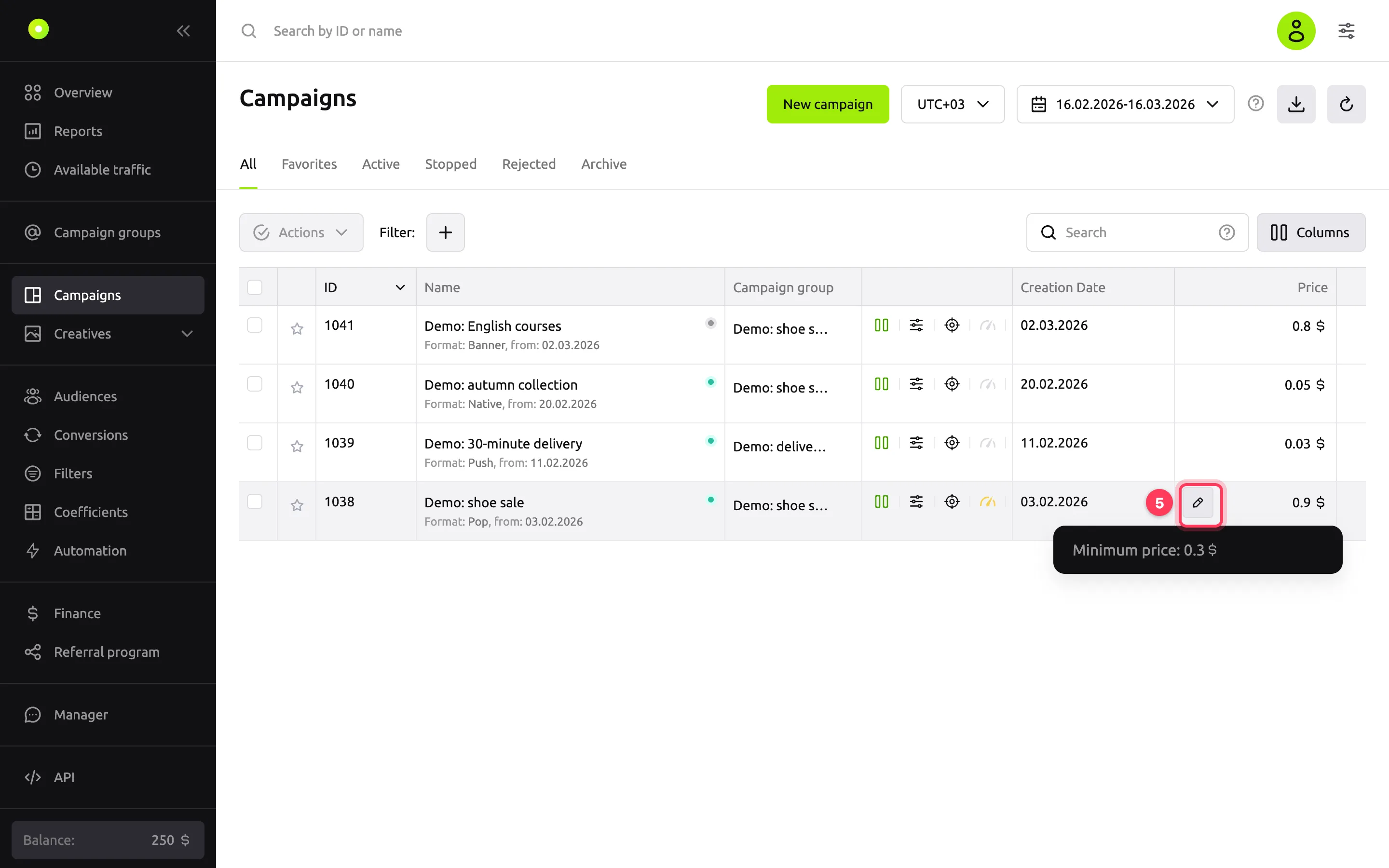
To change a price right in the list, turn on the Price column with the Columns button. Hover over the price cell and click the pencil icon: the tooltip shows the minimum price. Enter the new price and click ✓. The field does not accept a price below the minimum and replaces it with the minimum.
To stop one campaign, click ⏸ at the start of the icon block in its row. A stopped campaign shows ▶ there, which starts it. For a rejected or archived campaign, this icon does nothing.
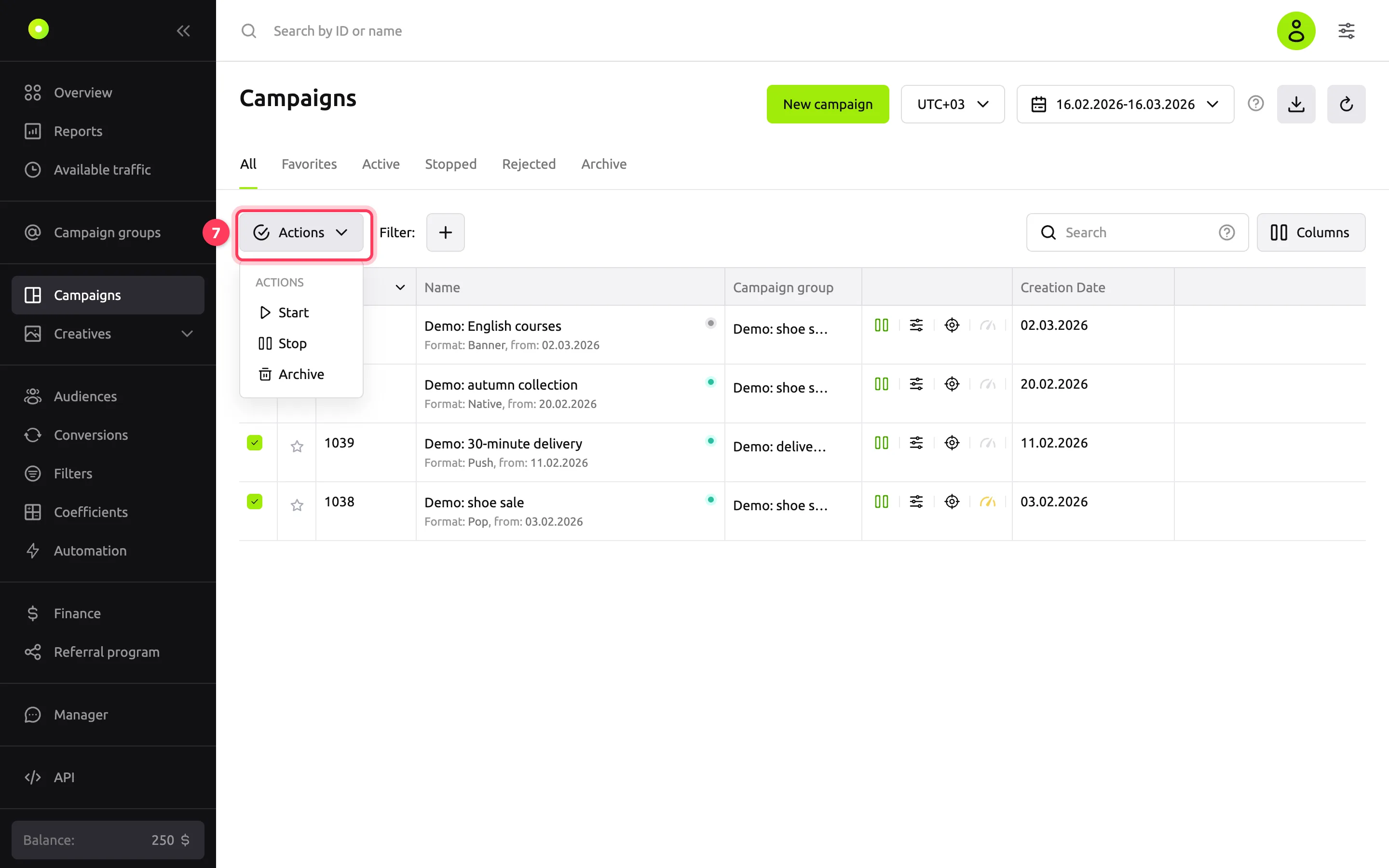
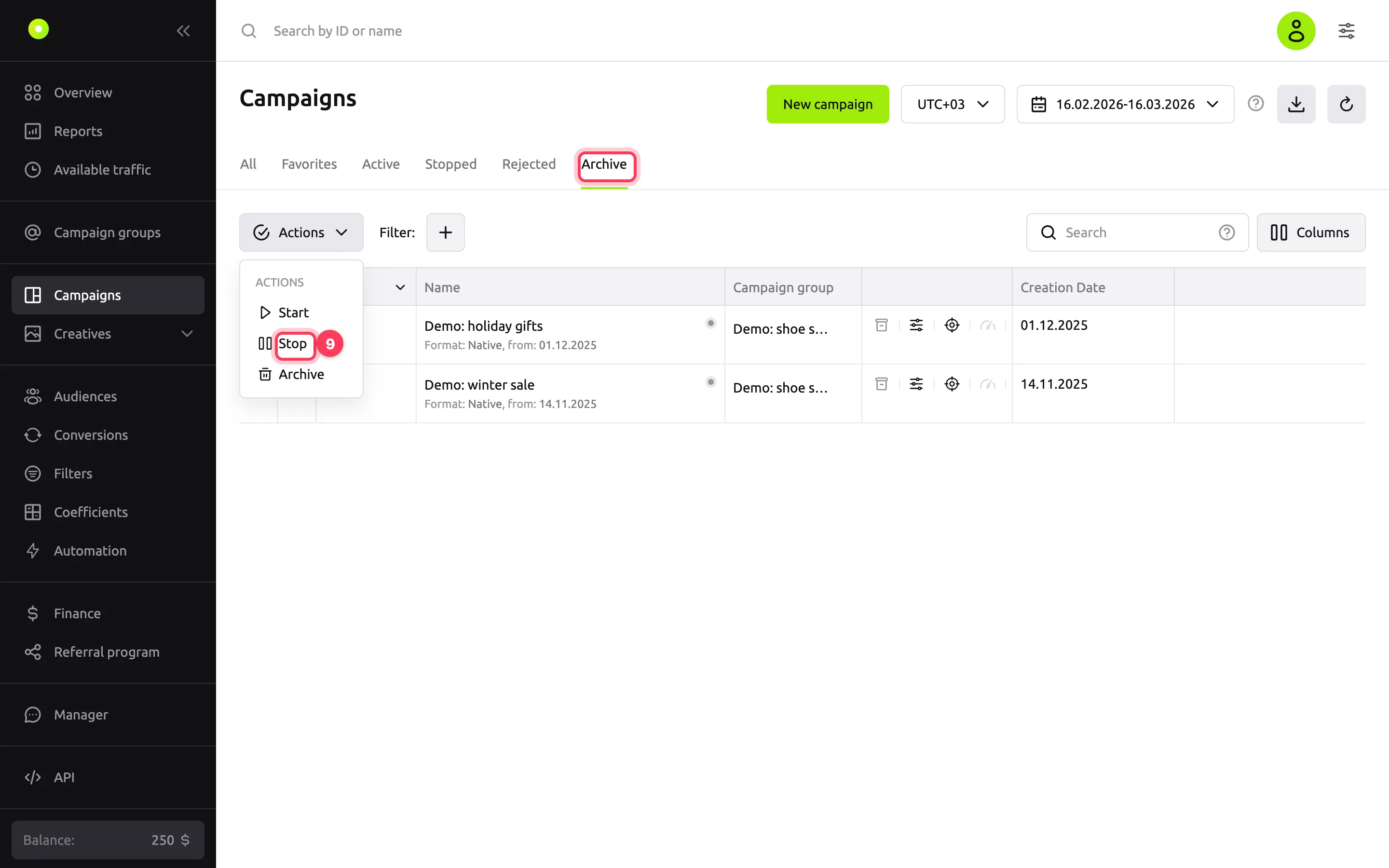
To change the status of several campaigns, select their checkboxes and click Actions → Start, Stop or Archive. The checkbox in the table header selects all campaigns on the page.
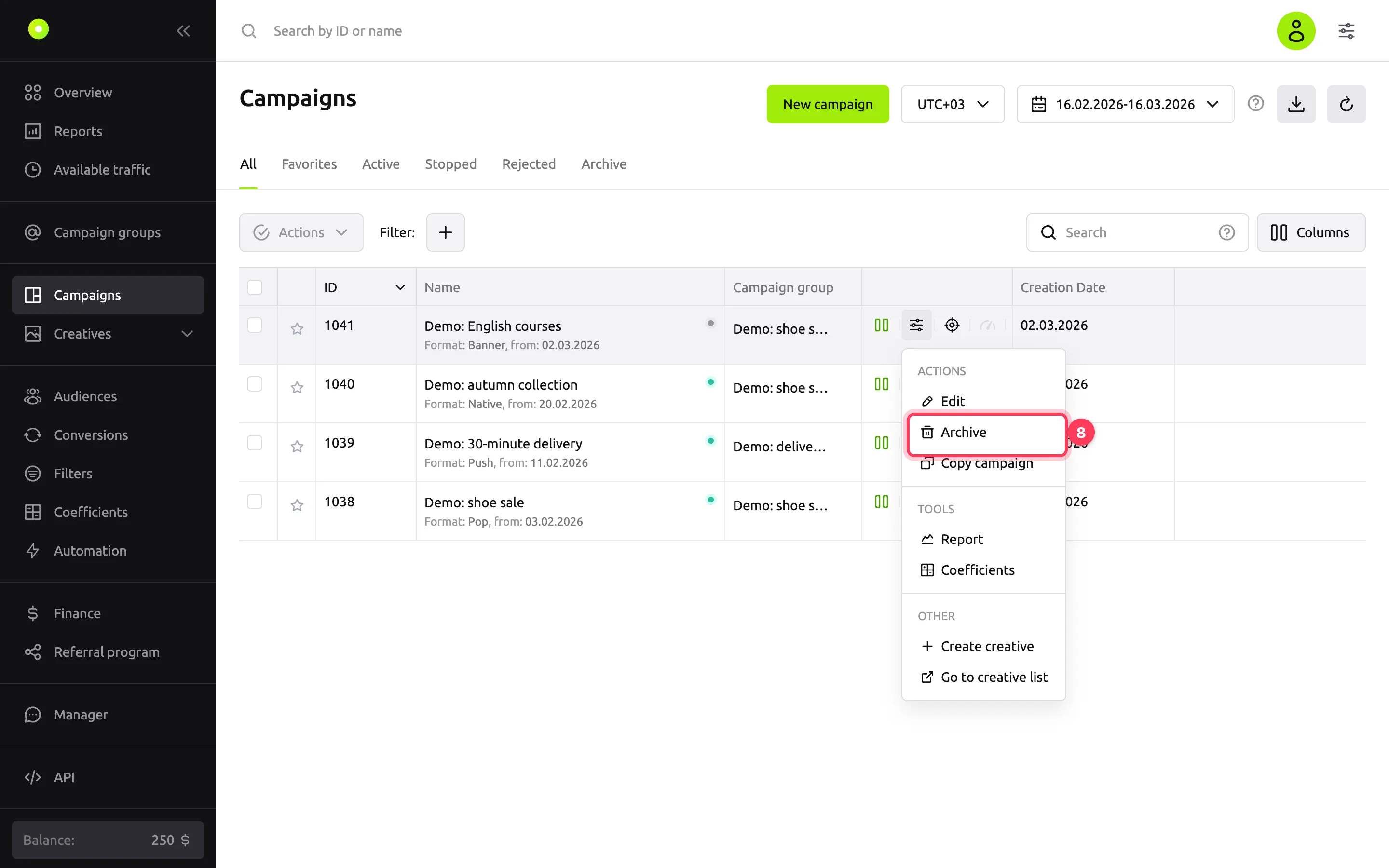
To archive one campaign, open its menu (the slider icon in the row) and select Archive. There is no confirmation: the campaign moves to the Archive tab right away.
To bring a campaign back from the archive, open the Archive tab, select the campaign and click Actions → Stop. The campaign moves to the Stopped tab: start it there with the ▶ button. You cannot start an archived campaign directly, and the archive icon in its row does nothing.
To export the list, click the download icon in the top right and select CSV or XLSX.
Result
- The new price is saved as soon as you click ✓ and appears in the Price column.
- A started campaign moves to the Active tab. Impressions begin once the platform checks the balance, launch period and schedule. For how this works, see The "delivering" dot.
- The export file contains the campaigns from the current page of the list, filtered by the tab, search and filters. It has the same columns as the table, plus limits and the launch period.
Campaign search
The Search field searches by campaign ID and name and by campaign group name. To search by campaign ID only or by campaign name only, start the query with the id: or name: label, for example id:1038.
Campaign menu
| Item | What it does |
|---|---|
| Edit | Opens the campaign settings. See Campaign settings |
| Archive | Moves the campaign to the archive |
| Copy campaign | Creates a copy of the campaign. See Copying a campaign |
| Report | Opens a report on this campaign in a new tab. See Build a report with nested groupings |
| Coefficients | Opens the selective coefficients of the campaign. See Raise or lower the bid on specific placements |
| Create creative | Opens the form for a new creative in the campaign format |
| Go to creative list | Opens the list of this campaign's creatives |
Icons in the row
- Target: targeting. On hover, it shows the campaign geo, devices and browsers. Click it to open the Targeting tab.
- Speedometer: limits. On hover, it shows the launch period and spend against the limits. Click it to open the Limits tab.
- Dot next to the name: whether the campaign is serving right now. For details, see Campaign and creative statuses.
Troubleshooting
| Symptom | Cause | Fix |
|---|---|---|
| "Active campaign limit exceeded for user (…)" when you bring a campaign back from the archive | The limit counts all campaigns except archived ones, including stopped campaigns | Archive campaigns you no longer need or ask your manager to raise the limit |
| "Archived campaigns can only be moved to the "Stopped" status…" | The selection includes an archived campaign, and you selected Start | Select Actions → Stop, then start the campaign on the Stopped tab |
| "Campaigns with the "Rejected by quality" status cannot be changed manually…" | The selection includes a rejected campaign. None of the selected campaigns changed status | Clear the checkbox of the rejected campaign and repeat the action. For rejected campaigns, see Campaign and creative statuses |
| The Actions button is inactive | No campaign is selected | Select campaigns with checkboxes |
| The Favorites tab is empty although you starred campaigns | Favorites are stored in the browser. You signed in on another device or cleared site data | Star the campaigns again |
Next steps
- Campaign and creative statuses: what each status means and why an active campaign may not serve.
- Campaign settings.
- Build a report with nested groupings.
- Track metrics on the overview.