
Use the API
Goal
Manage campaigns and get statistics from your own scripts, CRM or BI. For this, you need an API token: it replaces the login and password in requests.
Before you start
- Access to account settings: without it, there is no Integrations tab.
- A place to store the token: a password manager or your service's secret storage.
Steps
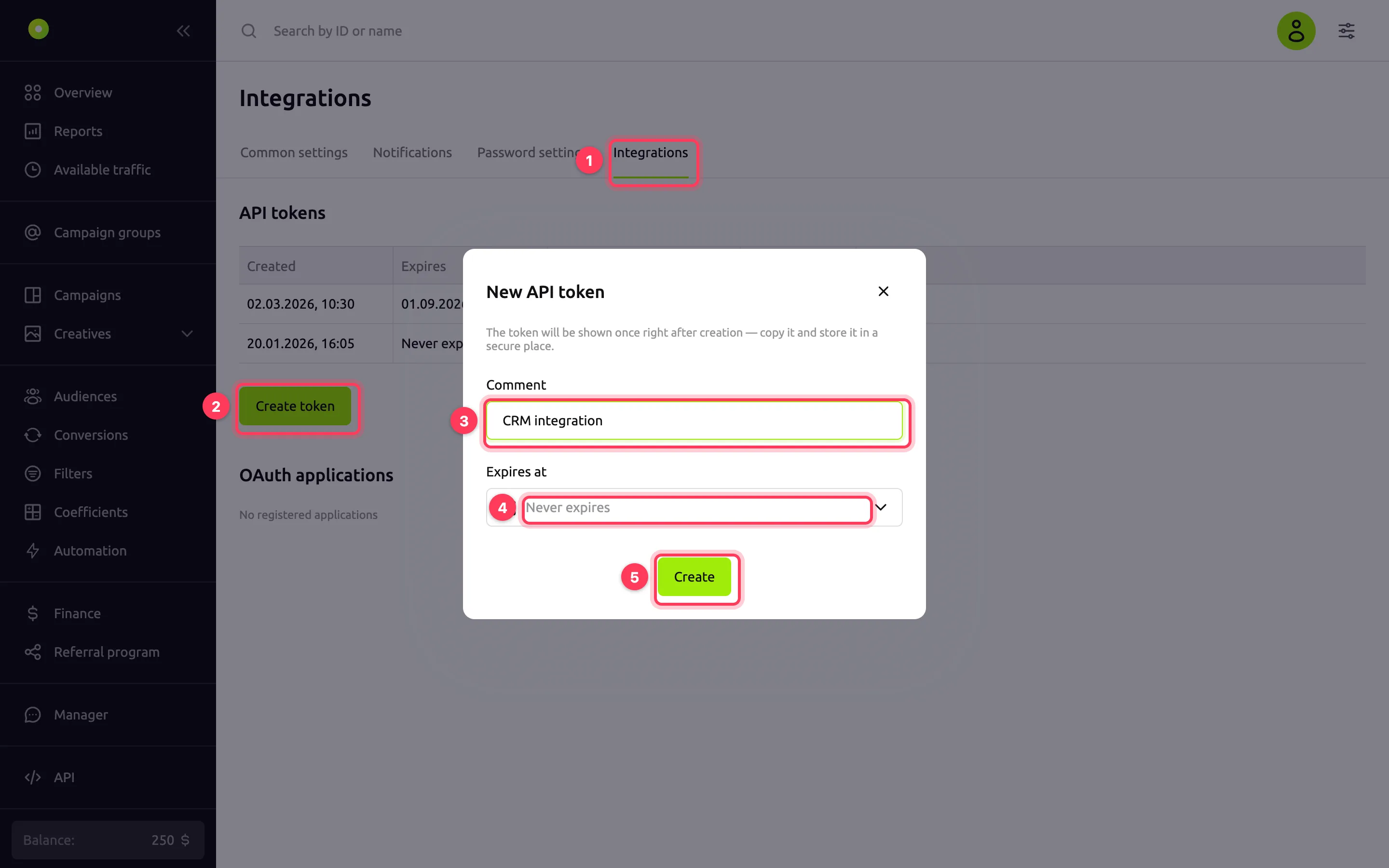
At the bottom of the left menu, open Settings and go to the Integrations tab.
In the API tokens block, click Create token.
In the Comment field, write what the token is for, for example "CRM integration". This helps you recognize it in the list. The comment is optional, up to 150 characters.
In the Expires at field, select the date and time until which the token works. If you leave Never expires, the token works until you revoke it.
Click Create.
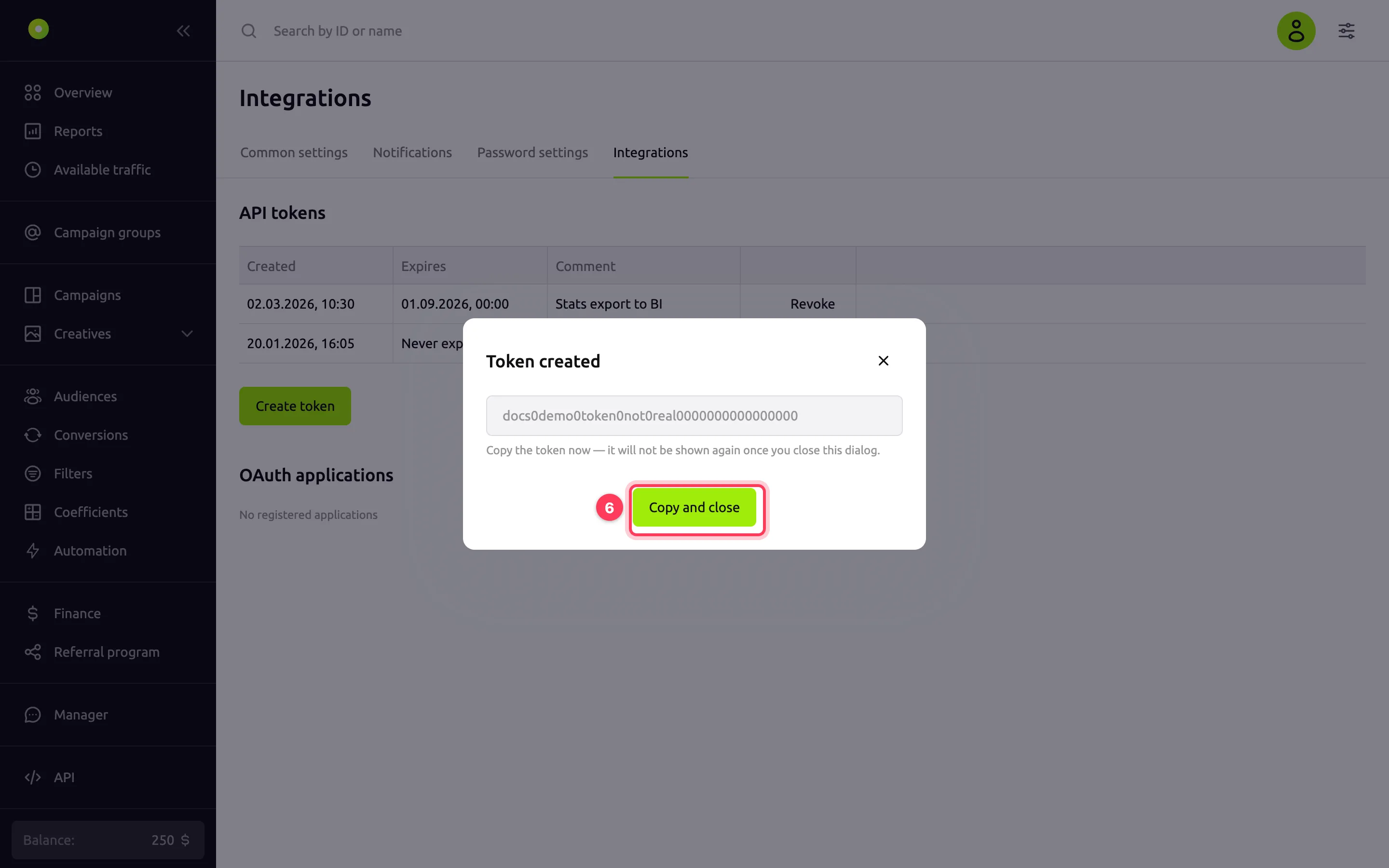
Click Copy and close and save the token. The dashboard shows it only once: after you close the window, you cannot see the token again.
Result
The token appears in the API tokens table: the Created column shows the creation date, the Expires column shows the expiration date or "Never expires", and the Comment column shows your comment. The token itself is not shown in the table.
How to pass the token
Pass the token in the Authorization header of every request, preceded by the word token and a space:
Authorization: token d0c5demo0000000000000000000000000000demoRequests with the token run on behalf of your account and with its permissions. An agency client can also create their own token: through the API, they get the same campaigns, sections and actions as in the dashboard. The API address and the list of methods are in the documentation: open it with the API item in the left menu.
When the token stops working
- The Expires at date has passed. An expired token disappears from the table within a day; until then, it counts toward the limit of 20 tokens.
- You revoked the token.
- You changed the account password. A password change disables all API tokens, even if they are still in the table. Create new ones and replace them in your services.
How to replace or revoke a token
You cannot reissue a token with the same value. To replace a token:
- Create a new token using the steps above.
- Put it in your scripts and services.
- In the old token's row, click Revoke and confirm. Revoking cannot be undone: requests with the old token stop working immediately.
Revoke a token right away if it may have been exposed, for example through a repository or a chat.
Further down the same tab, the OAuth applications block lists services you have given access to the account. The Delete button in an application's row revokes all tokens it has received.
Troubleshooting
| Symptom | Cause | Fix |
|---|---|---|
| "Expiration date must be in the future" | A past time is selected in Expires at | Select a date and time later than now or leave Never expires |
| "Active token limit reached (20). Delete unused tokens." | The account already has 20 tokens. Expired tokens still shown in the table count toward the limit | Revoke the tokens you no longer need, including expired ones |
| "Couldn't copy the token to clipboard — copy it manually before closing." | The browser did not allow access to the clipboard | Select the token in the window and copy it manually. If copying fails, the window stays open |
| The token is lost | The token is shown only when it is created | Create a new token and revoke the old one |
| Requests stopped working, but the token is in the table | The account password changed, or the token expired | Create a new token |
Next steps
- Get balance and limit notifications.
- Set up automation rules: block placements and change bids based on statistics without your own scripts.