
Change the price and URL and copy creatives in bulk
Goal
Change several creatives at once without opening each one: start or stop them, set a common price, replace part of the link, copy them to another campaign or delete them. The creative list works the same way for all formats: Native, banners, Push, Pop and video.
Before you start
- Creatives of one format: bulk actions work within the list of one format.
- For copying: a campaign of the same format and in the same currency as the campaigns of the creatives.
Steps
Open Creatives and select a format: Native, Banner, Push, Pop or Video.
Find the creatives. The tabs above the table filter them by status: All, Favorites, Active, Inactive, Moderation, Rejected. For other ways to narrow the list, see Find creatives.
Select the creatives with the checkboxes in the first column. The checkbox in the table header selects all creatives on the page.
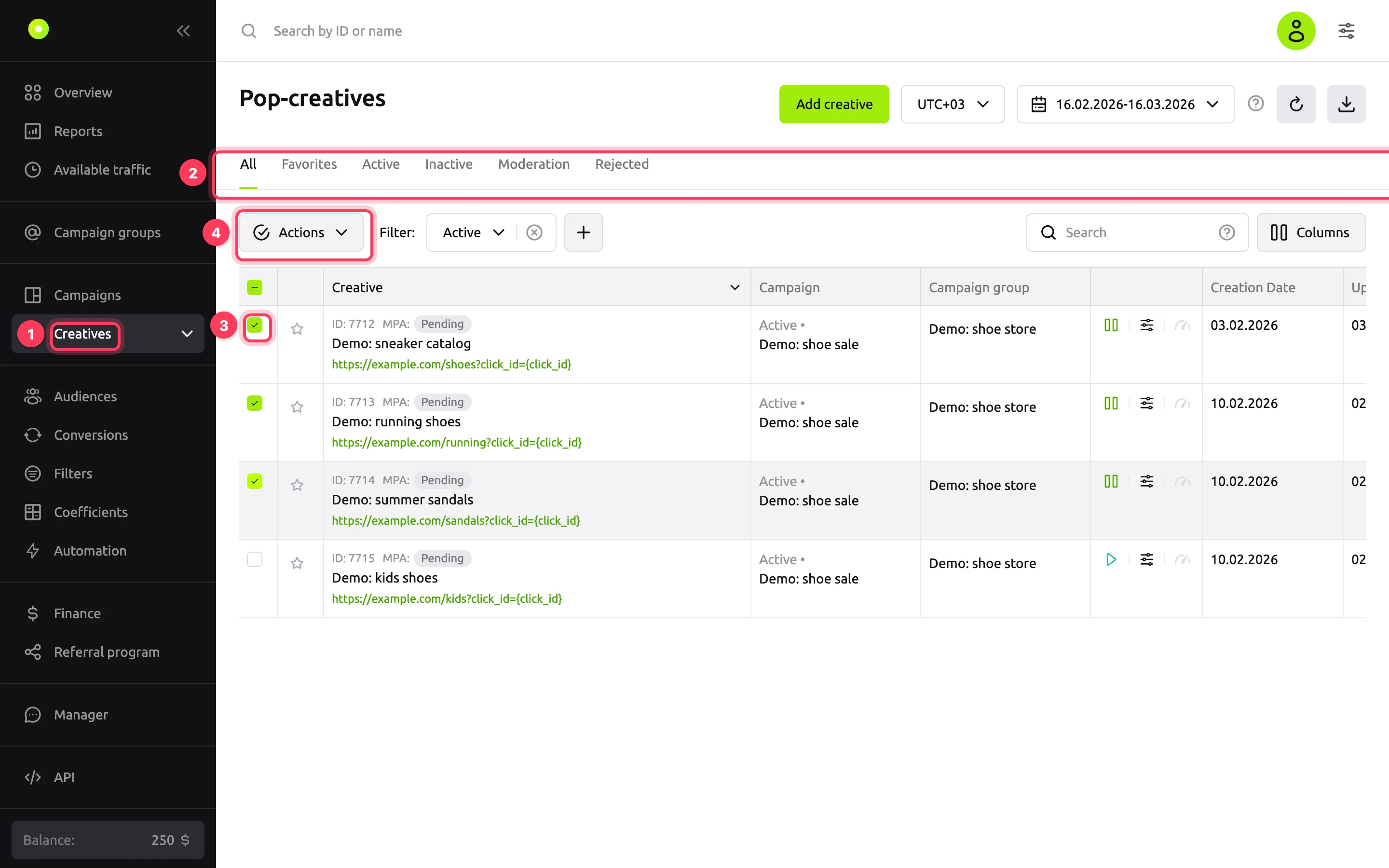
Click Actions above the table and select an action: Start, Stop, Copy, Replace URL, Change Price or Delete. The button works when at least one creative is selected.
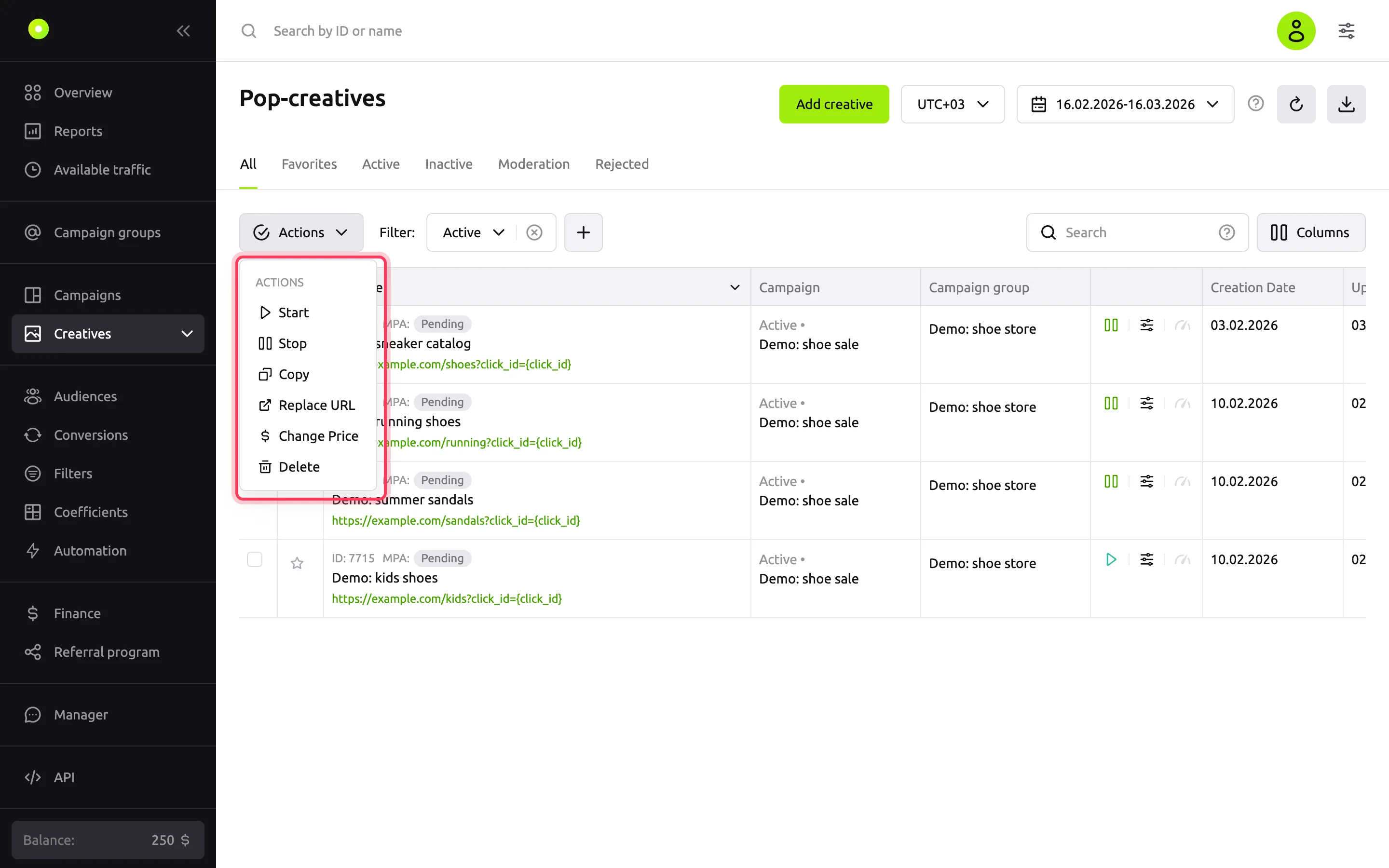
Fill in the action window and confirm. For what each window asks, see the sections below.
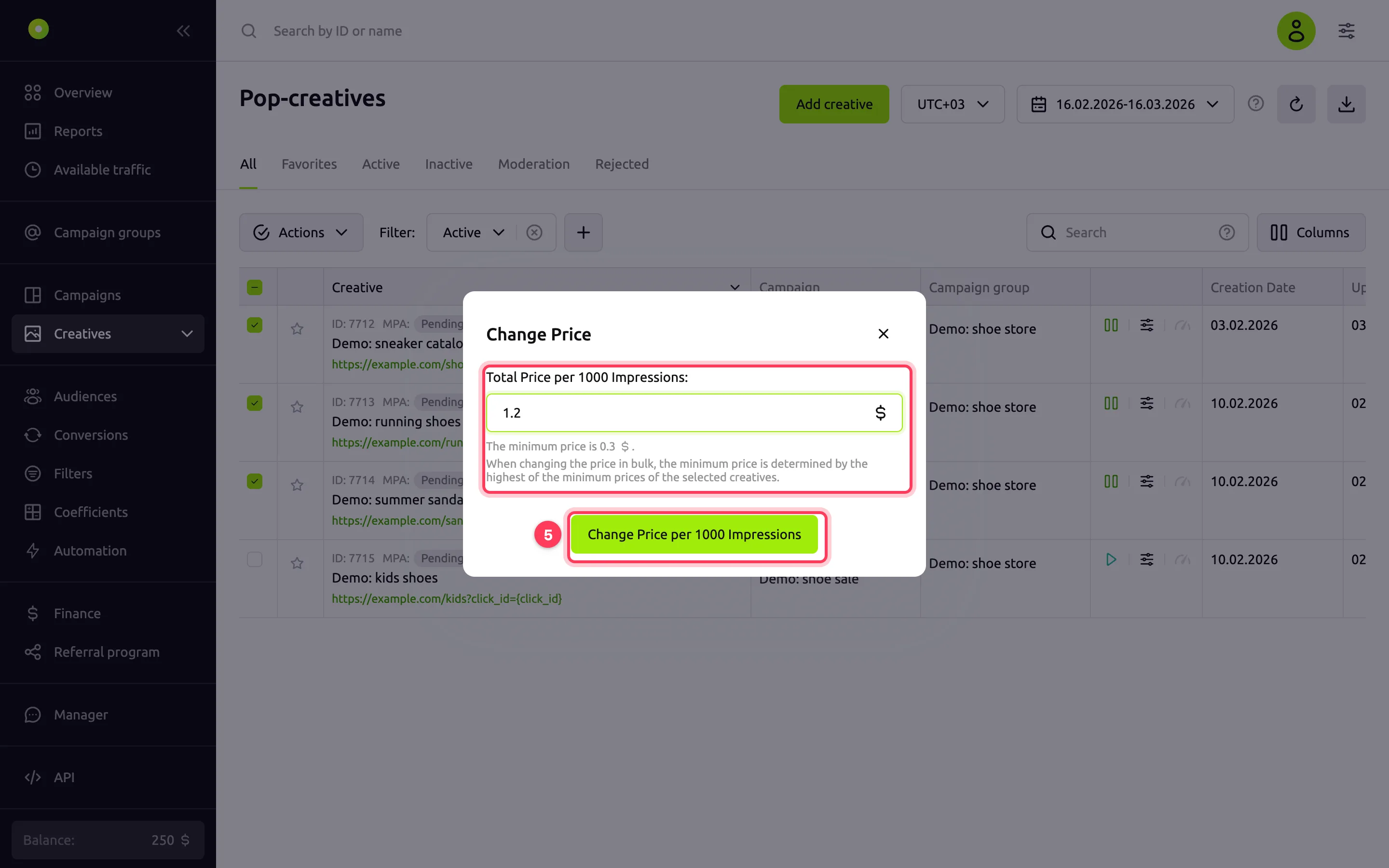
Change the price
- In the Total Cost per Click: field, enter the price. For Pop creatives, the field is called Total Price per 1000 Impressions:. For banners, video and Native campaigns paid per impression, the field also says "per click", but the price follows the campaign payment model, for example per 1,000 impressions.
- The minimum price is shown under the field. If several creatives are selected, the minimum is the highest of the minimum prices of their campaigns.
- Click Change Cost per Click (for Pop: Change Price per 1000 Impressions). In the Apply changes? window, check the new price and click Yes, that's correct. You cannot restore the previous prices after that.
The new price becomes the creative's own price: the Use advertising campaign cost checkbox (for banners and video: Use campaign cost) is cleared. The creative does not go to moderation.
To change the price of one creative, edit it right in the table. Hover over a cell in the Price column: the "Minimum price: …" hint appears. Click the pencil icon, enter the price and click the check mark. The cross cancels the edit. If there is no Price column, turn it on with the Columns button.
Replace the URL
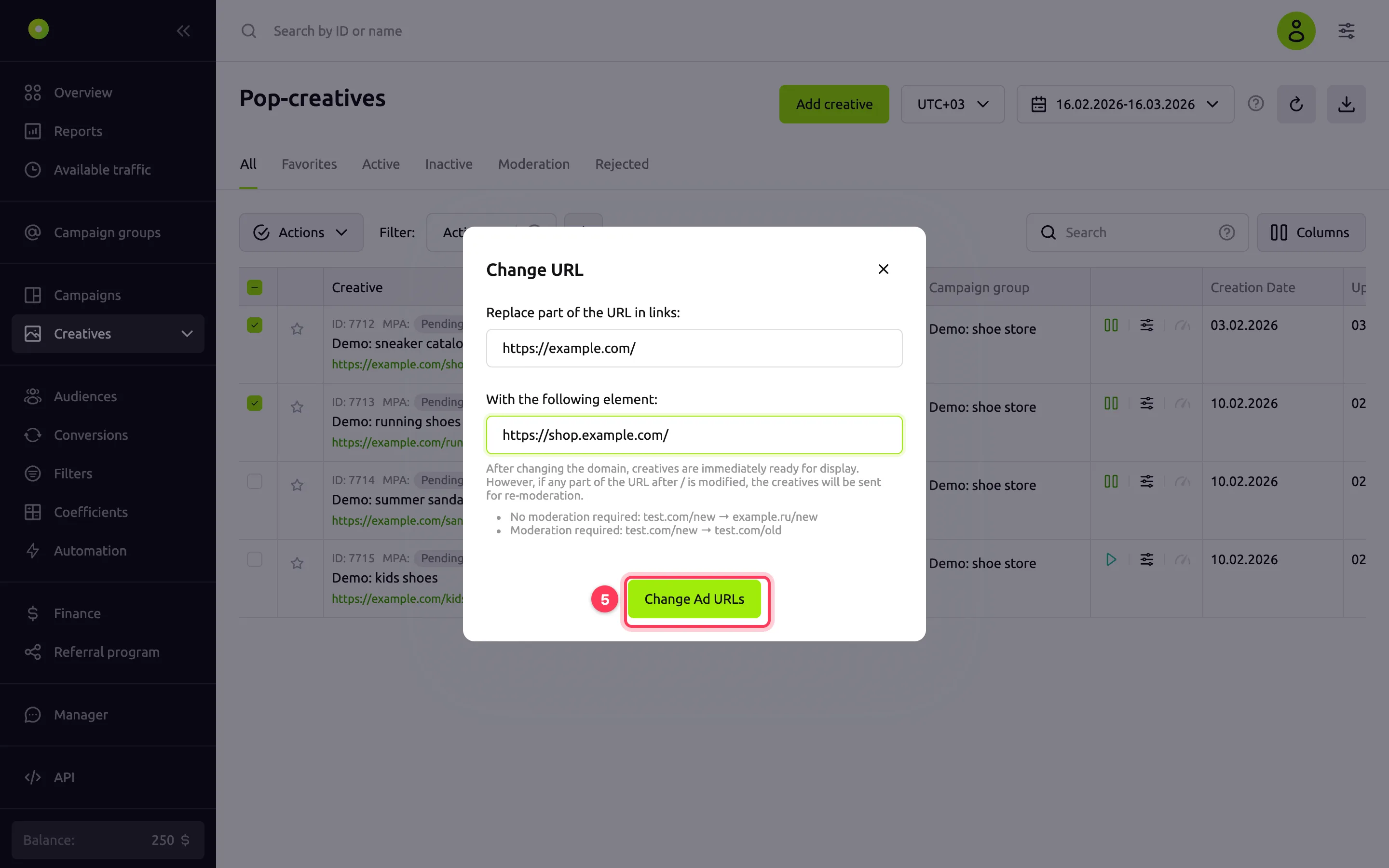
- In the Replace part of the URL in links: field, enter the part of the link to replace, for example
https://example.com/. - In the With the following element: field, enter the replacement, for example
https://shop.example.com/. - Click Change Ad URLs.
The dashboard replaces every occurrence of this part in the link of each selected creative and reports: "N out of M creatives have been successfully updated". Creatives whose link does not contain this part do not change.
- If only the domain changed, the creative works with the new link right away.
- If anything after the domain changed (protocol, path, parameters or anchor), the creative goes to moderation.
- If the creative took its link from the campaign (the Matches URL in advertising campaign settings checkbox, for banners and video: Matches URL in campaign settings), the replacement is made in the campaign link, and the creative gets its own link. The checkbox is cleared, and the campaign link does not change.
Copy to another campaign
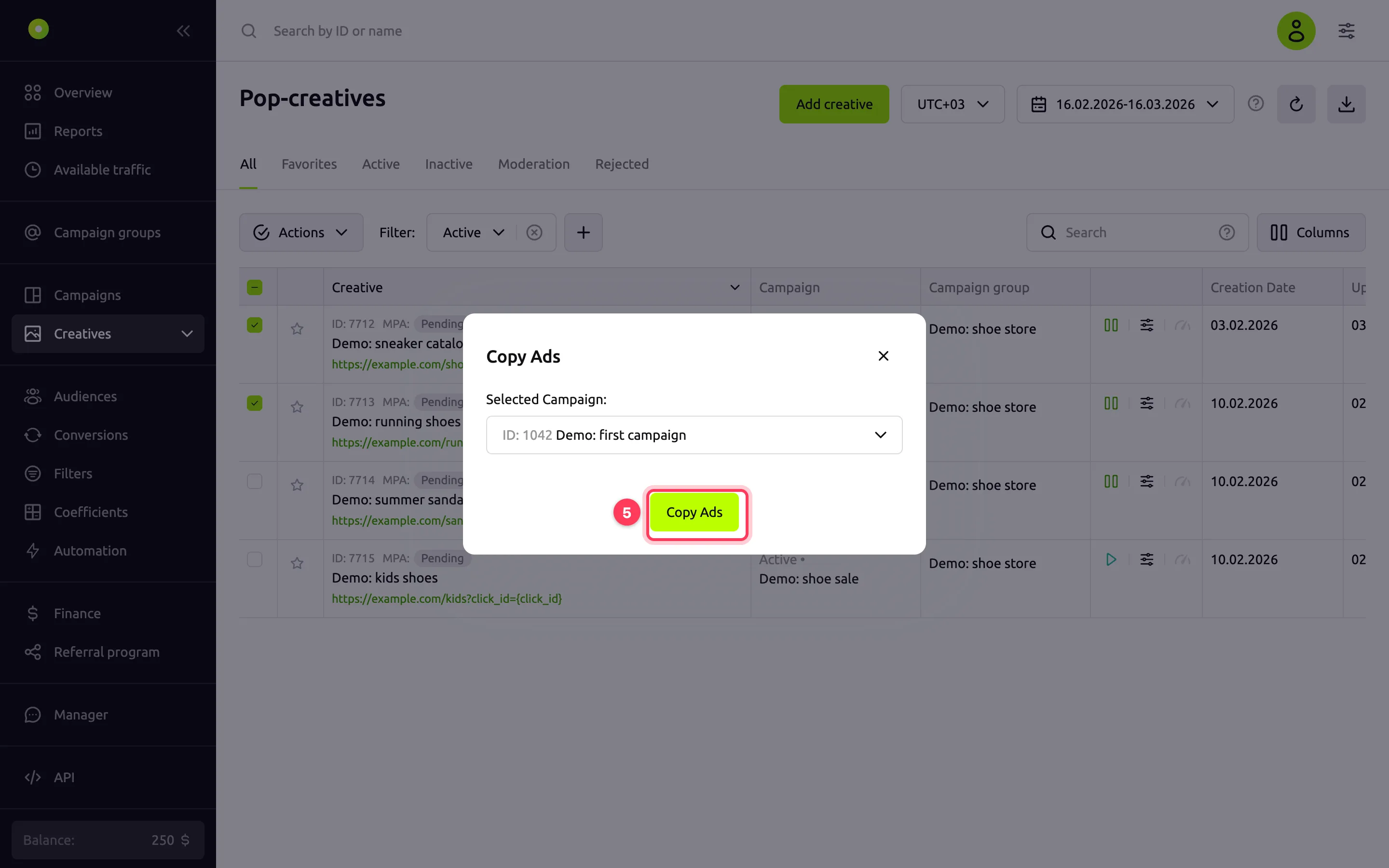
- In the Selected Campaign: field, select a campaign. The list shows only campaigns of the same format.
- Click Copy Ads.
What the copies get:
- Copies go to moderation. A copy of a rejected creative is rejected right away.
- Price: the price of the new campaign. The copies have Use advertising campaign cost (for banners and video: Use campaign cost) selected.
- Link: the same as the source creative's. If the source took its link from its campaign, the copy gets this link as its own, and its Matches URL in advertising campaign settings checkbox is cleared.
- Limits and pixels are copied with the creative.
Only one copy operation runs at a time. If the selected creatives belong to campaigns in different currencies, or the new campaign has another currency, copying does not start.
Start, stop or delete
- Start and Stop change the status of all selected creatives. They work only with active and stopped creatives. On the Active tab, Start is unavailable; on the Inactive tab, Stop is unavailable.
- To start or stop one creative, use the status button in its row: pause stops it, the triangle starts it.
- Delete asks for confirmation: "Confirm deletion. This action cannot be undone". Click Delete. Deleted creatives disappear from the list, and you cannot restore them.
The row menu
Each creative has its own menu: the icon in the row next to the status button. It has Edit, Copy, Replace URL, Delete and Report, which opens the report builder for this creative in a new tab. Banners and video also have Copy UUID and a preview item: Creative preview for banners, Preview creative for video.
The speedometer icon in the row shows the creative's limits when you hover over it and opens the Limits tab. For how creative limits work, see the format references, for example Banners.
Find creatives
- Filter:: by default, Campaign status is set to Active. So the list shows only creatives of active campaigns. To see the others, select another campaign status or clear the filter with the cross. On the Moderation tab, this filter does not apply.
- The plus button next to the filter adds filtering by Campaign, Campaign group and Date added. You can also filter by campaign or group from the table: the filter icon appears when you hover over a cell.
- Search looks through the creative ID, name and URL and the campaign and campaign group names. To search by creative ID only or by creative name only, start the query with the
id:orname:label, for exampleid:7712. - The star in a row adds the creative to the Favorites tab. Favorites are stored in the browser: another browser does not have them.
- Columns turns columns on and off: metrics, creation and update dates, Traffic type, Price. Banners also have Type, Available sizes and ERID; the Push table always has the Icon column.
- Metrics in the table are calculated for the period and in the time zone selected at the top of the page. The down arrow button exports the table to CSV or XLSX.
The row checkboxes are cleared when the tab, filter, search or table page changes, and after each bulk action.
Result
After the action, the dashboard shows a notification: "Changes successfully saved", and after a URL replacement, "N out of M creatives have been successfully updated". The table refreshes:
- the new price is in the Price column;
- creatives with a changed link path and copies are on the Moderation tab;
- started creatives are on the Active tab, stopped ones on the Inactive tab.
For how the review works, see Creative moderation.
Troubleshooting
Some messages appear in Russian even in the English interface. Their meaning is given in parentheses.
| Symptom | Cause | Fix |
|---|---|---|
| The Actions button is inactive | No creative is selected, or the checkboxes were cleared after a tab or filter change | Select the creatives again |
| Copied creatives are not in the list | The Campaign status filter set to Active hides creatives of stopped campaigns | Clear the filter or select the status of the new campaign. Look for the copies on the Moderation tab |
| "Invalid status change for creatives with id …" | Some selected creatives are on moderation or rejected | Clear their checkboxes. Fix a rejected creative as described in Creative moderation |
| "You cannot run more than one copy creative operation at a time" | The previous copy operation is still running | Wait for it to finish and try again |
| "Campaign with id: … has a different currency" | The currency of the new campaign differs from the currency of the creatives | Select a campaign in the same currency |
| "Выбранные креативы с id: … не соответствуют рекламному формату кампании" (The selected creatives with id … do not match the campaign ad format) | The new campaign has another format | Select a campaign of the same format |
| "Selected creatives have different currencies" when changing the price | The selected creatives belong to campaigns in different currencies | Change the price separately for each currency |
| "Incorrect result "…" for replacing url in a creative with id=…" | After the replacement, the link is no longer an address with http:// or https:// | Check what you replace and with what. For example, do not remove the protocol |
| "0 out of N creatives have been successfully updated" | None of the links contains the part to replace | Copy the part of the link from the Creative column exactly, letter case included |
| Creatives went to moderation after a URL replacement | The part of the link after the domain changed | This is expected. To avoid moderation, change only the domain |
Next steps
- Creative moderation: what is checked and why a creative is rejected.
- Limit budget and impression frequency: campaign limits.
- Campaign and creative statuses.
- Payment models: what the creative price is for.