
Campaign settings
A campaign sets the ad format, the payment model, the price and the landing page link. Its creativesAn ad inside a campaign: a banner, a native block, a push, a pop or a video. use these settings. On the other campaign tabs, you narrow down the audience, limits and bids.
This page covers the fields on the General settings tab, the other campaign tabs and copying. For step-by-step instructions on creating your first campaign, see Your first campaign in 15 minutes.
Campaign tabs
A new campaign opens with a single tab, General settings. The other tabs appear after you save it. If there are more than five tabs, the extra ones move to the More menu.
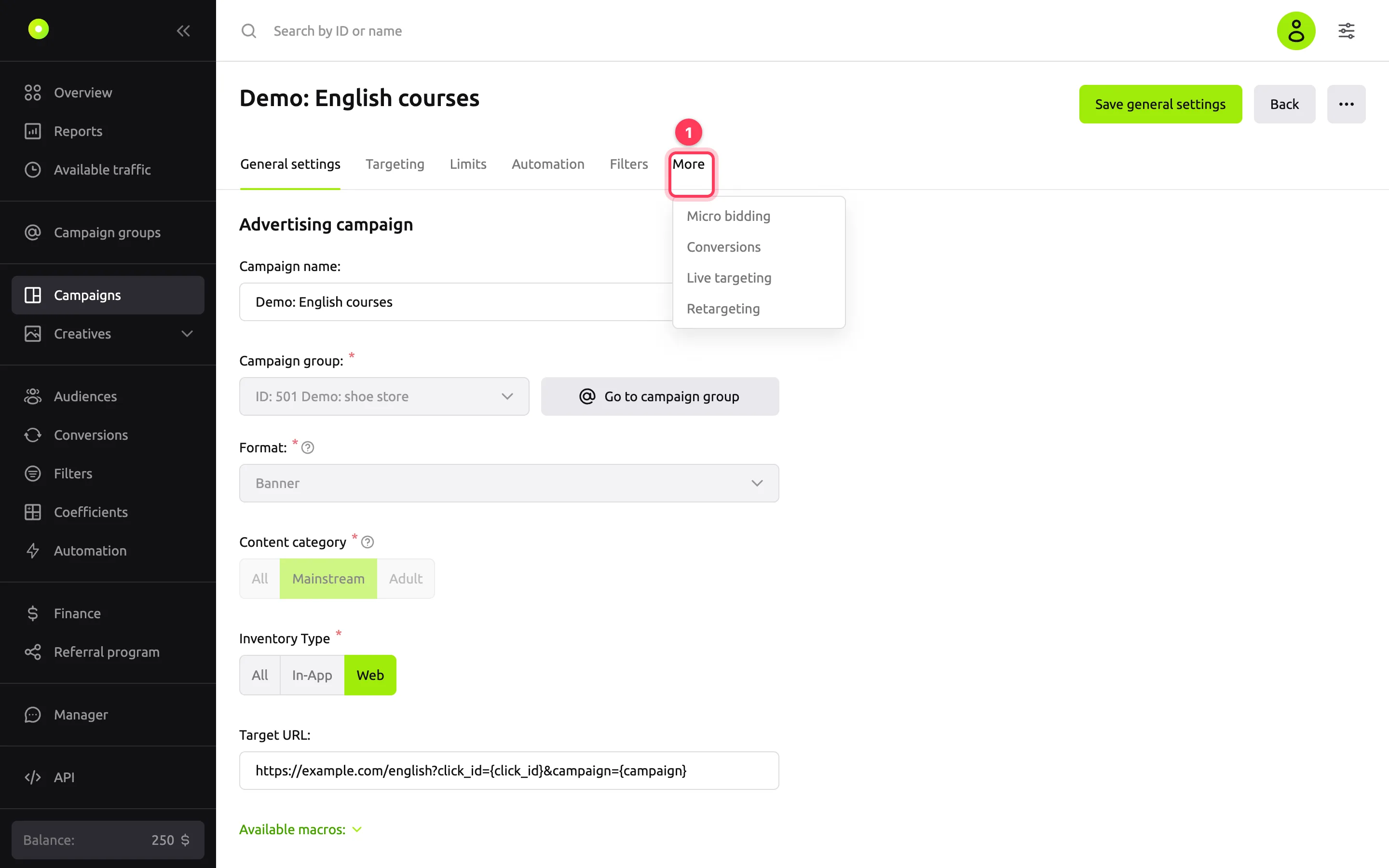
| Tab | What you set | Details |
|---|---|---|
| General settings | Name, group, format, link, payment model, price, optimization, auto-start | On this page |
| Targeting | Geo, devices, OS, browsers, languages, connection type, inventory quality | Set up targeting |
| Video Targeting | Placement, skippability, video duration. Only for campaigns in the Video format | Below |
| Limits | Launch period, budget, clicks, impressions, frequency, schedule | Limit budget and frequency |
| Automation | Rules that change bids and block placements based on statistics | Set up automation rules |
| Filters | Whitelists and blacklists of zones, IP addresses and other values | Turn off placements with a filter, the Filters reference |
| Micro bidding | Bid coefficients by device, time, geo and other conditions | Below |
| Conversions | The campaign's postback integrations | Below |
| Live targeting | Impressions before, during and after matches, races and fights | Below |
| Retargeting | Audiences to show or not show your ads to | Retargeting |
The set of tabs depends on your account permissions. For example, without permission to change the price, you do not see the Limits tab.
Each tab has its own save button at the top of the page. If you switch to another tab with unsaved changes, the dashboard asks "Do you want to save the changes you made before leaving?". Click Save or Don't Save.
General settings
The creation form and the General settings tab are almost the same. The differences: the creation form has the Geography of displays block and the Create button next to the group field, and after creation some fields are locked.
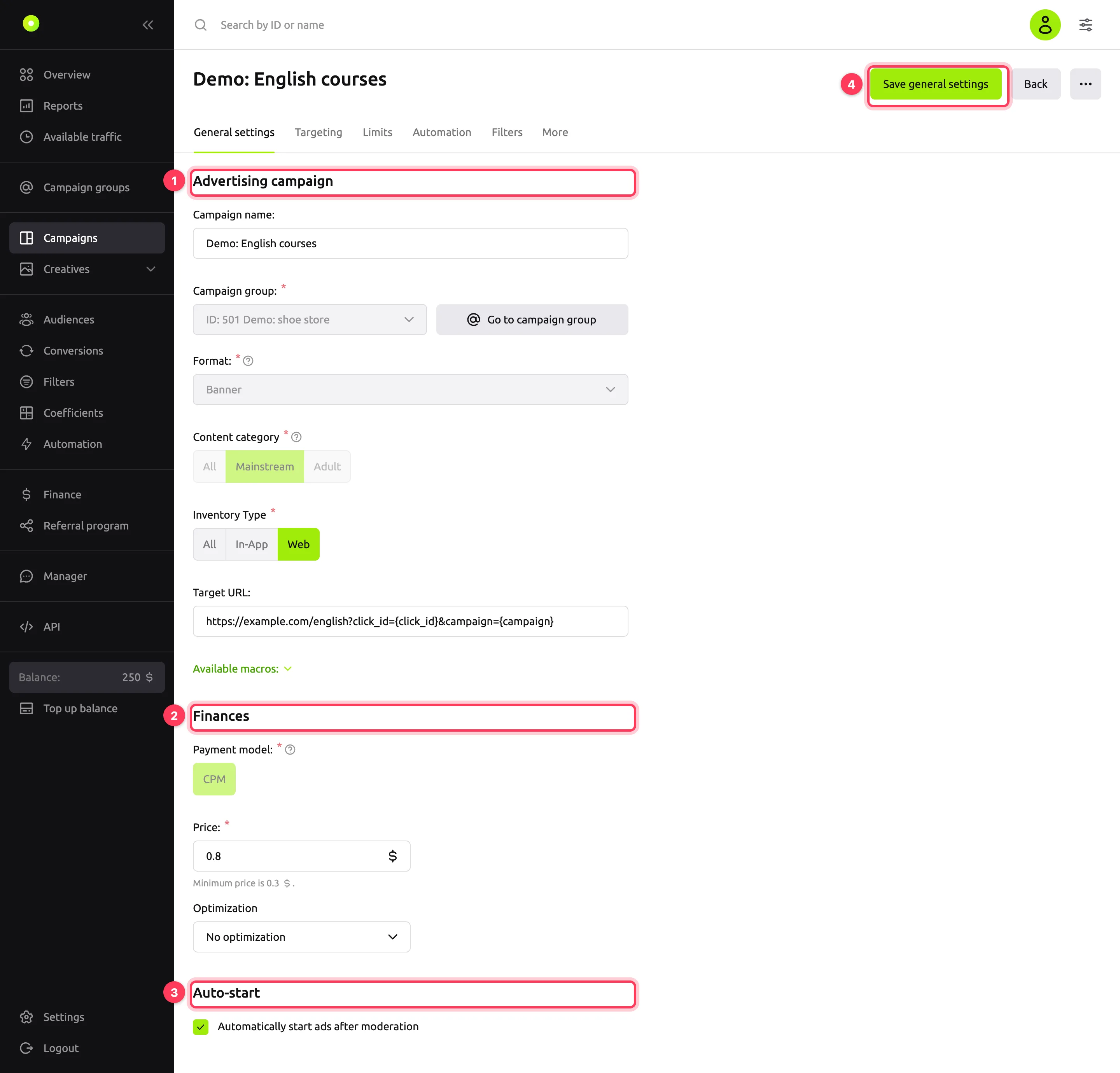
Callouts: 1 is the Advertising campaign block, 2 is Finances, 3 is Auto-start, 4 is the Save general settings button. After you save, you see the message "Changes successfully saved".
Advertising campaign
| Field | What it means | Values and limits | After creation |
|---|---|---|---|
| Campaign name | The name in the campaign list and reports | Required, 1 to 255 characters | You can change it |
| Campaign group | The groupA folder for one advertiser's campaigns with shared settings and limits. that holds the campaign. The Create button opens a new group form in a separate window. Go to campaign group opens the settings of the selected group. For more about groups, see the Campaign groups reference | Required. The list shows only groups where you are allowed to create campaigns | You cannot change it. To move the campaign to another group, copy it |
| Format | What the creative will be: Native, Banner, Video, Push or Pop | Required. The set of formats depends on your account settings | You cannot change it |
| Content category | Which traffic category to buy: Mainstream, Adult or All (both) | Required, no default value | You cannot change it |
| Inventory Type | Web: websites only. In-App: mobile apps only. All: both | All by default | You can change it |
| Target URL | The landing page address. A creative uses it if Matches URL in advertising campaign settings is selected in the creative | Optional. The address must start with http:// or https://, and the domain must contain a dot. Clicking a macro in the Available macros list inserts it into the field. Macros are described in the reference | You can change it, see below |
If Target URL is empty, you have to set the link in each creative.
Finances
| Field | What it means | Values and limits | After creation |
|---|---|---|---|
| Payment model | What you are charged for: CPM, SMART CPM or CPC. The available models depend on the format. For the table, see Payment models | Required. Appears after you select the format. SMART CPM is enabled for an account separately | You cannot change it |
| Price | The campaign bid. For the Pop format, the field is called Price per 1000 impressions, for SMART CPM, Maximum CPM | Required. From the minimum shown under the field up to 999.99999. If you enter a value below the minimum, the dashboard raises it to the minimum. If you enter more, the campaign is not saved, and you see "The price must not exceed 999.99999 or have more than 5 decimal places". If your account has no permission to change the price, the field is locked | You can change it |
| Optimization | No optimization, vCPM optimization, CPA optimization or Target CPC. The options depend on the payment model and format. With SMART CPM, the field is not shown. For how each one works, see Bid optimization | No optimization by default. Target CPC is enabled for an account separately | You can change it |
| Target value | The goal of the selected optimization in your account currency | Appears together with the optimization and is filled with the minimum. The minimum is shown under the field | You can change it |
| Receive conversion cost from postback | Take the conversion payout from the postbackA server notification about a conversion that a tracker sends to the platform. instead of Target value | Only with CPA optimization. Off by default | You can change it |
If you change the format in the creation form, the payment model, price and optimization are reset. Select them again.
A warning appears under the Price field if you enter more than $1 (€1, RUB 10) when you create a campaign, or raise the price more than twofold when you edit it. This is a prompt to check your input: you can still save such a price.
IMPORTANT
When you turn on optimization, the platform resets the campaign coefficients and turns off the automation rules that change them. Micro bidding becomes unavailable.
Client price
Only agencies with permission to set a client price see this block. The client price is the campaign bid that the agency's client sees.
| Field | Values |
|---|---|
| Client price mode | Not set: the client sees the real price. Percent: the client price as a percentage of the campaign price, so 120 means 20% higher. Fixed: the client price in your account currency |
| Value | Required if a mode is set. The resulting client price is shown under the field. It appears after you save the campaign |
| Use campaign group's client price | While this checkbox is selected, the mode and value come from the group settings, and the mode and value fields are locked. The checkbox is available if the group has a client price |
Geography of displays
This block exists only in the creation form. In the Countries, regions, cities list, select at least one location. The Include / Exclude switch decides whether to show ads only there or everywhere except the selected locations.
After creation, you change the geography on the Targeting tab.
Auto-start
Automatically start ads after moderation: a creative starts serving right after moderationA review of a creative before it runs.. Without this checkbox, a creative is stopped after moderation, and you have to start it manually. The checkbox is cleared by default. You can select or clear it at any time.
What happens when you change the target URL
A change to Target URL affects the creatives that take their link from the campaign:
- New address: the creatives get it automatically. If anything after the domain changed, the creatives go back to moderation. For details, see Statuses.
- Empty field: the creatives no longer use the campaign link and are stopped. Set a link in each of them and start them.
The Conversions tab
The Conversions tab holds the postback integrations: the Create integration button and the list of integrations. These are the same integrations as in the Conversions section of the left menu. For how to set them up, see Set up postback and conversion tracking.
What you cannot change after creation
- Campaign group.
- Format.
- Content category.
- Payment model.
To move a campaign to another group, copy it. For a different format, category or payment model, create a new campaign.
Restrictions when creating a campaign
- The number of campaigns per account is limited. All campaigns count except archived ones. The limit is checked when you create or copy a campaign and when you restore one from the archive. If you reach the limit, you see "Active campaign limit exceeded for user (…)". Archive campaigns you do not need or ask your manager to raise the limit.
- A new campaign gets the Active status. For what the statuses mean, see the status reference.
- A new campaign already has some targeting set: the default connection types are selected, and for Pop, Premium and Medium are selected in the Inventory Quality block. Check them on the Targeting tab. For details, see Set up targeting.
- After creation, the Campaign successfully created window opens with the Create creative button, unless you turned it off with the Don't show again for new campaigns checkbox. Video campaigns do not show this window.
Copying a campaign
Use a copy to move a campaign to another group or to launch a similar campaign. The copy keeps the format, content category and payment model of the original campaign.
- Open the campaign, click ⋯ in the top right corner and select Copy campaign.
- Check the name in the Campaign name field. By default, it is "copy of" followed by the name of the original campaign.
- In the Campaign group field, select a group.
- Decide whether you need the Copy selective coefficients checkbox. It is cleared by default: zone coefficients are not copied.
- Click Copy campaign.
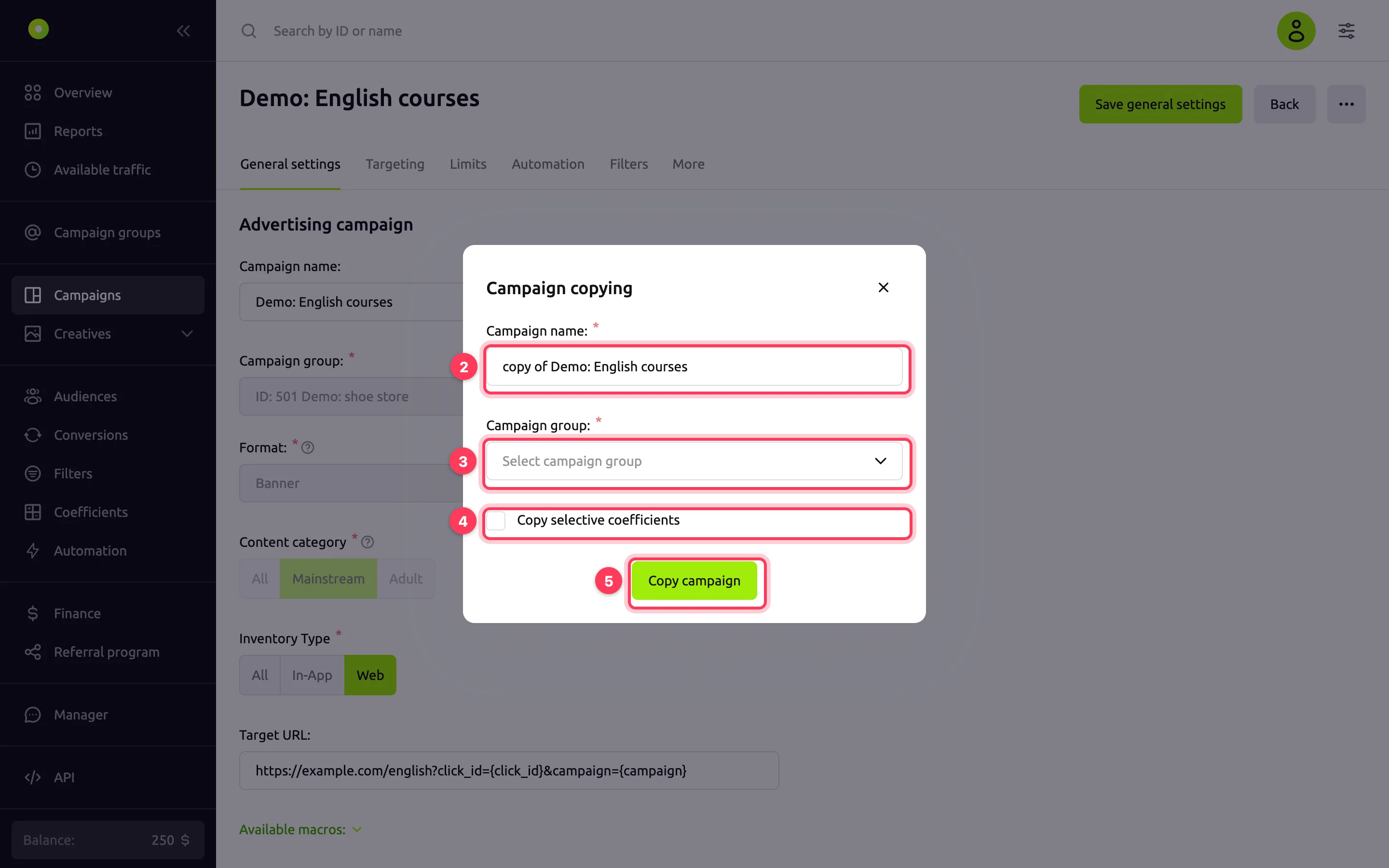
What goes into the copy:
- general settings, including the price, optimization and Auto-start;
- targeting, video targeting and retargeting;
- limits, the launch period and the schedule;
- micro bidding;
- filters, except those created by automation rules. The copy gets its own instances of the filters with the same names and values;
- automation rules, except archived ones. In the copy, they are on if they apply to it.
What does not go into the copy:
- creatives;
- live targeting: set the events in the copy again;
- zone coefficients, unless Copy selective coefficients is selected.
If the original campaign is serving right now (the dot is green), the copy is active right away. Otherwise, the copy is stopped. An optimization that your account cannot use is turned off in the copy. If the copy keeps an optimization, the platform resets its coefficients and turns off the automation rules that change them, as when you turn on optimization. For details, see Bid optimization.
The copy is not created if:
- a campaign with this name already exists: "A campaign with the same name already exists". The default name is the same for every copy, so enter your own name for the second copy;
- the original campaign is archived. First restore it to stopped, see Campaign and creative statuses;
- the campaign limit for the account is reached: "Active campaign limit exceeded for user (…)";
- the original campaign uses SMART CPM, and this model is turned off for your account: "The payment model of the selected campaign is not available to the copy owner";
- your account has no permission to change the price.
Video targeting
This tab exists only for campaigns in the Video format. All in any field means "any".
| Block | Field | Values |
|---|---|---|
| Placement | Video placement | All, In-Stream (inside a video player), Out-Stream (outside a video player) |
| Roll position | All, Pre-roll, Mid-roll, Post-roll. Only for In-Stream | |
| Video Skippability | Skippability | All, Yes, No |
| Skip after (sec) | From 0 to 30. Only if skippability is Yes | |
| Video Duration | Min (sec), Max (sec) | Turned on with the block switch. 0 means no limit. The minimum cannot be greater than the maximum, otherwise you see "Minimum video duration is greater than maximum.". If you turn the switch off, the values are reset to zero |
| Other | Rewarded Video | All, Yes, No |
| Playback method | All, Autoplay (sound on), Autoplay (sound off), Click to play, Mouse over, Viewport enter (sound on), Viewport enter (sound off) |
Save your changes with the Save video targeting settings button.
The Micro bidding tab
Micro bidding multiplies the campaign price by a coefficient for a specific segment. For example, 150% for smartphones raises the bid on these devices by 50%.
- Select one or more types: Devices, Time of day, Browsers, Geo, Device vendor, Provider, Connection type.
- For each value, set a coefficient from 0 to 500%. A new type already has a row with a 100% coefficient. The Add button adds a row, the trash icon deletes it.
- Click Save micro bidding settings.
The Time of day type has a time zone list above the rows, UTC+00 by default. Keep UTC+00 in it and set the hours in UTC.
You cannot change micro bidding if the campaign has optimization turned on or an automation rule manages its coefficients: a message on the tab tells you so. Coefficients set by a rule are marked with a lightning icon, and you cannot change them manually.
The Live targeting tab
Live targeting turns the campaign on or off for the time before, during and after sports events: matches, races and fights.
- Click Add event and in the Select live events window select groups or individual events.
- For each event, select Include or Exclude. Include: the campaign serves only during the hours set for the event. Exclude: the campaign is paused for these hours.
- Set Hours before start and Hours after end, from 0 to 720. Select Run during the event so that Include or Exclude also applies during the event itself.
- Click Save targeting settings.
If the campaign has an event with Include, it serves only during the hours set before, during and after events. If there are no impressions, check these hours using No impressions.
Which events are available, how the hours add up and how Include and Exclude combine: see Run ads around sports events.