
No impressions
Go through the checks in order: the first three solve the problem in most cases. Each takes a minute.
1. The campaign is on
How to check: open Campaigns and find the campaign on the Active tab.
How to fix:
- The campaign is on the Stopped tab: start it with the ▶ button in its row. An automation rule with the Stop campaign action may have stopped it. Check the rules in the Automation section, or the rule will stop the campaign again.
- The campaign is on the Archive tab: select it, open the Actions menu and select Stop. The campaign moves to the Stopped tab: start it from there. For details, see Manage the campaign list.
- The campaign is on the Rejected tab: contact your manager.
2. The dot next to the name is green
How to check: hover over the dot next to the campaign name. A gray dot with the tooltip "The campaign is paused by the system" means the system has paused the campaign.
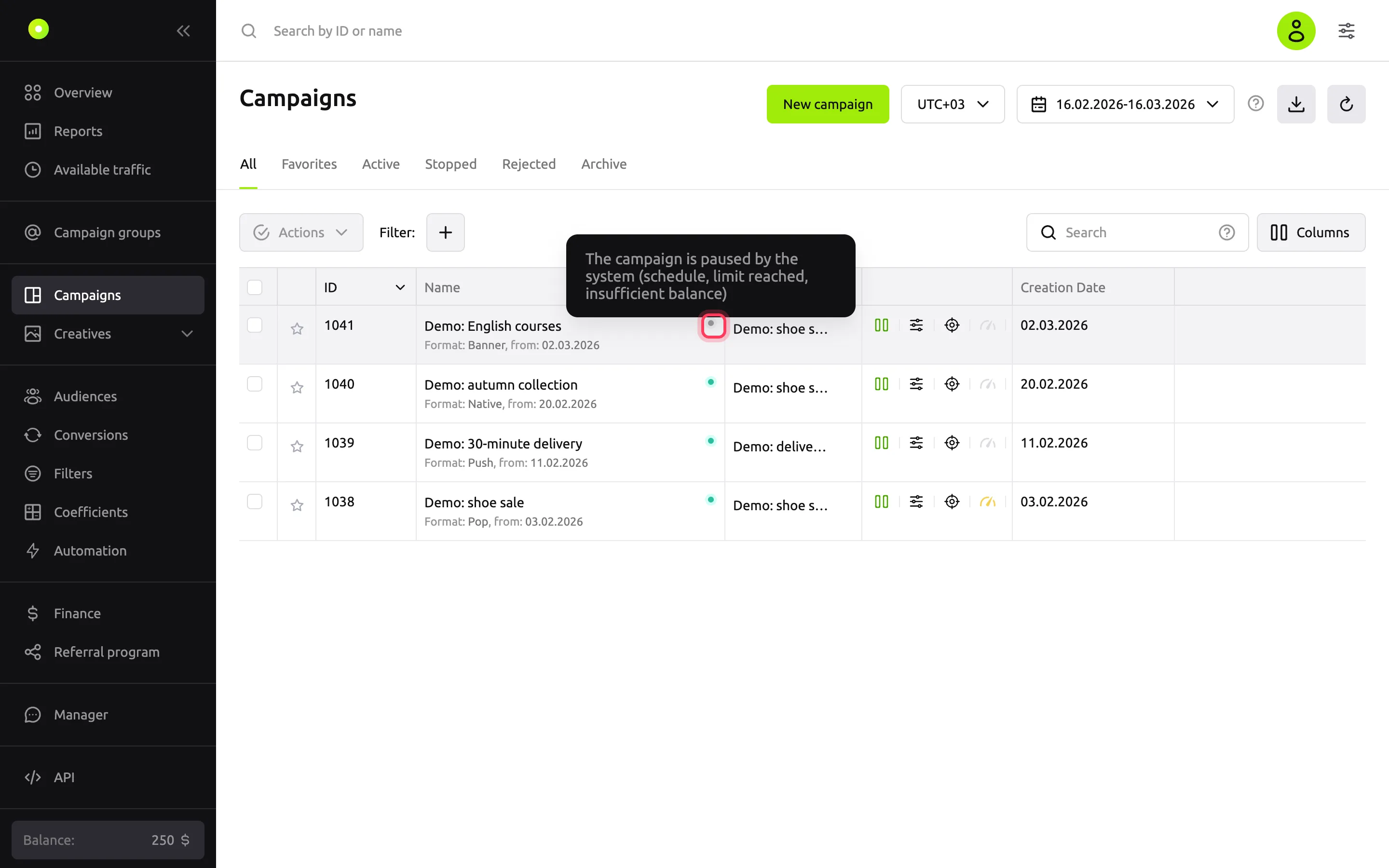
How to fix: the system checks conditions in this order. Fix the first one that is not met:
- Balance must be above $10, €10 or RUB 1,000, depending on the account currency. Top up with the Top up balance button in the left menu.
- Launch period on the Limits tab: today's date must fall between Start and End.
- Live targeting: if it is set up, ads run only during the set hours before, during and after the selected events.
- Scheduler on the Limits tab: the current hour must be selected. Check the time zone above the grid.
After the fix, the campaign resumes on its own within a minute. For more about statuses, see the Campaign and creative statuses reference.
3. There is at least one active creative
How to check: in the campaign row, open the ⋮ menu → Go to creative list. You need at least one creative on the Active tab.
How to fix:
- The creative is on the Moderation tab: wait for the review.
- The creative is on the Rejected tab: fix it according to the reason shown in the creative row and save it.
- The creative is on the Inactive tab: start it with the ▶ button. A creative lands here after moderation if Automatically start ads after moderation is not selected in the campaign, or if an automation rule turned it off.
4. Limits are not used up
A used-up limit does not turn the dot gray: the dot stays green, but there are no impressions.
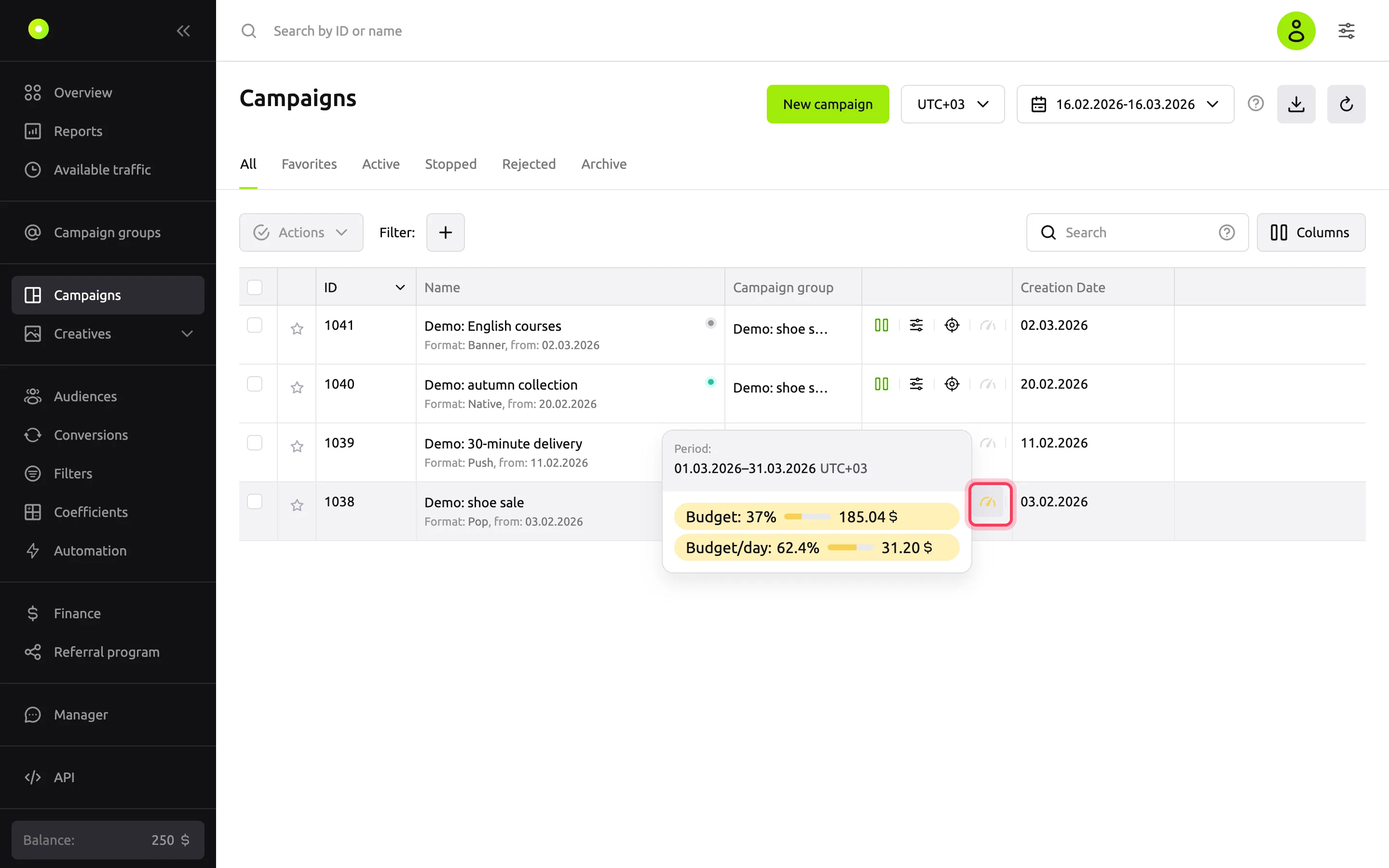
How to check: hover over the speedometer icon in the campaign row: the tooltip shows what percentage of each limit is spent. The Limits tab shows the same next to the fields, for example "reached 100%".
A campaign groupA folder for one advertiser's campaigns with shared settings and limits. can have limits too: check its Limits tab.
How to fix: raise the limit. For details, see Limit budget and impression frequency.
5. The audience is not too narrow
How to check: open the campaign's Targeting, Filters and Retargeting tabs.
How to fix:
- Targeting: widen geography, device types and OS. Selecting Proxy only in Proxy traffic or only Premium in Inventory Quality sharply reduces reach.
- Filters: a whitelist lets through only the listed sources. Check that it is not too short. Filters by publishers, domains and SUB IDs may have been linked by your manager. Filters that your manager set up for the whole account are not shown in the dashboard: ask your manager about them. For details, see the Filters reference.
- Retargeting: if the selected audiences show
< 100in the Audience column of the Audiences section, there is almost no one to show ads to. Switch And to Or or remove the group. - Frequency: a low Frequency Cap on the Limits tab exhausts the audience quickly.
- Coefficients: check that the sources you need are not turned off in the Coefficients section.
6. The bid is competitive
How to check: if everything above is fine but impressions are few, other advertisers are probably outbidding you.
How to fix: raise the price in the campaign's General settings and check impressions again in a few hours.
Still not working
Contact your manager: their contacts are under Manager in the left menu. Include the campaign ID and what you have already checked.