
Set up campaign targeting
Goal
Limit campaign impressions to the audience you need: countries, devices, operating systems, browsers, languages and connection type.
Before you start
- A campaign. To create one, see Your first campaign in 15 minutes.
- A clear idea of who you want to reach. An empty field means "any". For example, if you select no value in Device vendor, the ad runs on devices of all manufacturers.
Steps
Open the campaign and go to the Targeting tab.
Pop format only: in the Inventory Quality block, select the inventory levels: Low, Medium or Premium. For how quality is assessed, see How inventory quality is assessed.
In the Geography of displays block, select countries, regions or cities. The Tier 1, Tier 2 and Tier 3 buttons select ready-made country sets. The Include / Exclude switch determines whether ads run only in these places or everywhere except them. Select at least one place.
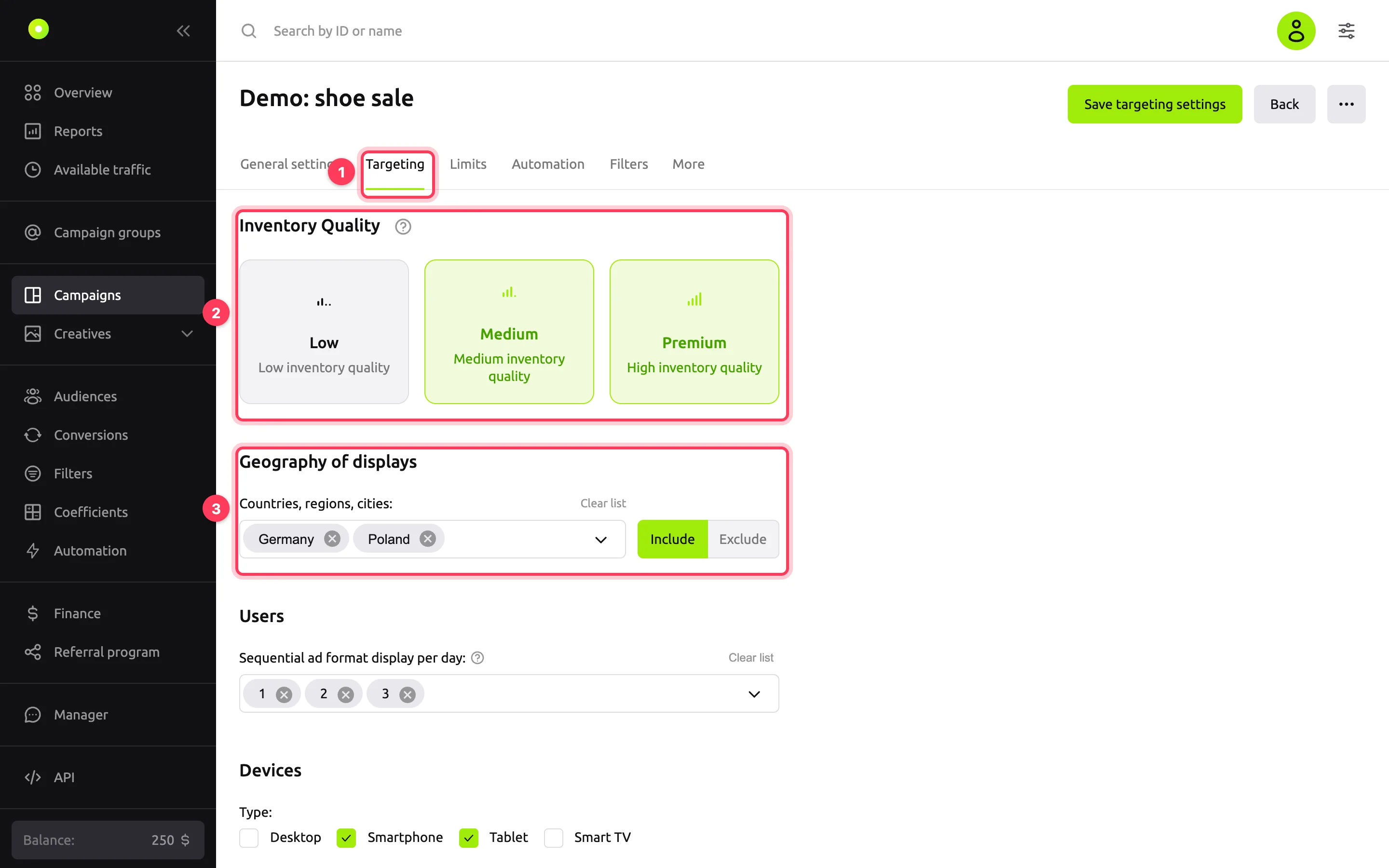
Pop format only: in the Users block, set Sequential ad format display per day. For example, "1" shows the ad only to people who see a Pop ad for the first time that day. Impressions are counted per format, not per campaign.
In the Devices block, select device types. If needed, narrow down operating systems, vendors, device price tier and mobile operators (the Provider field).
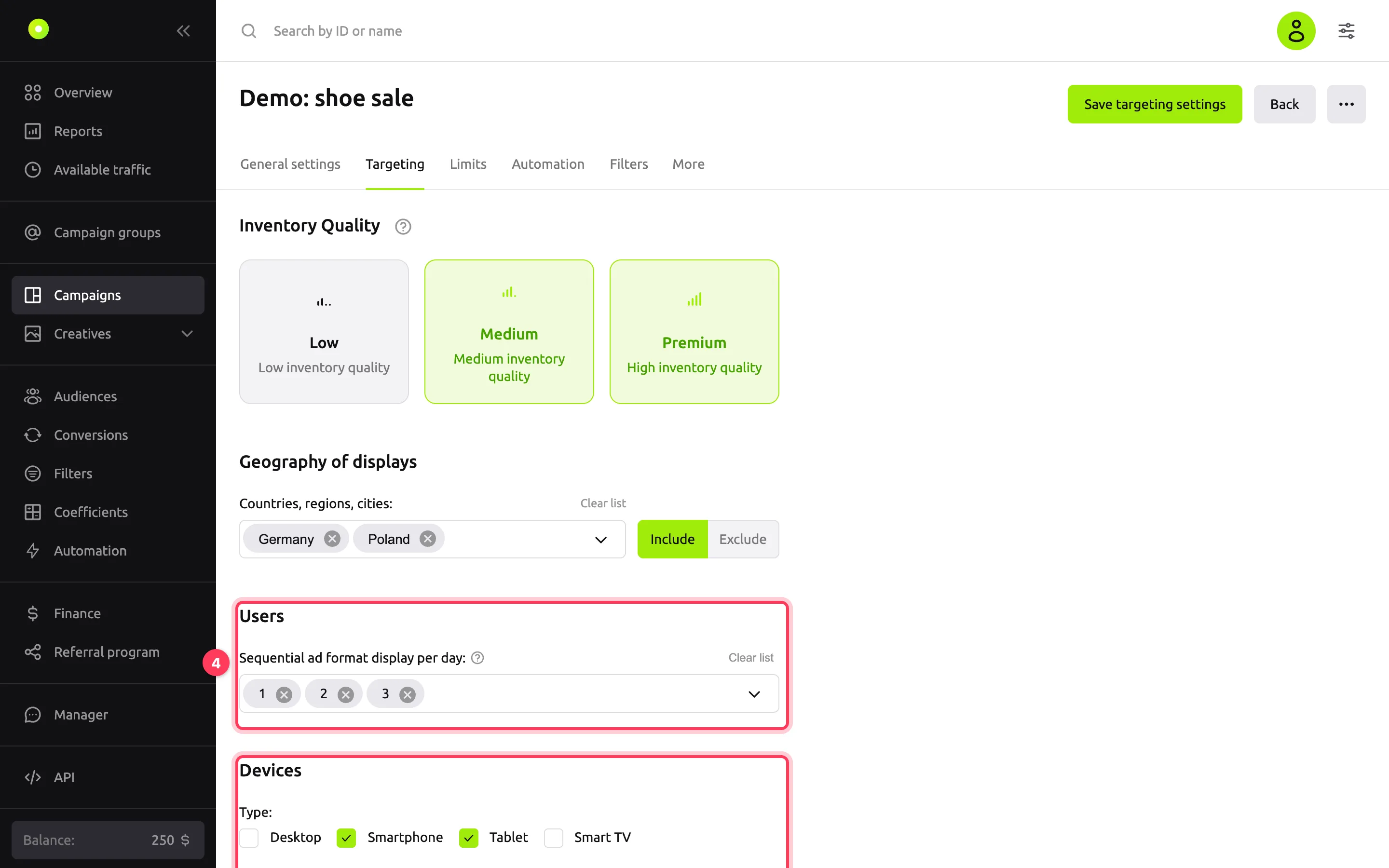
In the Technologies block, narrow down user language, browsers, connection type and Proxy traffic: All traffic, Proxy only or Non-proxy only. In a new campaign, DSL/Cable and Cellular are already selected in Connection type: other connection types may have a higher fraud level.
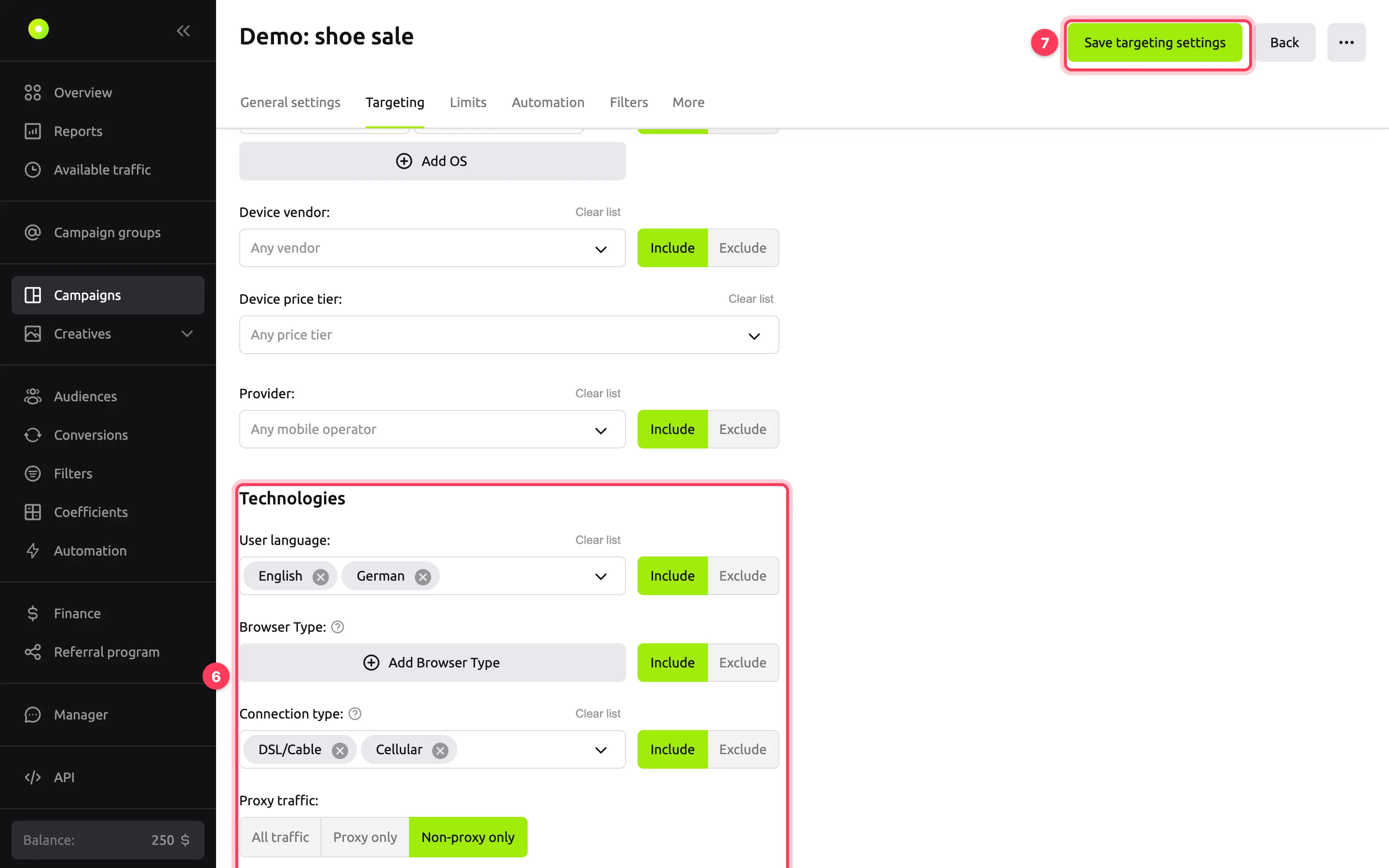
Click Save targeting settings.
How to exclude values
The Include / Exclude switch is available not only for geography but also for Operating System, Device vendor, Provider, User language, Browser Type and Connection type. Include runs ads only on the selected values. Exclude runs them everywhere except those values. The Type and Device price tier fields have no switch: the selected values are always included.
Which blocks each format has
The set of blocks on the tab depends on the campaign format.
| Block | Native | Banner | Push | Pop | Video |
|---|---|---|---|---|---|
| Inventory Quality | — | — | — | ✓ | — |
| Geography of displays | ✓ | ✓ | ✓ | ✓ | ✓ |
| Users | — | — | — | ✓ | — |
| Subscription | — | — | ✓ | — | — |
| Devices | ✓ | ✓ | ✓ | ✓ | ✓ |
| Technologies | ✓ | ✓ | ✓ | ✓ | ✓ |
For Push, the Subscription block has Days Since Subscription: from 0 to 300+. Video campaigns also have a separate Video Targeting tab.
How to specify OS and browser versions
In the OS or browser row, select the name and enter a condition in the Specify Versions field:
| Condition | Example | Meaning |
|---|---|---|
| Greater than | > 2.0 | versions greater than 2.0 |
| Less than | < 3.0 | versions less than 3.0 |
| Greater than or equal to | >= 1.5 | versions from 1.5 |
| Less than or equal to | <= 4.0 | versions up to and including 4.0 |
| Range | >= 1.0, < 1.4 | from 1.0 (inclusive) to 1.4 (exclusive) |
Write a version as two numbers separated by a dot: 2.0, not 2 or 2.0.1. A row can have at most two conditions separated by a comma, and in a range they must point in opposite directions: >= 1.0, < 1.4 is valid, > 1.0, > 1.4 is not. If the format is wrong, saving fails with the error "Invalid versions string for browser id … in campaign targeting" (or "for OS id …").
An empty versions field means "any version". You cannot specify a version for iOS: this OS has no versions field. If iOS versions were already set in the campaign, they are kept unchanged.
How inventory quality is assessed
Pop format only. The platform rates placements by CTR, viewability, fraud level and other metrics; the rating depends on the traffic source. In the Inventory Quality block, select the levels to show ads on: Low, Medium or Premium.
Sequential ad format display per day
Pop format only. The field in the Users block shows the ad depending on how many Pop ads the user has already seen that day. For example, "1" shows the ad only to people who see a Pop ad for the first time that day. Impressions are counted per format, not per campaign.
Connection type
In a new campaign, DSL/Cable and Cellular are already selected in Connection type: other connection types may have a higher fraud level. The Include / Exclude switch works the same as for other fields, see How to exclude values.
Result
The message "Changes successfully saved" appears. The new settings apply to all creatives in the campaign.
Troubleshooting
| Symptom | Cause | Fix |
|---|---|---|
| The Save targeting settings button is inactive, and "Select at least one value" appears under geography | The country list is empty | Select at least one country, region or city |
| "Please check the correctness of the entered data", and an OS or browser row is highlighted | No OS or browser is selected in the row | Select a value or delete the row with the trash icon |
| A browser disappeared from targeting | The platform turns a browser off if it blocks the target URL of at least one creative in the campaign | Change the creative's target URL, then remove the browser from the settings and add it again |
| A Save Changes dialog appeared when you switched to another tab | Changes on the tab are not saved | Click Save so you do not lose the settings |
| "Invalid versions string for … in campaign targeting" | A version is not written as "number.number", or both range conditions point in the same direction | Fix the row according to the table above, for example >= 10.0, < 14.0 |
| There are no Inventory Quality and Users blocks | These blocks exist only for the Pop format | Other formats do not need them |