
Retargeting: pixel and audiences
Goal
Show ads to people who already visited the site or clicked an ad, or, the other way round, stop showing them to people who already bought.
Before you start
- Access to the site's page code, if a pixel will build the audience.
- A campaign where you turn on retargeting.
Steps
In the left menu, open Audiences, go to the Pixels tab and click Create pixel.
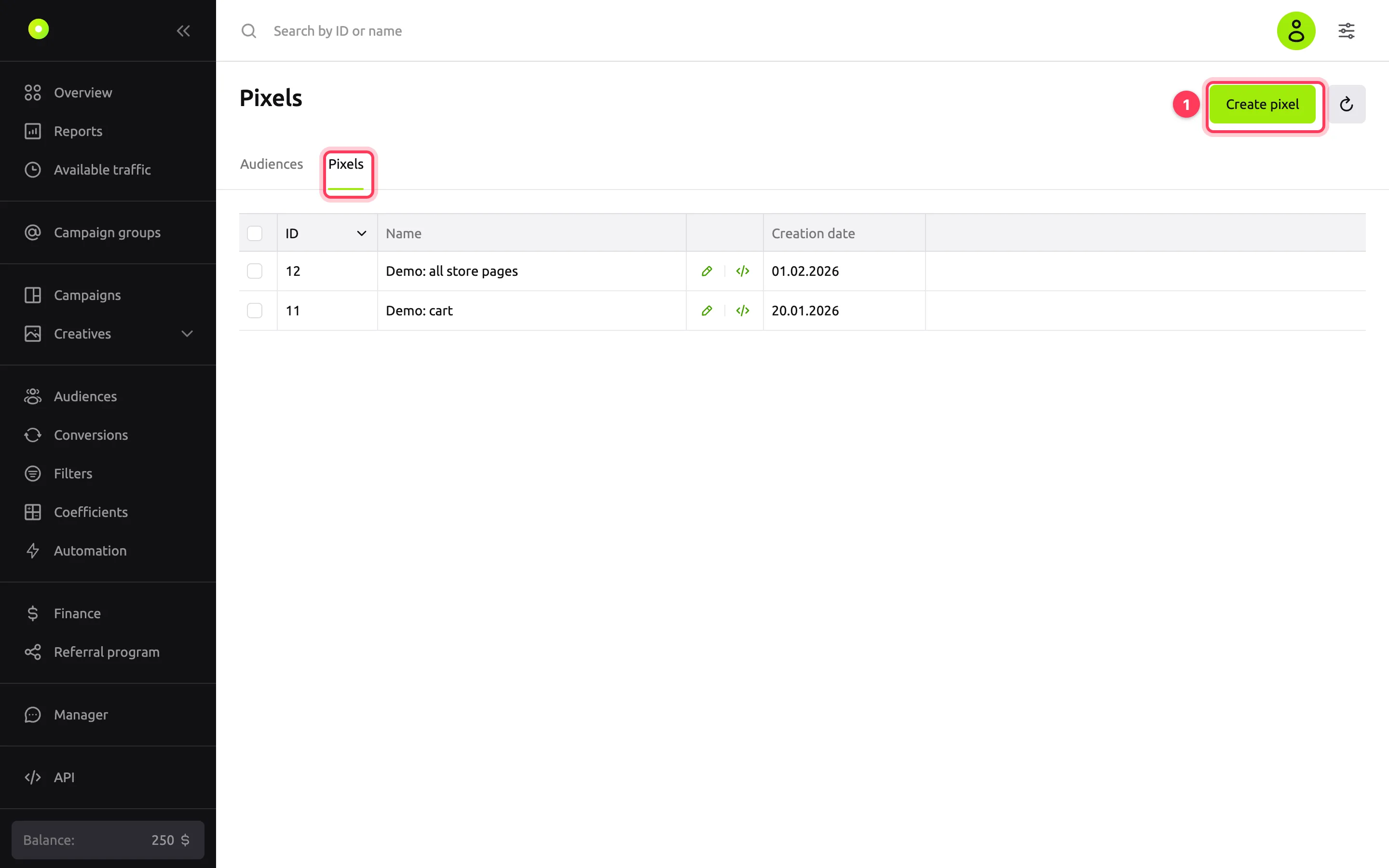
Enter a pixel name, for example after the page where you will place it.
Select Automatically create audience for pixel. The platform creates an audience with a 30-day participation period.
Click Create pixel.
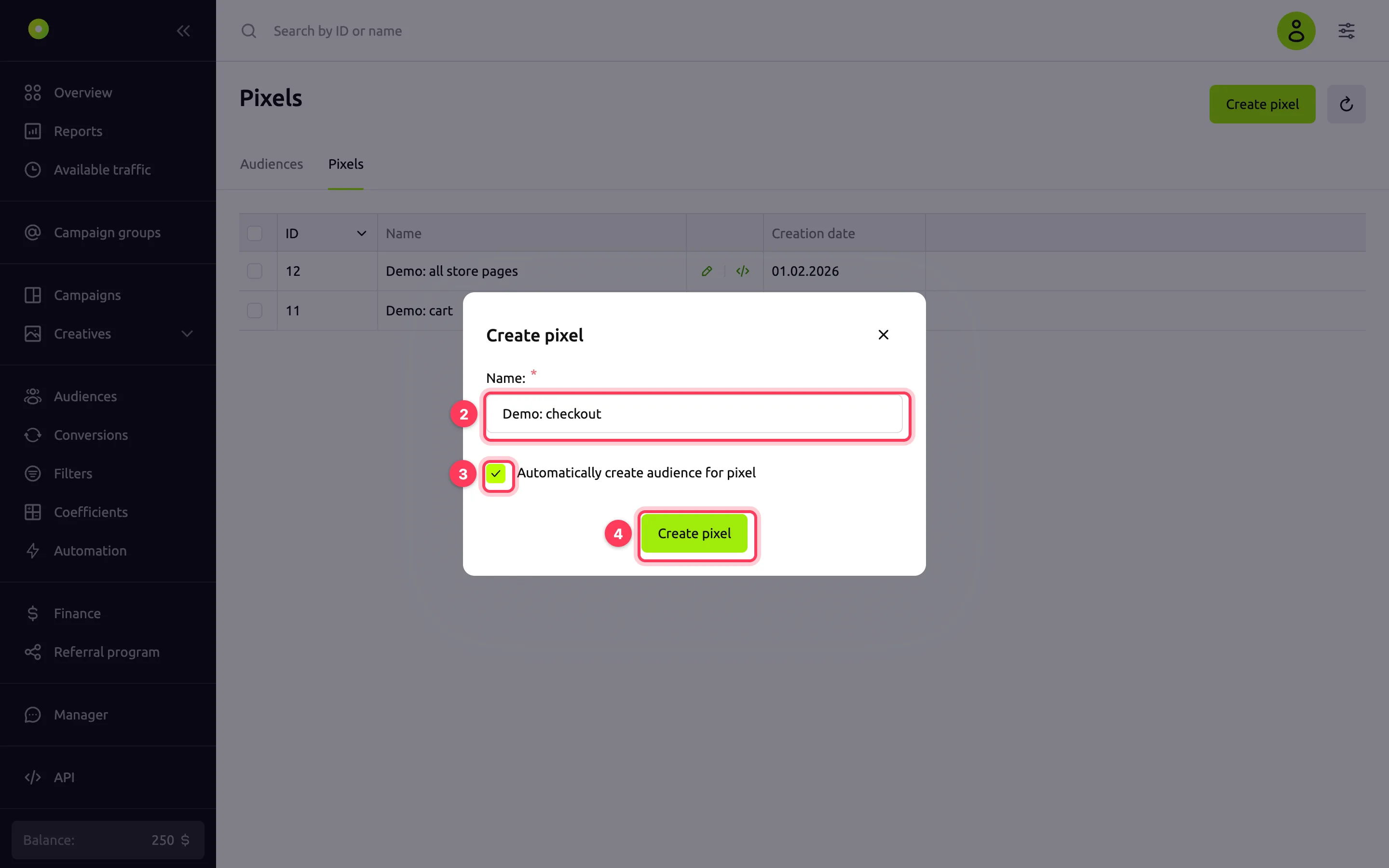
In the Code for website embedding window, click Copy code and paste the code on the site pages whose visitors you want to collect. The audience starts growing as soon as the code is on the site.
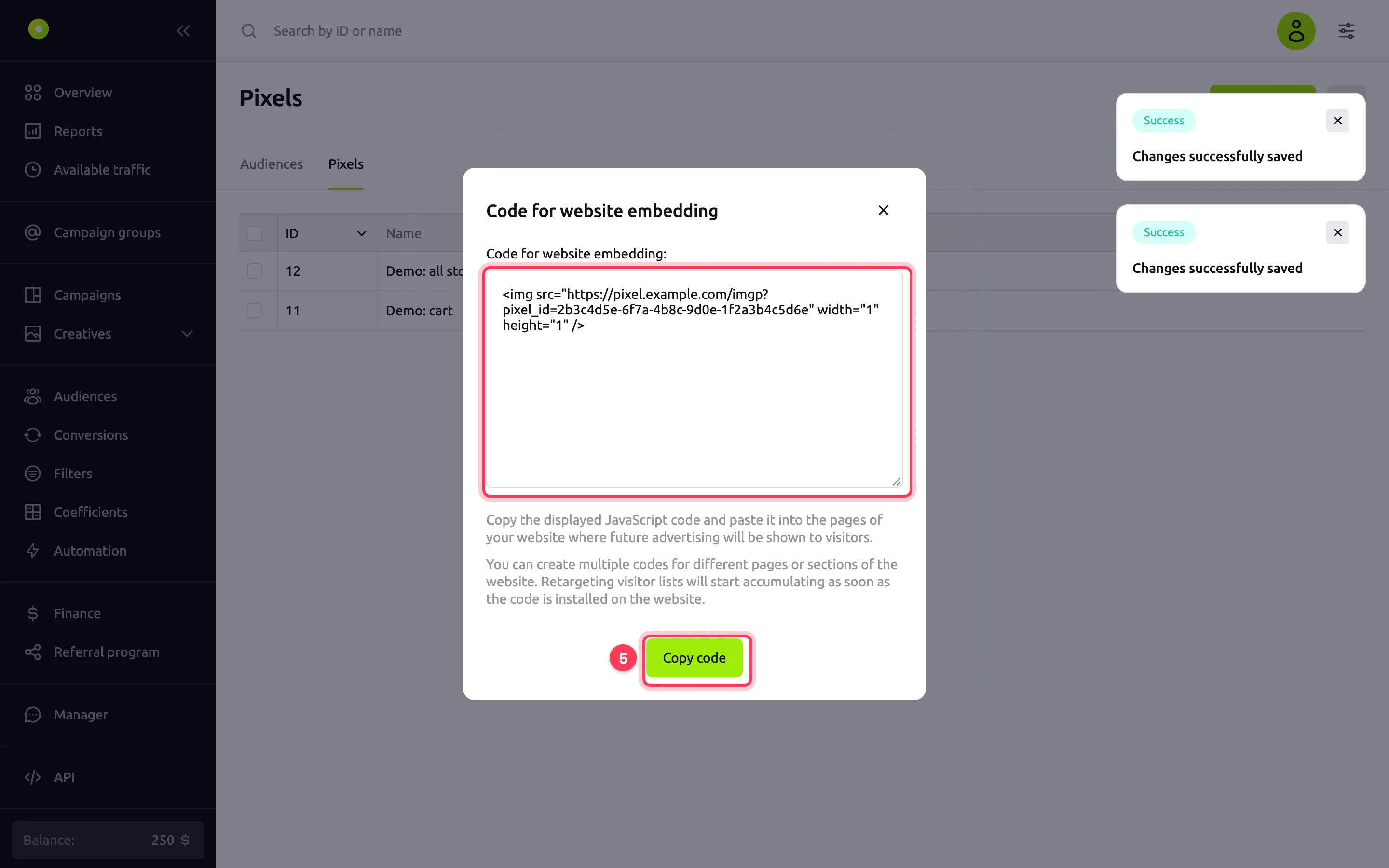
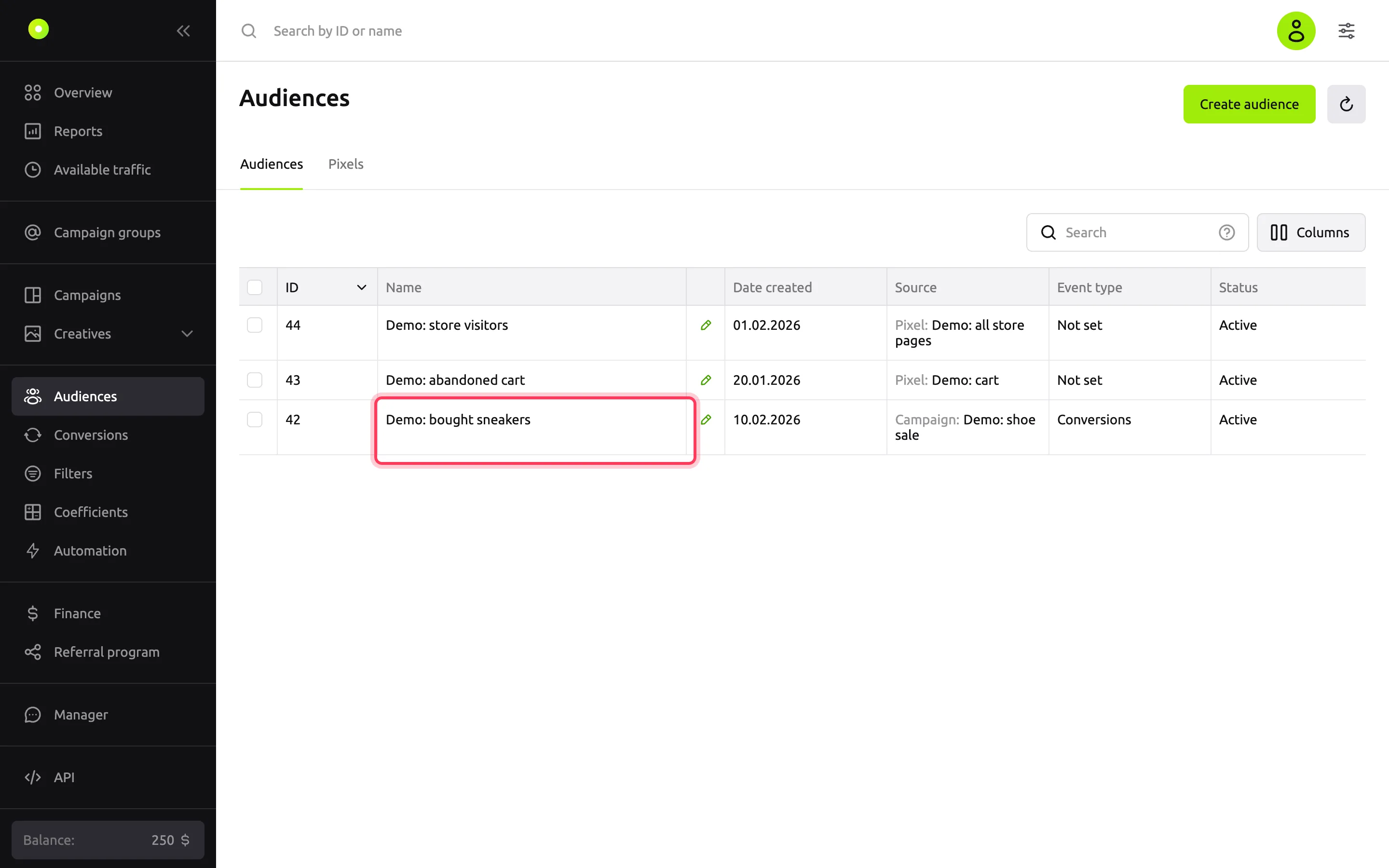
You can also create an audience separately from a pixel: on the Audiences tab, click Create audience and enter a name. In the Source block, select where to take users from:
- Obtain using a pixel, then select the Pixel. This way you build another audience from a pixel that is already installed, for example with a different participation period.
- Form from campaign users, then select the campaign and the Event type: Impressions, Clicks or Conversions.
In the Participation period field, enter 1 to 90 days: this is how long a user stays in the audience.
Click Save.
Open the campaign and click More → Retargeting. Click Add audience, select the audiences you need and click Add. The audiences go to Group 1. To add another group, click Add group. To delete a group, click Delete on its card.
For each audience group, select Include to show ads to this group, or Exclude to not show them. Within a group and between groups, the And / Or switch sets whether a user must be in all audiences or in at least one. And is selected by default.
Click Save retargeting.
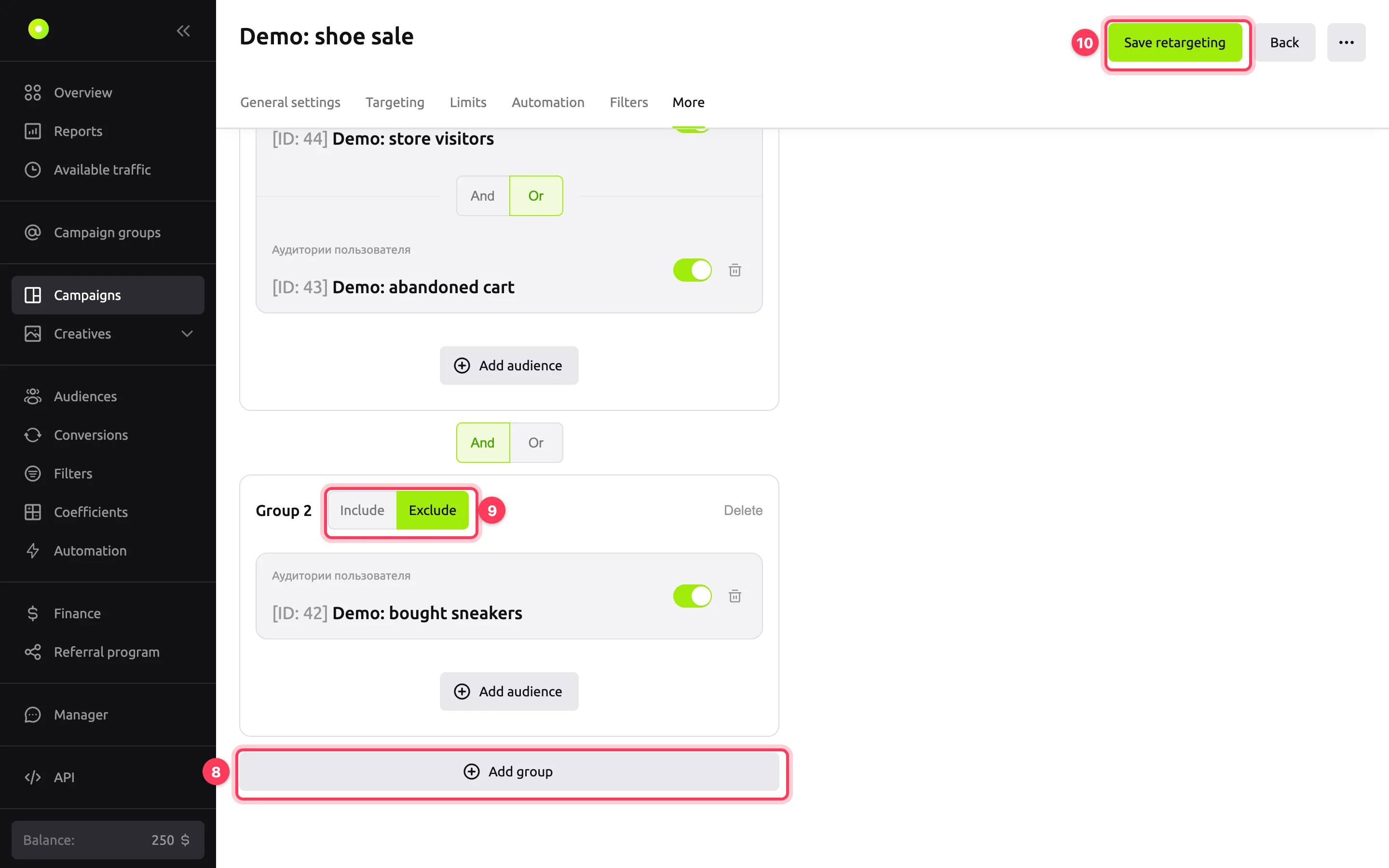
In the screenshot, the campaign runs for store visitors or people who abandoned their cart, and does not run for people who already bought sneakers.
Result
The campaign runs only for audiences from included groups and does not run for excluded ones. You can see audience size on the Audiences tab in the Audience column.
Troubleshooting
| Symptom | Cause | Fix |
|---|---|---|
The Audience column shows < 100 | The audience has fewer than 100 users: the pixel code was installed recently, or the campaign has collected few events | Wait for the audience to grow. A small audience gives few impressions |
| The audience does not grow | The pixel code is not installed or is on the wrong pages | Check that the code from the Code for website embedding window is in the HTML of the right pages |
| The campaign almost stopped serving after you set up retargeting | And is on between audiences that barely overlap | Switch to Or or combine the audiences into one group |
| The audience form has no Event type field | The Obtain using a pixel source is selected | The event type is needed only for an audience built from campaign users |
Next steps
- Set up postback and conversion tracking to build audiences from conversions.
- Set up campaign targeting.