
Video creatives
A video creative is an ad video played by the placement's video player. You can upload the video as a file or pass it via VASTAn XML description of a video ad that the site player uses to play the video.. A click takes the user to the landing page. You create a creative in Creatives → Video with the New creative button and attach it to a video campaign.
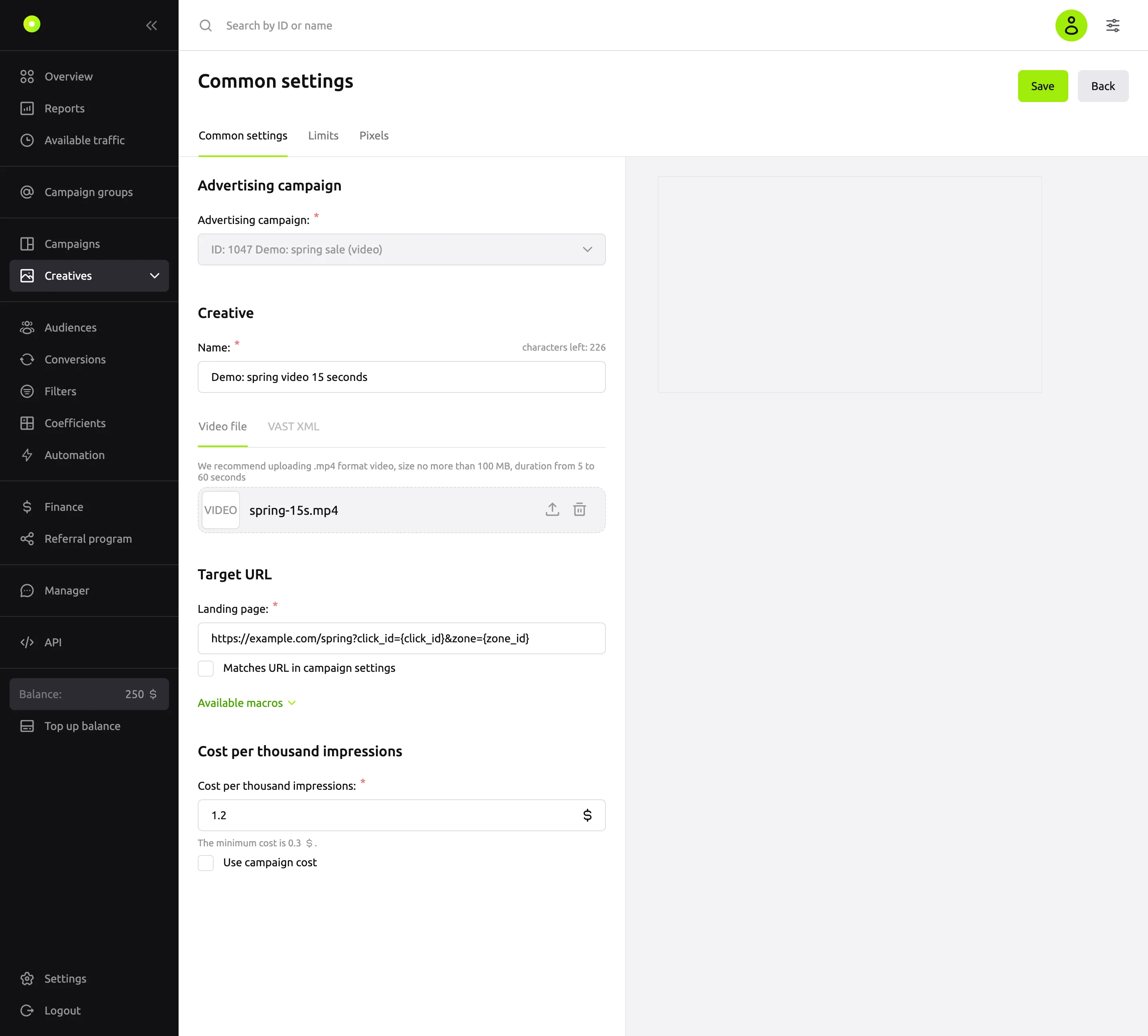
Fields
| Field | What it means | Values and limits |
|---|---|---|
| Advertising campaign: | The video campaign the creative will run in | The list shows only video campaigns. You cannot change the campaign after saving |
| Name: | The creative name in the creative list | Required, up to 255 characters. Above the field is a "characters left" counter |
| Video source | The Video file and VAST XML tabs | Exactly one is required: a video file, a VAST file, VAST markup or a VAST URL. See details below |
| Landing page: | The address that opens on click | Required, a full URL with http:// or https://. You can leave it empty if Matches URL in campaign settings is selected |
| Cost per thousand impressions: or Maximum cost per thousand impressions: | The price of this creative. The name depends on the campaign payment model | Not lower than the minimum price. You can leave it empty if Use campaign cost is selected |
Video source
A new form opens on the VAST XML tab. You can switch to the other tab while nothing is uploaded or entered. To change the source, first delete the file or clear the field.
The Video file tab
Drag a file into the Video file field or click the select on the device link in it and select a file.
- Format: MP4 or MPEG.
- Size: up to 100 MB.
- The file must contain a video track.
The dashboard recommends MP4 between 5 and 60 seconds long.
The VAST XML tab
It has three options, also as tabs:
| Tab | What to provide | Limits |
|---|---|---|
| XML file | A VAST file | .xml up to 10 MB. The dashboard checks the content on upload |
| VAST markup | VAST text in the VAST XML markup field | The dashboard checks the content on save |
| VAST url | A link to a VAST tag | Starts with http:// or https://, no spaces, up to 2048 characters. Macros in the link are allowed. The content at the link is not checked on save |
VAST in a file or in markup must meet these requirements:
- a root
VASTelement with version 3.0, 4.0, 4.1 or 4.2; - at least one
Ad, each containing eitherInLineorWrapper; - in
InLine: non-emptyAdSystemandAdTitle,Impressionwith an http or https link,Creativeswith at least oneCreative; - in
Linear, if present:DurationandMediaFiles, eachMediaFilehas atypeand an http or https link to the file; - in
Wrapper: non-emptyAdSystem,VASTAdTagURIandImpressionwith http or https links.
Preview
To the right of the form is a preview in a player. It appears after saving: "Preview is available after creating the creative". To open the preview in a separate tab, go to the video creative list: row menu → Preview creative.
Landing page
If you select Matches URL in campaign settings, the creative takes its link from the campaign's Target URL field, and the Landing page: field is locked. The checkbox is unavailable if the campaign has no target URL: "Campaign not selected or Target URL not specified."
When the campaign target URL changes, creatives with this checkbox get the new link. If you clear the target URL in the campaign, these creatives stop, and their checkbox is cleared.
Under the field is the Available macros list: clicking a macro inserts it into the link. For macro values, see the Macros reference.
To replace part of the link in several creatives at once, use the video creative list. See Change the price and URL and copy creatives in bulk.
Price
The price block appears once a campaign is selected. Its name depends on the campaign payment model:
| Campaign payment model | Field | What it is |
|---|---|---|
| CPMThe price per thousand impressions. | Cost per thousand impressions: | The price per 1,000 impressions |
| SMART CPMPayment per 1000 impressions in which the platform picks the bid up to a set maximum. | Maximum cost per thousand impressions: | The upper limit of the price per 1,000 impressions |
The minimum price is shown under the field: "The minimum cost is …".
If you select Use campaign cost, the field is locked and the creative uses the campaign price. Without the checkbox, the creative has its own price.
The dashboard warns you, but still lets you save, if you enter more than $1 (RUB 10, €1) when creating a creative or raise the price more than twofold when editing it. For more about prices, see Payment models.
You can also change the price in the video creative list: right in a Price column cell, or for several creatives at once. See Change the price and URL and copy creatives in bulk.
End card
An end card is an image or HTML page that the player shows after the video. The dashboard form does not have it; you set an end card via the API. Requirements:
- only for creatives with an uploaded MP4 file, not for VAST;
- up to two end cards: vertical and horizontal;
- an image in JPG, PNG or GIF, with the short side at least 320 pixels and the orientation matching the selected one;
- HTML: a single file, not an archive, up to 5 MB. It must contain the
{CLICK_URL}macro or a reference toclickTag.
A new end card sends the creative to moderation. To connect to the API, see Use the API.
Saving and moderation
A new creative has two buttons: Save opens the saved creative, Save and add another opens an empty form with the same campaign.
A new creative goes to the Moderation tab. Once approved, it becomes active if Automatically start ads after moderation is selected in the campaign; otherwise it is stopped.
An edit in the form sends the creative back to moderation if you changed:
- the name;
- the video file, VAST file, VAST markup or VAST URL;
- the part of the link after the domain: protocol, path, parameters or anchor;
- the Matches URL in campaign settings checkbox.
Changing the price, the Use campaign cost checkbox or only the domain in the link does not send the creative to moderation.
For what each status means, see Campaign and creative statuses. For how the review works and what is not allowed in a creative, see Creative moderation and Creative and landing page requirements.
The Limits tab
A saved creative has a Limits tab. It has three groups: Budget, Clicks and Impressions. Each group is turned on with a switch and contains a total, daily and hourly limit: Total:, Per day:, Per hour:. You do not have to fill in all three.
- Budget: an amount greater than 0. Clicks and impressions: a whole number from 1.
- If you turn off a group's switch, its values are cleared.
- To save the changes, click Save limit settings.
When a limit is used up, the creative stops serving, and its status does not change. A creative that used up its daily or hourly limit serves again the next day or hour. Days and hours are counted in UTC: a new day starts at 00:00 UTC. To see how much is used up, go to the video creative list and hover over the speedometer icon in the creative's row. Campaign limits are described in Limit budget and impression frequency.
The Pixels tab
On the Pixels tab of a saved creative, you connect third-party pixels: the pixel link fires when the selected action happens.
- Click Add pixel link.
- In the Pixel link: field, paste the link from your system.
- In the Action type: field, select a player event, for example Video start, 1st Quarter, Midpoint, 3rd Quarter, Complete (by quartiles), Video click, Video pause, Viewable video impression (50%). The list also has companion and non-linear ad events.
- Click Save pixel settings.
Each action type can have no more than 3 pixels. Editing pixels does not send the creative to moderation.
Errors
The two form messages about an empty field appear in Russian even in the English interface. Their meaning is given in parentheses.
| Message | What to do |
|---|---|
| "Укажите страницу перехода или выберите чекбокс под полем." (Specify the landing page or select the checkbox below the field.) | Enter a link or select Matches URL in campaign settings |
| "Укажите цену за переход или выберите чекбокс под полем." (Specify the cost per click or select the checkbox below the field.) | Enter a price or select Use campaign cost. The message mentions clicks, although the price is per impression |
| "The file does not contain a video stream" | Upload a file with a video track |
| "The file does not contain valid VAST XML" | Check the XML file against the requirements above |
| "vast-xml is not valid" | Check the markup against the requirements above |
| "The VAST tag link must start with http:// or https://" | Fix the link on the VAST url tab |
| "Invalid file type" | Upload MP4 or MPEG; for VAST, .xml |
| "File size exceeds the maximum allowable" | Reduce the video to 100 MB, the XML to 10 MB |
| "Daily limit for creating creatives reached" | Create the creative the next day or contact your manager |
| "Maximum number of "…" actions per pixel reached", "Number of events … exceeds the limit: 3." on the Pixels tab | An action type has more than 3 pixels. Delete the extra ones |
Related pages
- Macros: what goes into the link.
- Change the price and URL and copy creatives in bulk.
- Campaign and creative statuses.
- Payment models.
- Banners.