
Your first campaign in 15 minutes
Goal
Create a campaign with one creative and send the creative to moderation. This guide uses the Pop format as an example: it needs no images, only a landing page link.
Before you start
- A Youtarget advertiser account. If you do not have one yet, sign up.
- The landing page URL. If you track conversions in a tracker, prepare a link with the
{click_id}macro: the platform replaces it with the click ID. - A balance above $10, €10 or RUB 1,000, depending on the account currency. If the balance is $10 (€10, RUB 1,000) or less, the campaign is paused. The balance is shown at the bottom of the left menu. To top it up, click Top up balance.
Steps
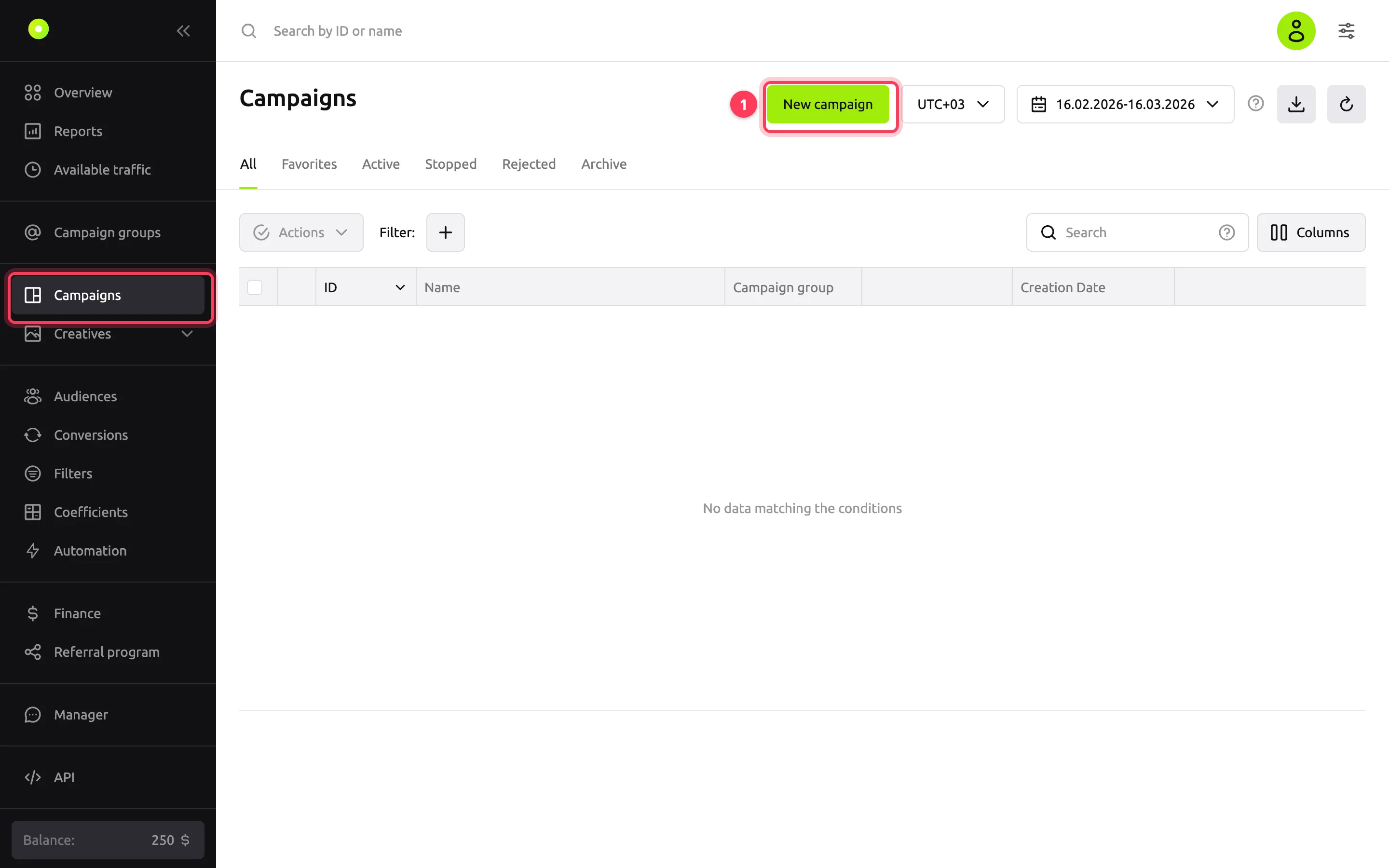
In the left menu, open Campaigns and click New campaign.
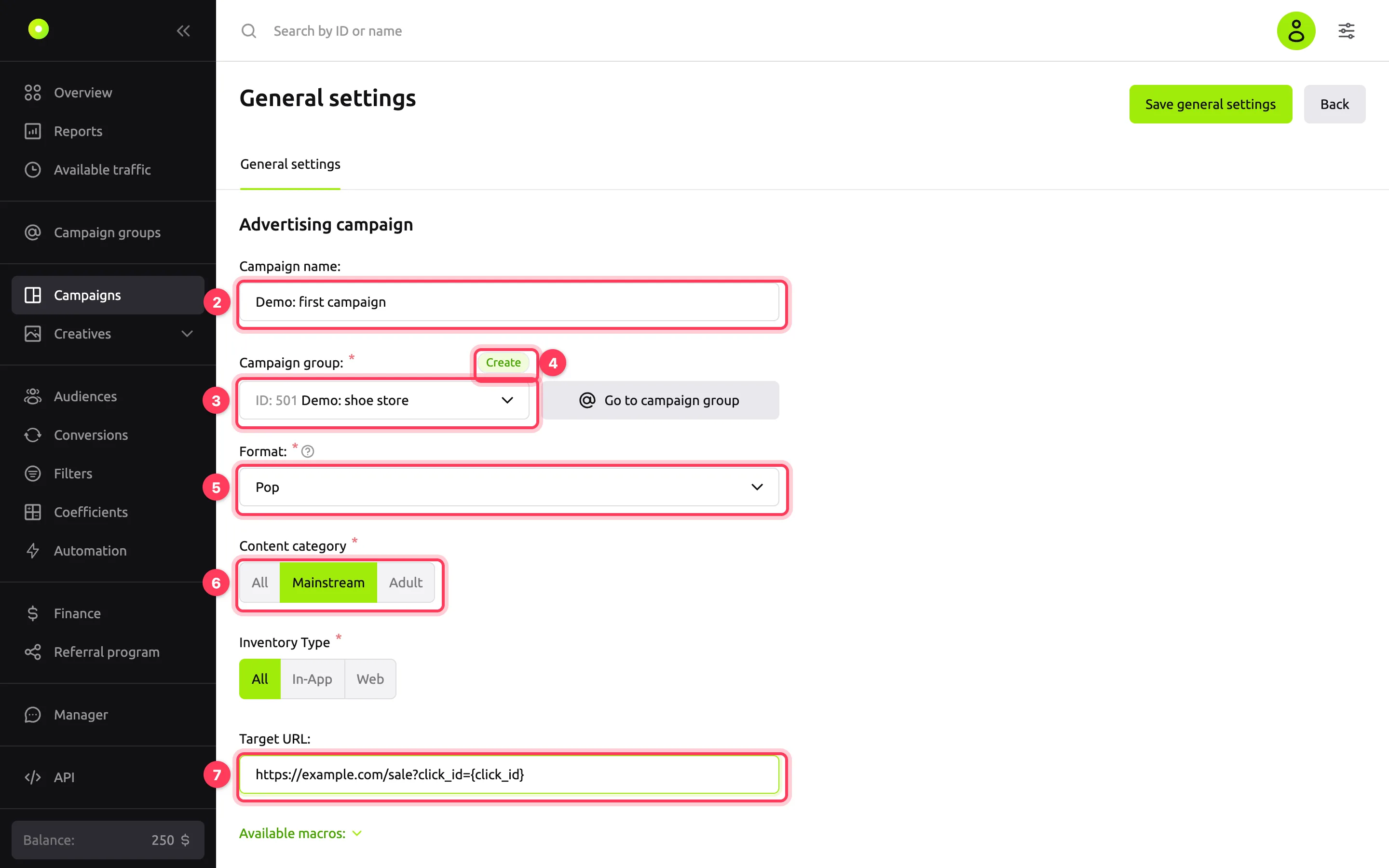
In the Campaign name field, enter a name. You will use it to find the campaign in the list and in reports.
In the Campaign group field, select a groupA folder for one advertiser's campaigns with shared settings and limits..
If you have no groups yet, click Create above the field. The group form opens in a separate window: enter the group name and click Save general settings. The window closes, and the new group is filled in for the campaign.
In the Format field, select Pop. You cannot change the format after the campaign is created.
In the Content category block, select the category that fits the offer. You cannot change it after creation either.
In the Target URL field, paste the landing page URL. The creative can reuse this URL, so you do not have to enter it twice.
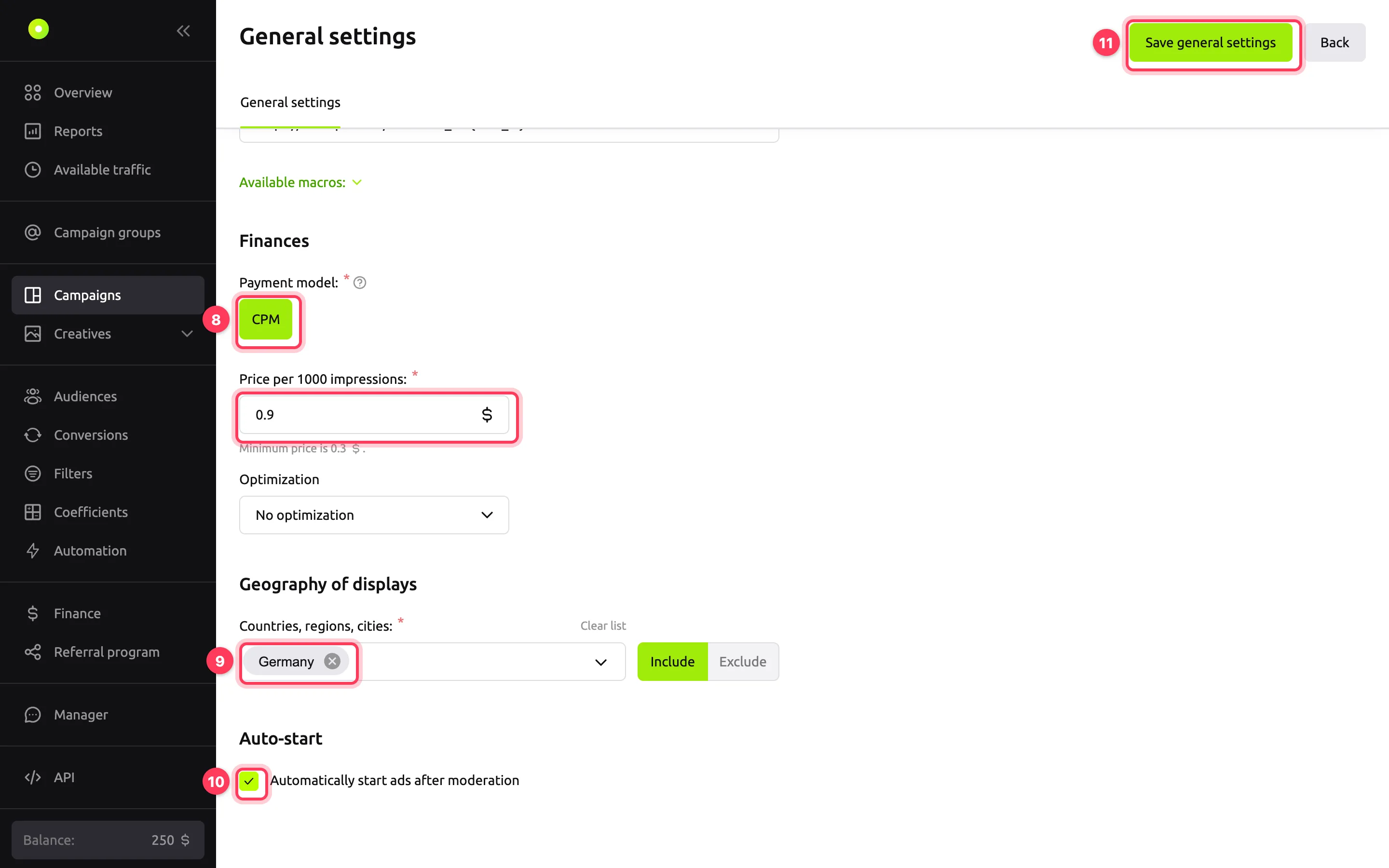
In the Finances block, select the CPM payment model and enter the price per 1,000 impressions. For the difference between models, see Payment models. The minimum price is shown under the field. If you enter less, the dashboard raises the value to the minimum. If the price is above $1 (€1, RUB 10), a red warning "You have set a cost higher than …" appears under the field. It does not prevent you from saving the campaign: check that you entered the right amount.
In the Geography of displays block, open the Countries, regions, cities list and select at least one country.
Select Automatically start ads after moderation. The creative then starts running after moderation without any action from you.
Click Save general settings.
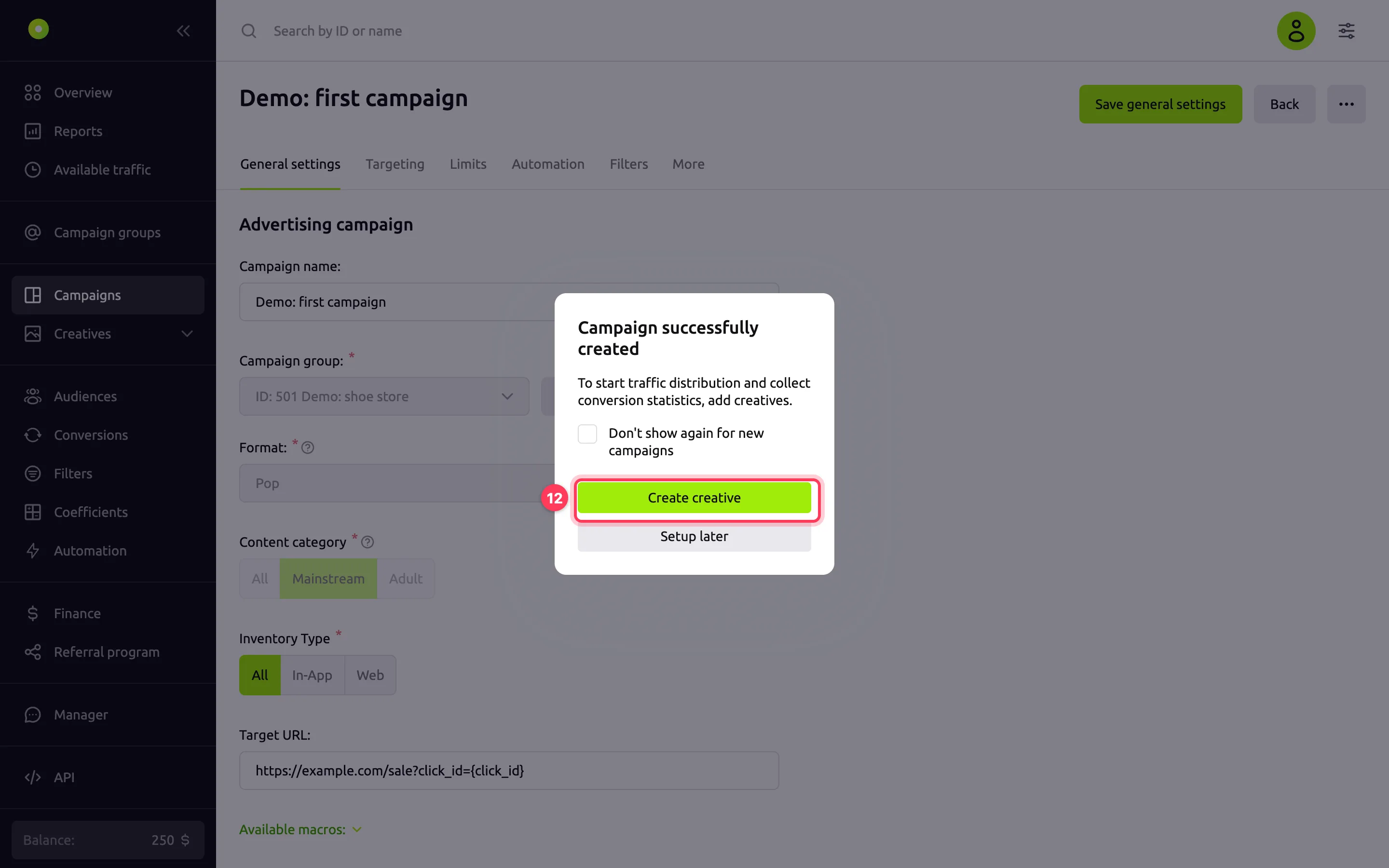
In the Campaign successfully created window, click Create creative. The creative form opens in a new tab with the campaign already selected. To add a creative later, click Setup later: the window closes.
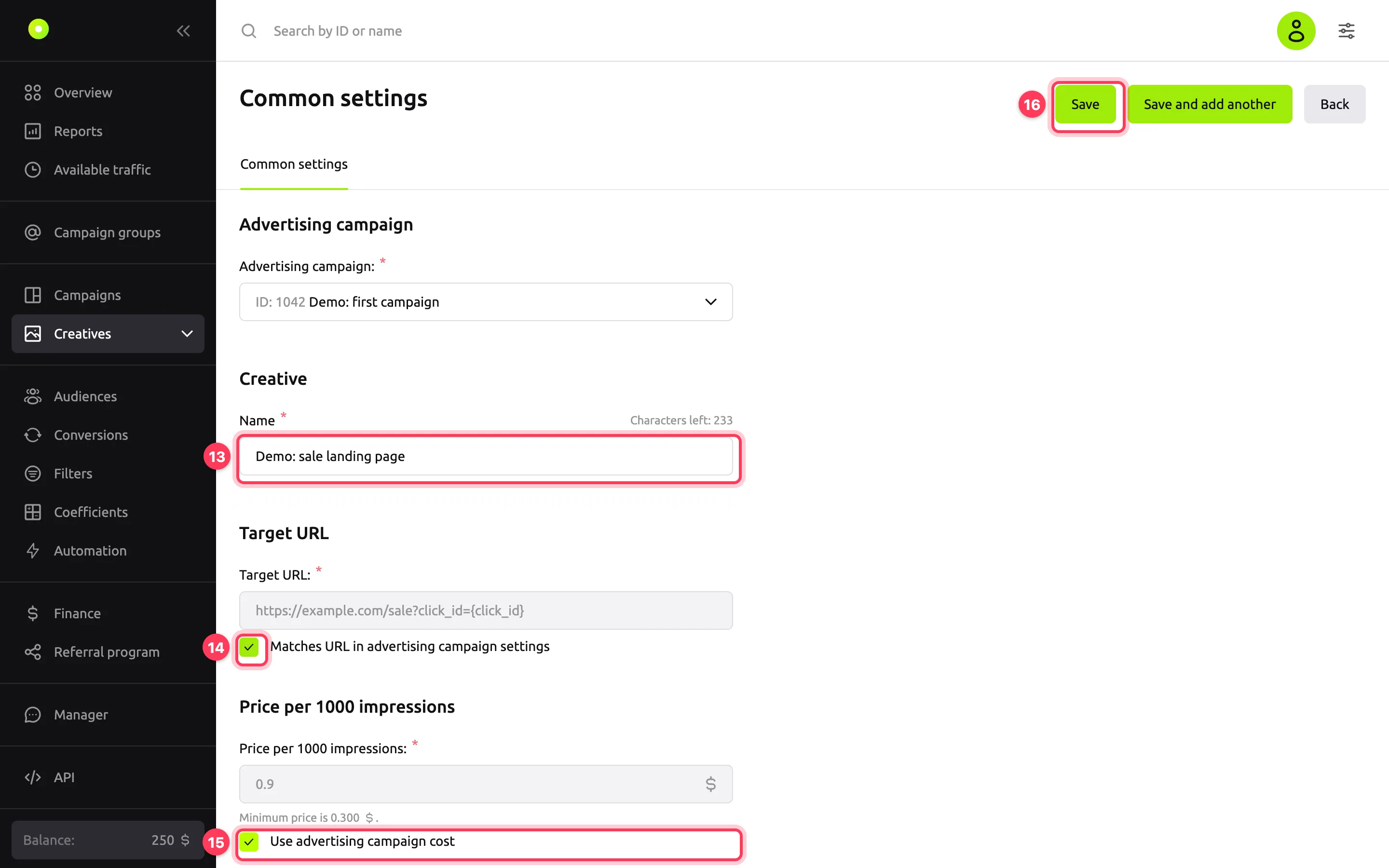
In the Name field, enter the creative name, up to 256 characters.
Select Matches URL in advertising campaign settings. The creative takes the target URL from the campaign.
Select Use advertising campaign cost. The creative takes the price from the campaign.
Click Save.
Result
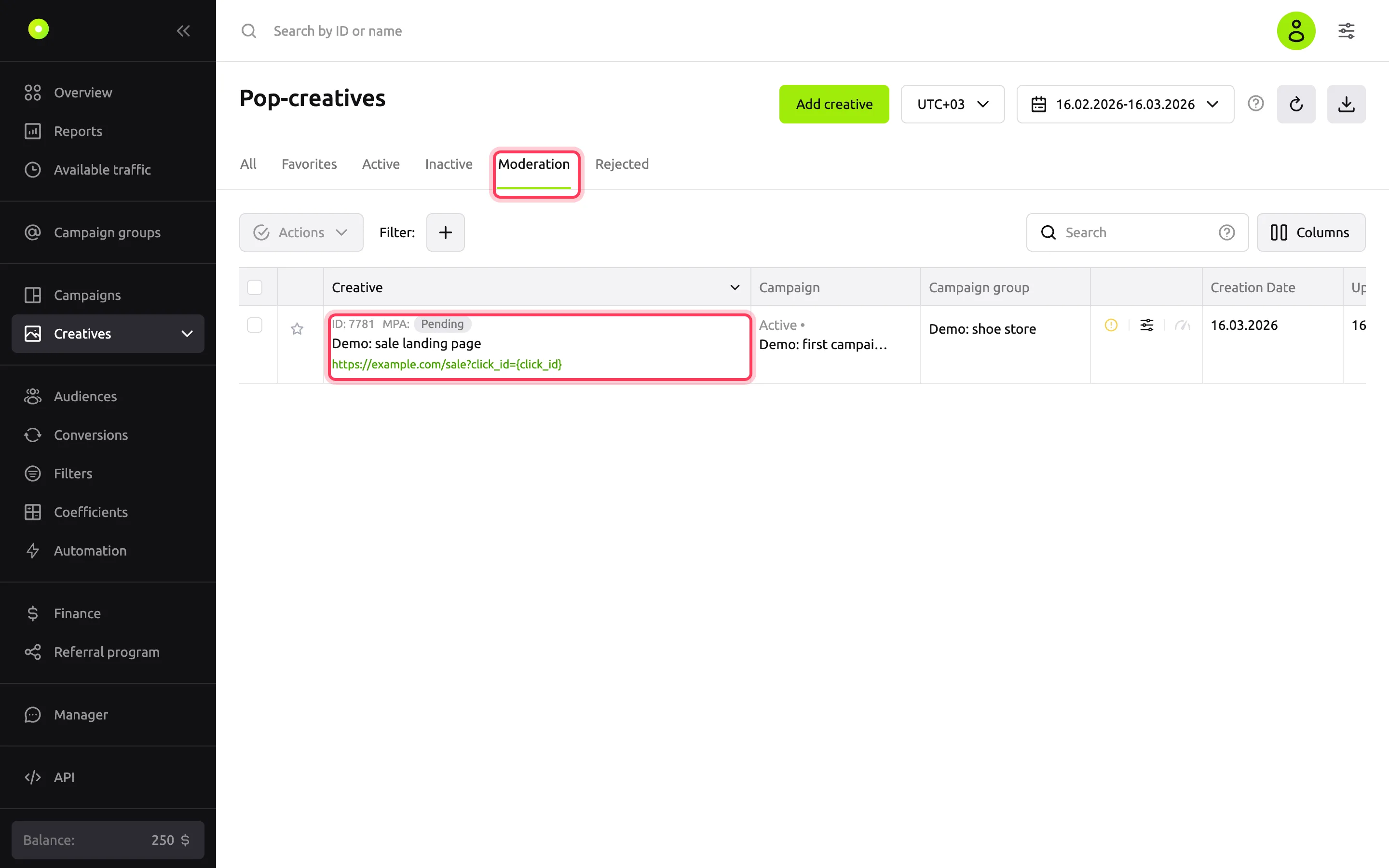
The creative appears in Creatives → Pop on the Moderation tab. After review, it moves to the Active tab and starts running if you enabled auto-start in step 10. If you did not, the creative goes to the Inactive tab: start it with the ▶ button in its row.
A new campaign has the Active status. Within a minute, the system checks the balance, launch period and schedule and starts delivery: a green dot appears next to the campaign name in the Campaigns list. If the dot is gray, go through the No impressions checks.
Troubleshooting
| Symptom | Cause | Fix |
|---|---|---|
| After you click Save general settings, "Please check the correctness of the entered data" appears, and "Required field" is shown under a field | A required field is empty | Fill in the fields marked in red and save again |
| "Select at least one value" is shown under the Countries, regions, cities list | No geography is selected | Select at least one country, region or city |
| The price in the field changed on its own | The price entered is below the minimum | The minimum is shown under the field. Enter a price no lower than that |
| The Campaign successfully created window did not appear | You selected Don't show again for new campaigns, or the campaign format is Video | Open Creatives → Pop, click Add creative and select the campaign in the Advertising campaign field |
| The Format list does not have the format you need | The set of formats depends on the account settings | Contact your manager: contacts are in Manager in the left menu |
| The creative is on the Rejected tab | The creative did not pass moderation | The rejection reason is shown in the creative row and at the top of its form. Fix the creative and save it |
| A gray dot next to the campaign name with the tooltip "The campaign is paused by the system" | The balance is $10 (€10, RUB 1,000) or less, or the campaign is outside its launch period or schedule | Top up the balance with Top up balance, check Launch period and Scheduler on the Limits tab. For details, see No impressions |
Next steps
- Limit your spend: on the campaign's Limits tab, set an all-time, daily or hourly budget. For details, see Limit budget and impression frequency.
- Narrow the audience on the Targeting tab: devices, browsers, carriers. For details, see Set up campaign targeting.
- Learn the terms: creativeAn ad inside a campaign: a banner, a native block, a push, a pop or a video., CPMThe price per thousand impressions..