
Native creatives
A nativeAn ad made of an image and text, styled to match the site. creative is an ad made of a square image and a title. The placement shows it in its own design, for example in a recommendation block. A click takes the user to the target URL. You create a creative in Creatives → Native with the Add creative button and attach it to a Native campaign.
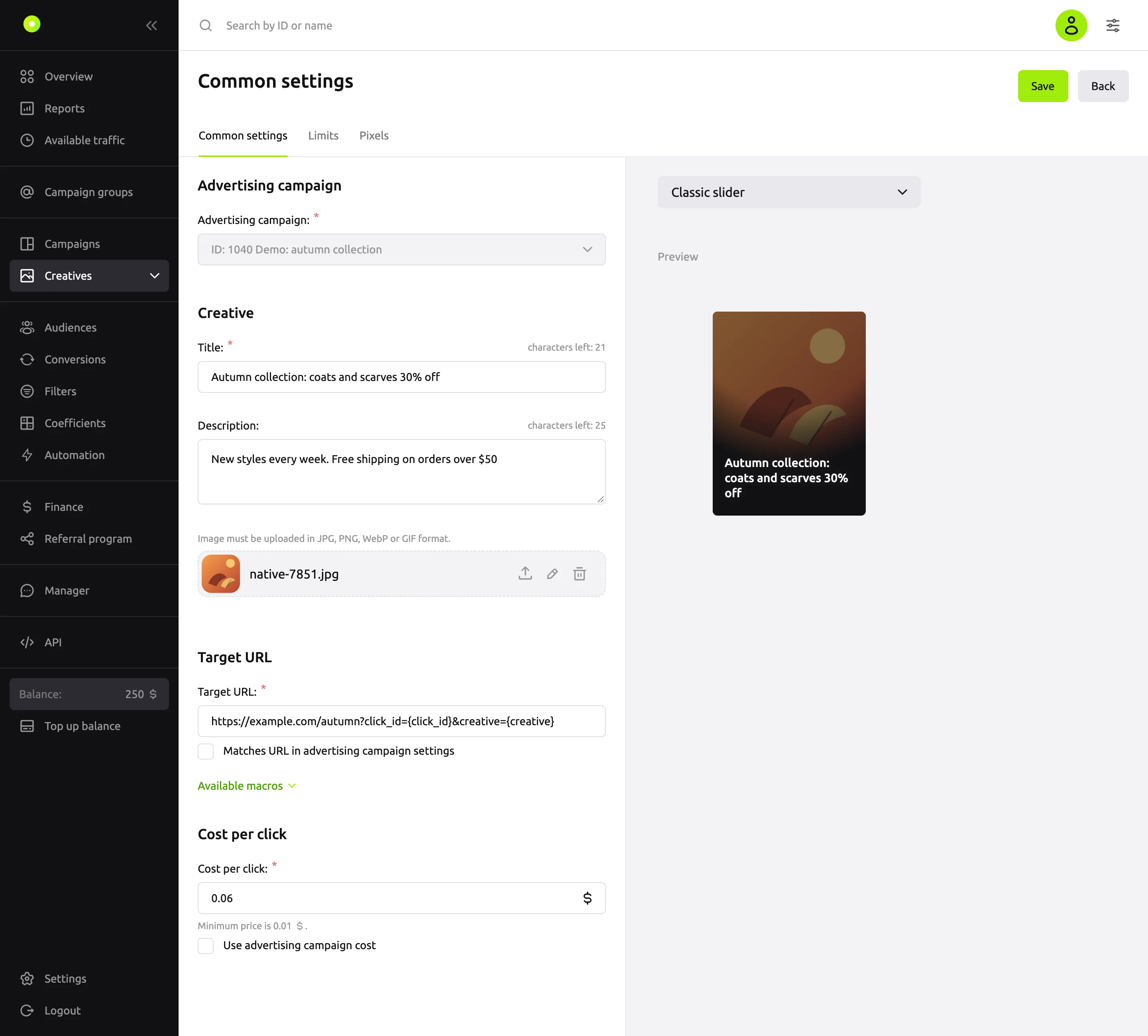
To the right of the form is the Preview with the title and the image. The list above the preview switches the view: Classic slider, Native block, Alternative slider. These are only preview options; they are not saved to the creative.
Fields
| Field | What it means | Values and limits |
|---|---|---|
| Advertising campaign: | The Native campaign the creative will run in | The list shows only Native campaigns. You cannot change the campaign after saving |
| Title: | The main ad text, shown in the preview next to the image | Required, up to 65 characters |
| Description: | Additional ad text | Optional, up to 80 characters. Not shown in the widget preview |
| Image | The ad image | JPG, PNG, WebP or GIF. Square, at least 400 × 400 pixels. See details below |
| Target URL: | The address that opens on click | Required, a full URL with http:// or https://. You can leave it empty if Matches URL in advertising campaign settings is selected |
| Cost per click: or Cost per mille: | The price of this creative. The name depends on the campaign payment model | Not lower than the minimum price. You can leave it empty if Use advertising campaign cost is selected |
Above the Title: and Description: fields there is a "characters left" counter.
Image
- Drag a file into the Image field or click the device link in it and select a file.
- For JPG, PNG and WebP, the Editing an Image window opens. The frame keeps a 1:1 aspect ratio. Select the part of the image you need.
- Click Save changes.
The dashboard saves the selected part as a 400 × 400 pixel image. If the selected part is smaller, the dashboard stretches it and the image becomes blurry: use source images of at least 400 × 400.
A GIF is uploaded as is, without the crop window, so that the animation is kept. Prepare your GIF in advance:
- strictly square: width equals height;
- at least 400 × 400 pixels;
- no larger than 3 MB.
An unsuitable GIF uploads into the form, but the creative with it does not save. A file larger than 10 MB does not upload at all.
The dashboard does not accept files in other formats: "Invalid file format. Upload an image in JPG, PNG, WebP or GIF format."
Buttons to the right of an uploaded file: upload another file, open cropping again (pencil, not available for GIF), delete.
Target URL
If you select Matches URL in advertising campaign settings, the creative takes its link from the campaign's Target URL field, and the Target URL: field is locked. The checkbox is unavailable if the campaign has no target URL: "Campaign not selected or Target URL not specified."
When the campaign target URL changes, creatives with this checkbox get the new link. If you clear the target URL in the campaign, these creatives stop, and their checkbox is cleared.
Under the field is the Available macros list: clicking a macro inserts it into the link. For macro values, see the Macros reference.
To replace part of the link in several creatives at once, use the creative list. See Change the price and URL and copy creatives in bulk.
Price
The price block appears once a campaign is selected. Its name depends on the campaign payment model:
| Campaign payment model | Field | What the price is for |
|---|---|---|
| CPCThe price per click. | Cost per click: | A click |
| CPMThe price per thousand impressions. | Cost per mille: | 1,000 impressions |
The minimum price is shown under the field: "Minimum price is …".
If you select Use advertising campaign cost, the field is locked and the creative uses the campaign price. Without the checkbox, the creative has its own price.
The dashboard warns you, but still lets you save, if you enter more than $1 (RUB 10, €1) when creating a creative or raise the price more than twofold when editing it. For more about prices, see Payment models.
You can also change the price in the creative list: right in a Price column cell, or for several creatives at once. See Change the price and URL and copy creatives in bulk.
Saving and moderation
A new creative has two buttons: Save opens the saved creative, Save and add another opens an empty form with the same campaign.
A new creative goes to the Moderation tab. Once approved, it becomes active if Automatically start ads after moderation is selected in the campaign; otherwise it is stopped.
An edit in the form sends the creative back to moderation if you changed:
- the title, description or image;
- the part of the link after the domain: protocol, path, parameters or anchor;
- the Matches URL in advertising campaign settings checkbox.
Changing the price, the Use advertising campaign cost checkbox or only the domain in the link does not send the creative to moderation.
For what each status means, see Campaign and creative statuses. For how the review works and what is not allowed in a creative, see Creative moderation and Creative and landing page requirements.
The Limits tab
A saved creative has a Limits tab. It has three groups: Budget, Clicks and Impressions. Each group is turned on with a switch and contains a total, daily and hourly limit: Total:, Per day:, Per hour:. You do not have to fill in all three.
- Budget: an amount greater than 0. Clicks and impressions: a whole number from 1.
- If you turn off a group's switch, its values are cleared.
- To save the changes, click Save limit settings.
When a limit is used up, the creative stops serving, and its status does not change. A creative that used up its daily or hourly limit serves again the next day or hour. Days and hours are counted in UTC: a new day starts at 00:00 UTC. To see how much is used up, go to the creative list and hover over the speedometer icon in the creative's row. Campaign limits are described in Limit budget and impression frequency.
The Pixels tab
On the Pixels tab of a saved creative, you connect third-party pixels: the pixel link fires when the selected action happens.
- Click Add pixel link.
- In the Pixel link: field, paste the link from your system.
- In the Action type: field, select when the pixel fires: Impressions, Viewable impression (MRC 50%), Viewable impression (MRC 100%) or Banner click.
- Click Save pixel settings.
Each action type can have no more than 3 pixels. Editing pixels does not send the creative to moderation.
Errors on saving
| Message | What to do |
|---|---|
| "Specify the Target URL or select the checkbox below the field." | Enter a link or select Matches URL in advertising campaign settings |
| "Specify the price per transition or select the checkbox below the field." | Enter a price or select Use advertising campaign cost. The message is the same for CPC and CPM |
| "The ad image has not been set." | Upload an image |
| "Invalid aspect ratio for media file …", "Media file … has incorrect dimensions.", "The media file … exceeds the maximum allowed weight." | The GIF is not square, is smaller than 400 × 400 or is larger than 3 MB. Prepare another file or upload a JPG, PNG or WebP through cropping |
| "Daily limit for creating creatives reached" | Create the creative the next day or contact your manager |
| "Number of events … exceeds the limit: 3." on the Pixels tab | An action type has more than 3 pixels. Delete the extra ones |
Related pages
- Macros: what goes into the link.
- Change the price and URL and copy creatives in bulk.
- Campaign and creative statuses.
- Payment models.