
Set up automation rules
Goal
Stop turning off placements by hand when they spend the budget without results. A rule checks campaign statistics on its own and, for example, blocks placements with expensive conversions.
Before you start
- A campaign with accumulated statistics: the rule looks at data for past days.
- For rules on conversions, CPA and ROI, a configured postback.
- For rules on coefficients, a campaign without optimization: when optimization is on, these rules are not available.
Steps
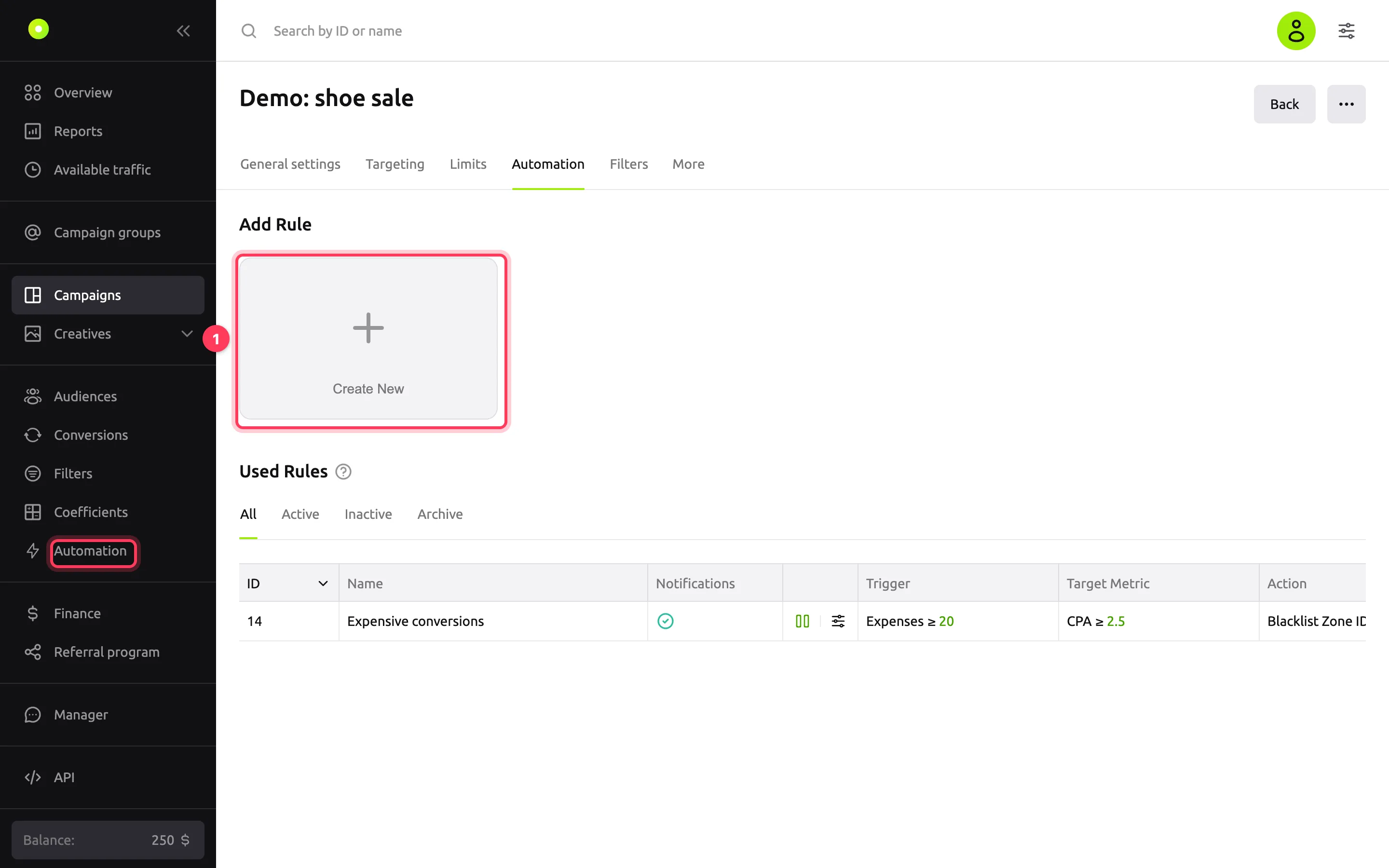
Open the campaign, go to the Automation tab and click Create New. Alternatively, open the Automation section in the left menu and click New Rule; in this case, select the campaign in the form.
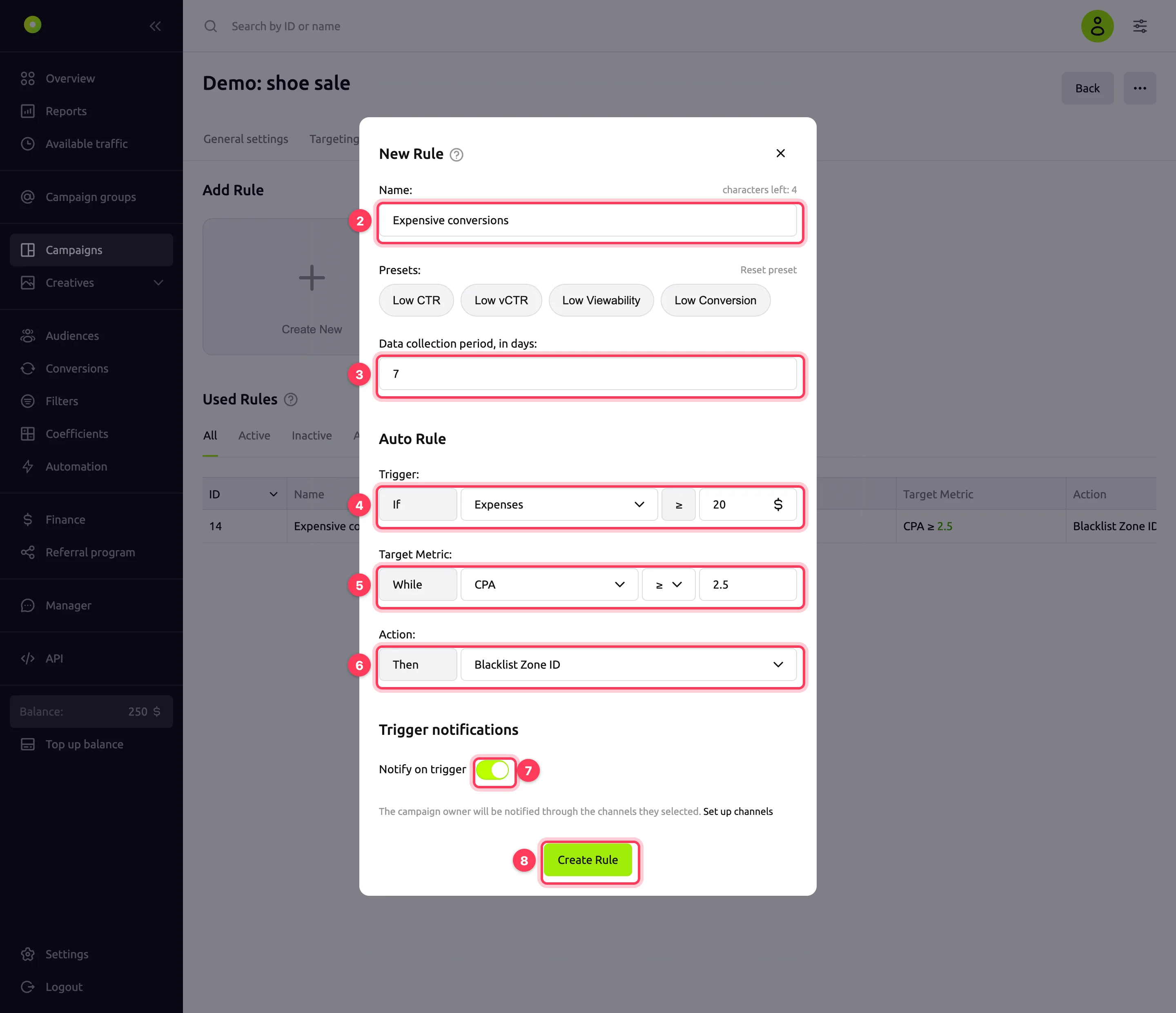
In the Name field, enter the rule name, up to 25 characters.
In the Data collection period, in days field, set how many recent days of statistics to use: from 1 to 30. Or select a ready-made option in Presets: it fills in the period, trigger, target metric and action.
In the Trigger row, select a volume metric and a threshold. The rule checks only the placements where the metric has reached the threshold, so it does not draw conclusions from too little data. For clicks, impressions, viewable impressions and wins, the threshold is a whole number. In this list, Downloads means impressions and Impressions means viewable impressions.
In the Target Metric row, select a metric, the ≤ or ≥ condition and a value.
In the Action row, select what to do. For actions with a coefficient, enter a percentage from 0 to 500: 50% halves the bid, 150% raises it by half. This is a limit of the rule: in the Coefficients section, you can manually set up to 5000% for a zone. For details, see Raise or lower the bid on specific placements.
Turn on Notify on trigger to get notified every time the rule fires. Notifications go to the channels selected in Settings on the Notifications tab.
Click Create Rule.
Result
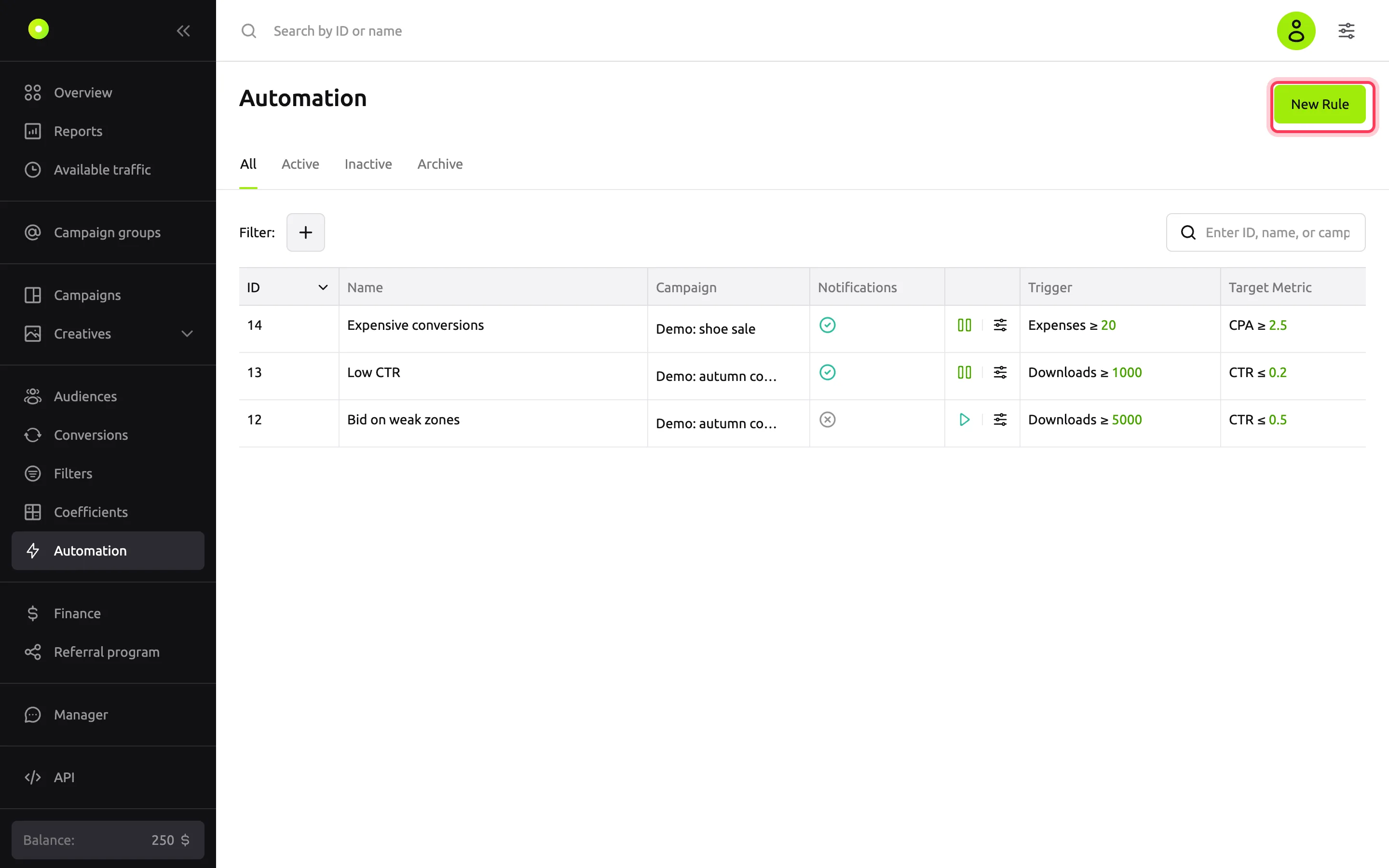
The rule appears in the list on the Active tab. Every 10 minutes, the platform calculates campaign statistics for the recent days set in Data collection period and runs the action if the condition is met.
How the rule checks the condition
The rule works like this: "If Trigger ≥ threshold, while Target Metric ≤ or ≥ value, then perform Action". The condition is checked separately for each object the action applies to:
| Action | What is checked | What happens |
|---|---|---|
| Blacklist Zone ID, Blacklist domain, Blacklist app | Each zone, domain or app | The platform adds the object to the campaign blacklist. The platform creates this filter itself; you cannot edit or delete it |
| Selective Coefficient on Zone ID | Each zone | The bid for the zone is multiplied by the set percentage |
| Micro-bidding on …: Device Type, Hour, Geo, Browser, Device Brand, Provider, Connection Type | Each value: device type, hour and so on | Coefficients of this type are replaced with the rule's coefficients |
| Turn off creative | Each campaign creative | The creative moves to Inactive |
| Stop campaign | The whole campaign | The campaign moves to Stopped |
Target metrics
The target metric value is a number from 0 with up to three decimal places. For percentage metrics, enter percent: 0.2 for CTR means 0.2%. Revenue in the formulas is the sum of conversion payouts from the postback.
| Metric | Formula |
|---|---|
| CTR | Clicks / Impressions × 100, % |
| CPC | Spend / Clicks |
| CPM | Spend / Impressions × 1,000 |
| vCPM | Spend / Viewable impressions × 1,000 |
| Viewability | Viewable impressions / Impressions × 100, % |
| Conversions | Number of conversions |
| CR | Conversions / Clicks × 100, % |
| eCPC | Revenue / Clicks |
| eCPM | Revenue / Viewable impressions × 1,000 |
| CPA | Spend / Conversions |
| ROI | (Revenue − Spend) / Spend × 100, % |
| vCTR | Clicks / Viewable impressions × 100, % |
| WinRate | Wins / Bids × 100, % |
| VTR | Videos watched to the end / Impressions × 100, % |
| VCR | Videos watched to the end / Video starts × 100, % |
| First Quartile Rate %, Midpoint Rate %, Third Quartile Rate % | Videos watched to a quarter, half or three quarters / Impressions × 100, % |
The formulas are the same as in reports. For details, see Reports.
If several rules fire
If several rules with the Selective Coefficient on Zone ID action, or with the same Micro-bidding on … action, fire in a campaign at the same time, the platform applies only one of them:
- If the rules have the same trigger metric, the rule with the highest threshold wins.
- If the trigger metrics differ or the thresholds are equal, the coefficients are compared. If any of them lowers the bid (below 100%), the lowest one applies. If all of them raise the bid, the highest one applies.
Rule list
In the Automation section, rules are grouped on the All, Active, Inactive and Archive tabs. You can search for a rule by ID, name or campaign, and filter by Campaign and Event Type.
- Rule menu: Start or Stop, Edit, Archive.
- Archiving is final: you cannot start or edit an archived rule. If you need it again, create a new one.
Presets
All presets block zones with poor results over the last 7 days:
| Preset | Trigger | Target metric |
|---|---|---|
| Low CTR | Downloads (impressions) ≥ 1000 | CTR ≤ 0.2 |
| Low vCTR | Impressions (viewable impressions) ≥ 1000 | vCTR ≤ 0.2 |
| Low Viewability | Downloads (impressions) ≥ 300 | Viewability ≤ 50 |
| Low Conversion | Clicks ≥ 300 | CR ≤ 1 |
WARNING
Rule actions are not undone automatically. If you stop or archive a rule, blocked placements, coefficients and turned-off creatives stay as they are. If you start a campaign that an active rule has stopped, the rule stops it again at the next check. Stop the rule first.
Troubleshooting
| Symptom | Cause | Fix |
|---|---|---|
| "Invalid quantitative metric value. Minimum value: …" | The trigger threshold is below the minimum | Minimums: Clicks, Downloads (impressions) and Wins: 100; Impressions (viewable impressions): 1000; Expenses: $1 (RUB 100, €1) |
| "Coefficient automated rules are not available while bid optimization is enabled" | Optimization is on in the campaign | Select an action without a coefficient or turn off optimization. When you turn on optimization, such rules are turned off automatically |
| You cannot change the rule's action | The rule is active | Stop the rule, change the action and start it again |
| "You cannot edit an archived rule" | The rule is archived | Create a new rule |
| The rule does not block zones without conversions, although it is set to "CPA ≥ …" | Without conversions, CPA is not calculated, so the condition is not met | For such zones, use the CR or Conversions target metric |
| Under the toggle: "No channels selected for auto-rule notifications — nothing will be delivered." | No channels are selected for auto-rules in the settings | Click Set up channels and select email or Telegram for the Auto-rules triggered event |
Next steps
- Campaign and creative statuses: how to find a creative or campaign stopped by a rule.
- Bid optimization: why rules on coefficients are not available with optimization.