
Limit budget and impression frequency
Goal
Do not spend more than planned: set the campaign run period, budget, frequency per user and ad hours.
Before you start
- A campaign.
- A spend plan: how much you can spend in total and per day.
Steps
Open the campaign and go to the Limits tab. Each block has its own toggle. If you turn the toggle off, the block's values are erased.
In the Launch period block, turn on the toggle and set the Start and End dates, then the Time zone.
In the Budget block, turn on the toggle and set the Total, Per day or Per hour limits. In the Distribution field, select Evenly throughout the period or As fast as possible. For the difference between the modes, see Budget distribution.
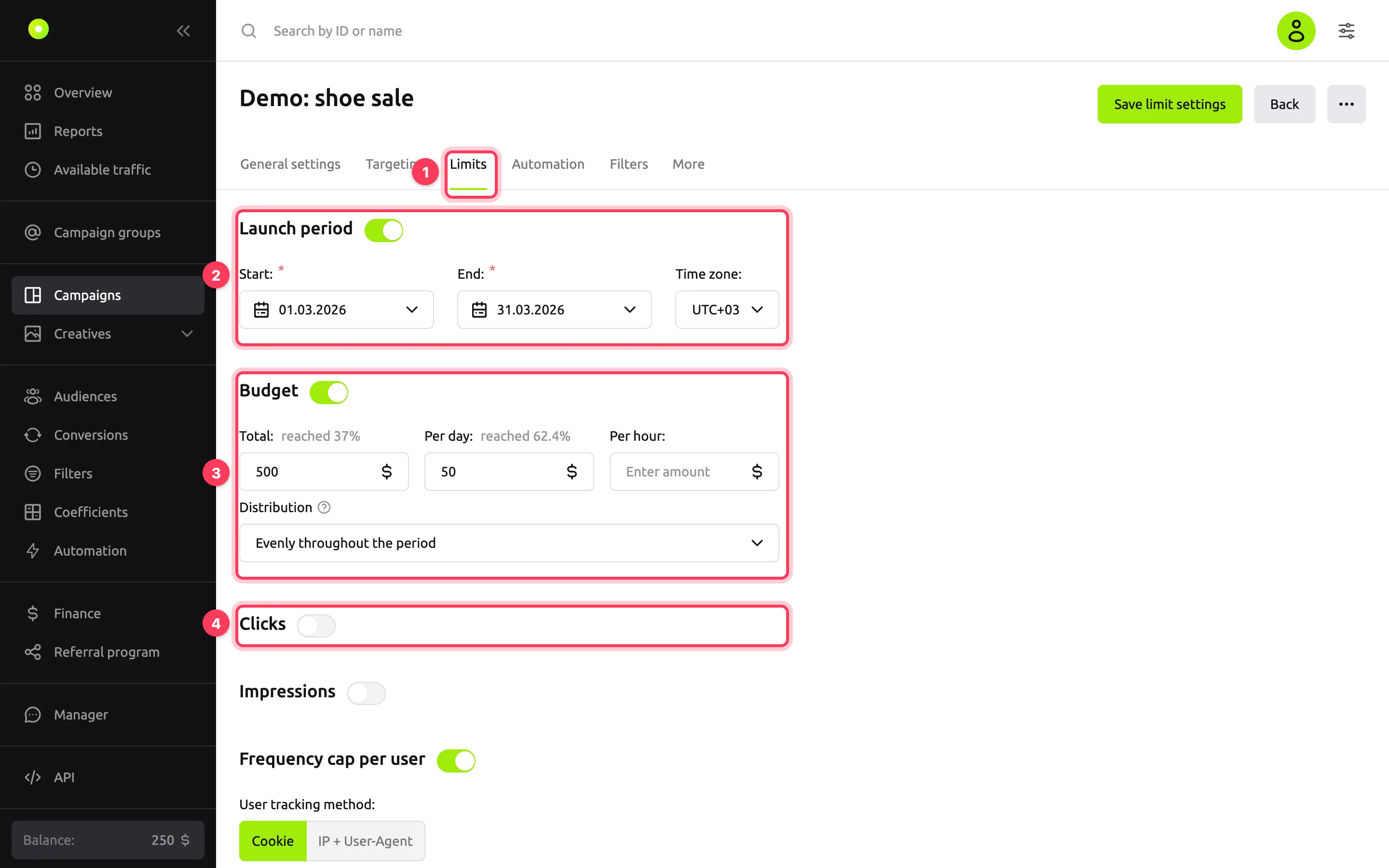
If needed, limit Clicks and Impressions the same way: in total, per day and per hour. Enter a whole number from 1. Pop campaigns cannot have an impression limit: the Impressions block is on the tab, but you cannot save it.
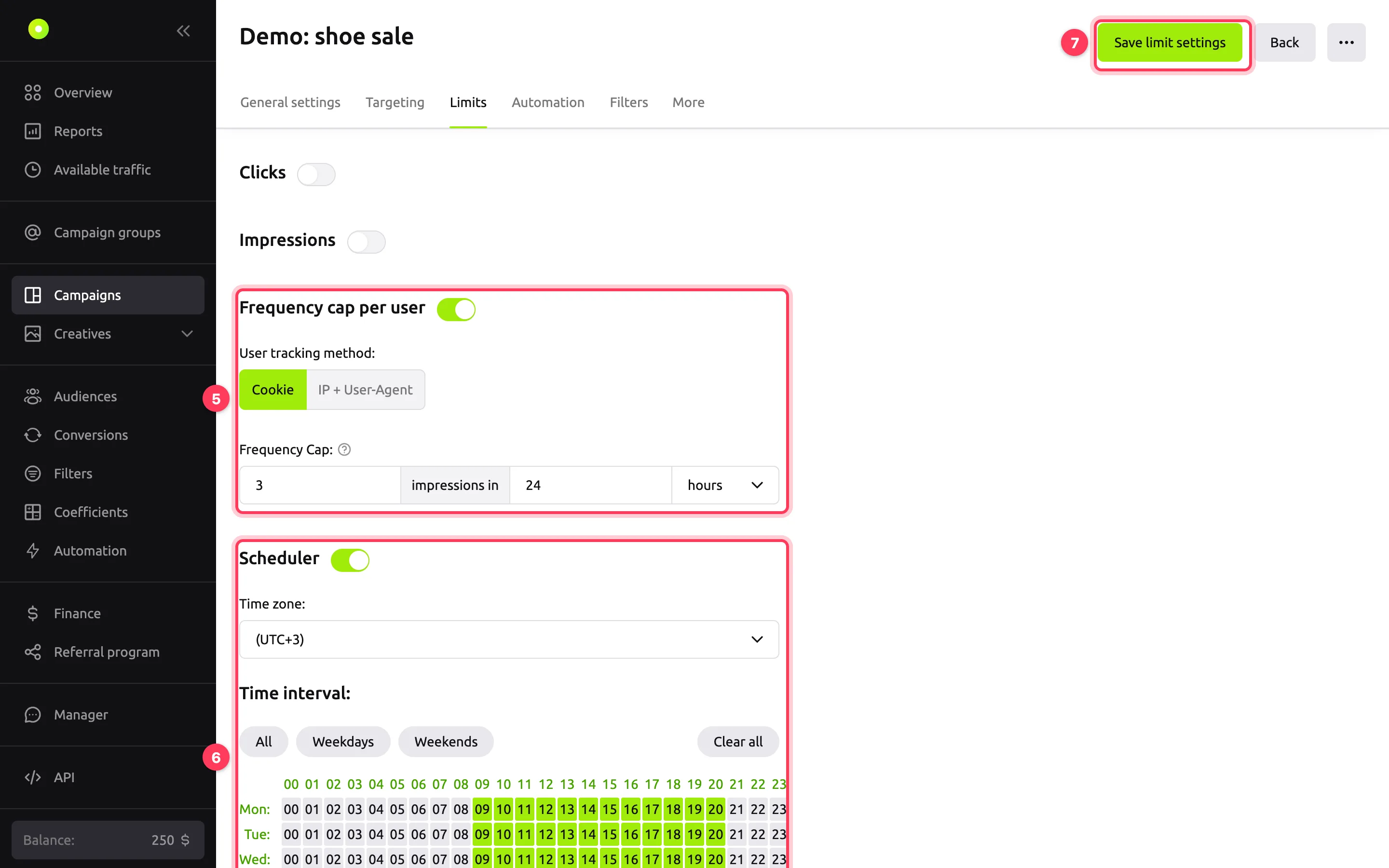
In the Frequency cap per user block, turn on the toggle, select the User tracking method (Cookie or IP + User-Agent) and set the Frequency Cap: the number of impressions and an interval in minutes or hours. For example, if you set 3 impressions in 24 hours, one person sees the ad no more than three times a day. For how the platform recognizes the same person, see Auction and bid.
In the Scheduler block, turn on the toggle, select a time zone and mark the ad hours. Click a cell to turn on that hour, a weekday to turn on the whole day, or an hour in the header to turn on that hour on all days. The All, Weekdays, Weekends and Clear all buttons fill the grid at once.
Click Save limit settings.
Budget distribution
The Distribution field in the Budget block sets how the budget is spent:
- As fast as possible: the campaign buys every impression it wins until it reaches the limit.
- Evenly throughout the period: the platform spreads the budget over the whole launch period and takes into account the hours that usually have more traffic. This mode requires a Total limit and a launch period with both dates.
Result
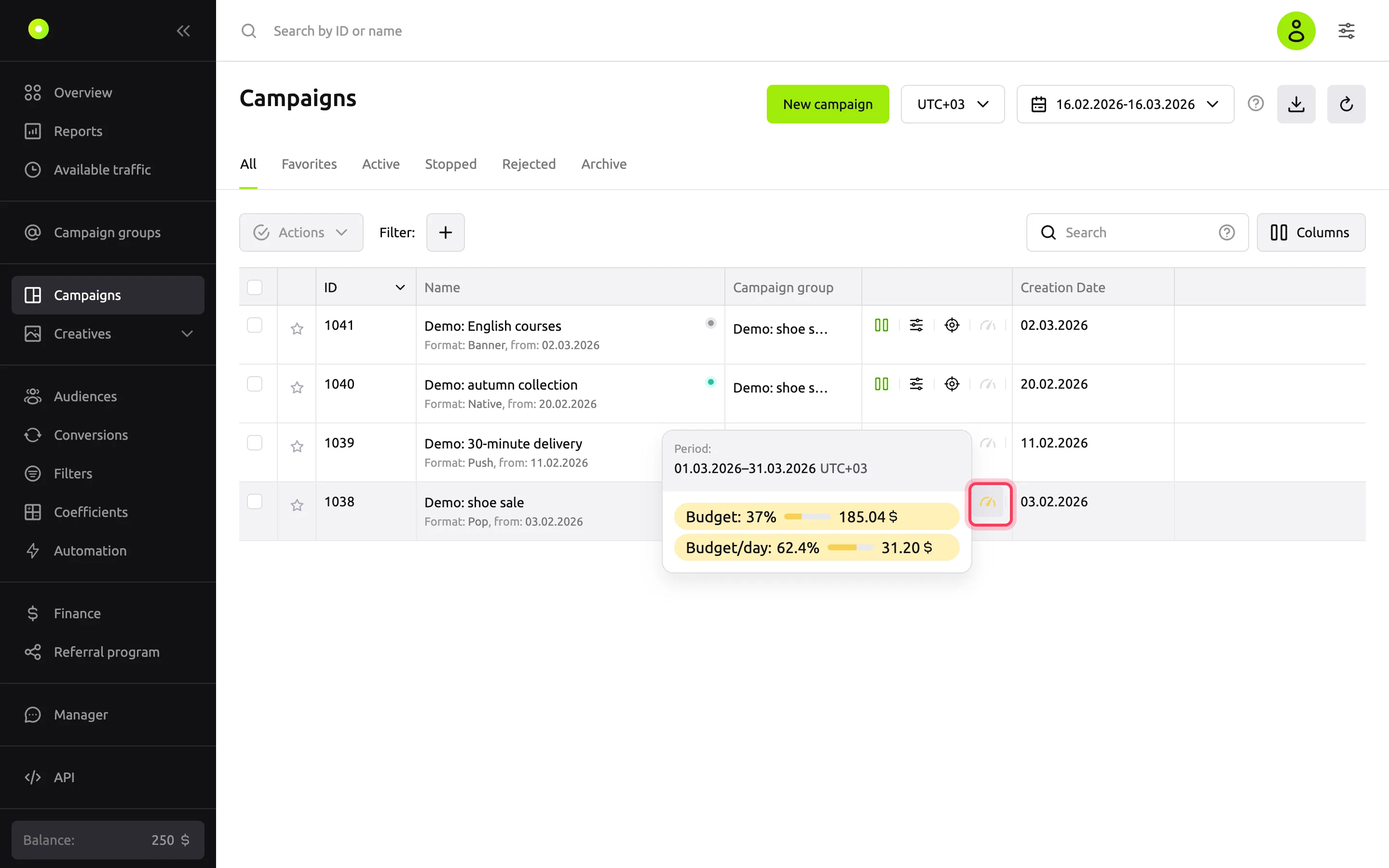
The message "Changes successfully saved" appears. Spend appears next to the budget, click and impression limits, for example "reached 37%".
In the Campaigns list, a speedometer icon in the campaign row shows how much is spent: green means up to a third of the limit, yellow up to two thirds, red more than that. Hover over the icon to see the period and progress for each limit.
Campaign group limits
You can also set limits for a whole campaign groupA folder for one advertiser's campaigns with shared settings and limits.: its page has a Limits tab with Budget, Clicks and Impressions blocks.
Troubleshooting
| Symptom | Cause | Fix |
|---|---|---|
| "Specify the date" under a date | The Launch period block is on, but no date is selected | Select both dates or turn the block off |
| "Start date cannot be later than end date" | The Start date is later than the End date | Swap the dates |
| "The total limit must be greater than zero for even distribution" | Evenly throughout the period is selected, but the Total limit in the Budget block is not set | Set the Total limit or select As fast as possible |
| "Broadcast range must be set" | Evenly throughout the period is selected, but the Launch period block is off | Turn on Launch period and set both dates |
| "You cannot save an impression limit for this campaign." | The campaign is in the Pop format, and the Impressions block has values | Turn off the Impressions block. To limit volume, use the budget or the frequency cap per user |
| The campaign stopped running early, and the dot next to its name is green | The budget, click or impression limit is used up. A used-up limit does not turn the dot off | Hover over the speedometer icon in the campaign list and check which limit is used up. Increase it |
| The dot next to the name is gray | The campaign is outside the launch period or schedule, or the balance is $10 (€10, RUB 1,000) or less | Check Launch period and Scheduler, top up the balance |
| The amount in a budget field changed by itself | The minimum amount is 0.1, with one decimal place allowed | Enter an amount of at least 0.1 |
| The schedule shifted by several hours | The grid is shown in the selected time zone. The platform stores hours in UTC and converts them | Select the right Time zone before marking hours |