
Postback for Binom
Goal
Send conversions from Binom to the platform: Binom gets the click ID from the campaign link and returns it in a postbackA server notification about a conversion that a tracker sends to the platform. together with the conversion revenue.
This is a special case of the general guide Set up postback and conversion tracking. This page covers only what differs for Binom.
Before you start
- A Binom campaign and its link: the address where Binom accepts clicks.
- A traffic source in Binom for Youtarget traffic.
- A campaign in the dashboard. To create one, see Your first campaign in 15 minutes.
Steps
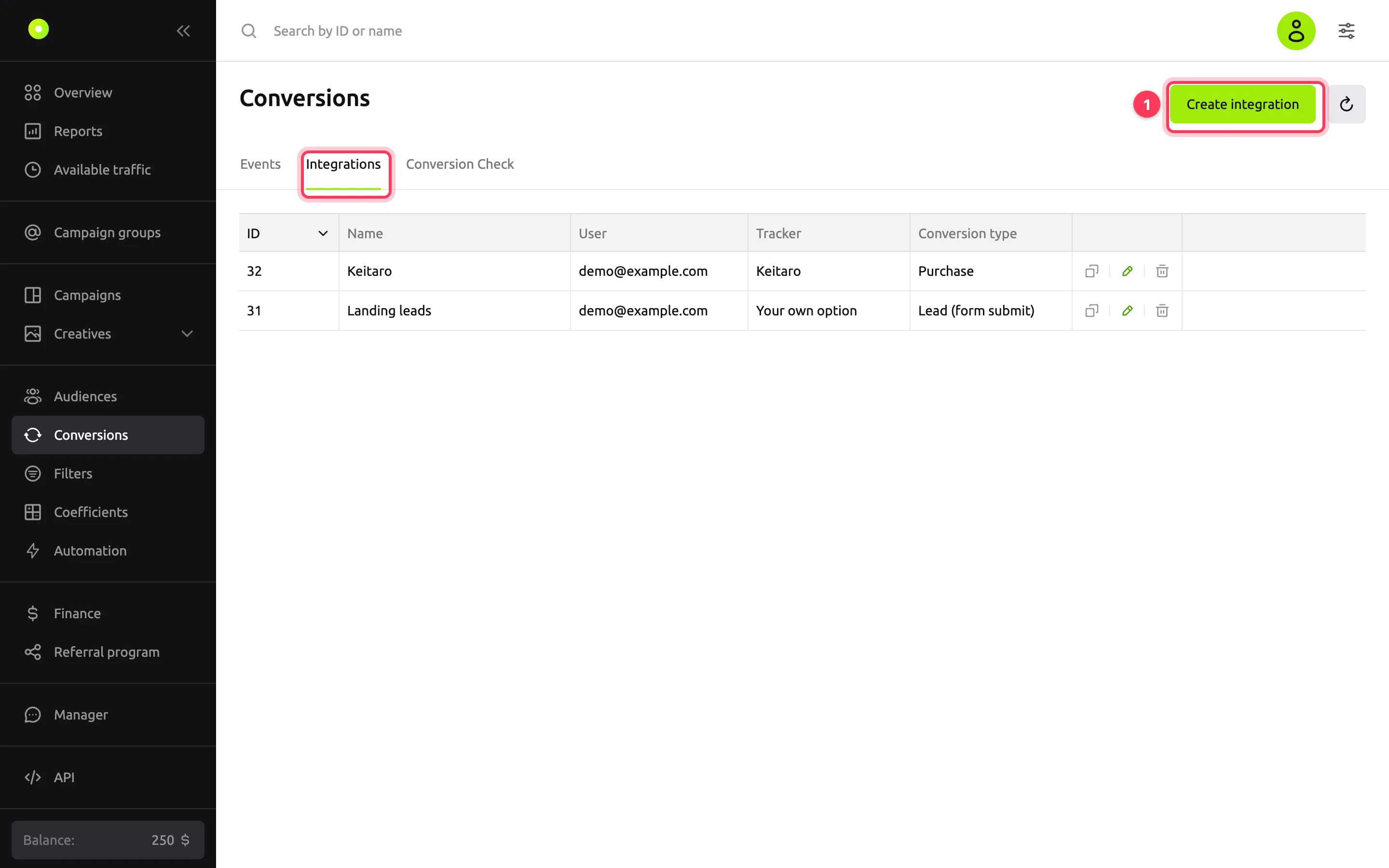
In the left menu, open Conversions, go to the Integrations tab and click Create integration.
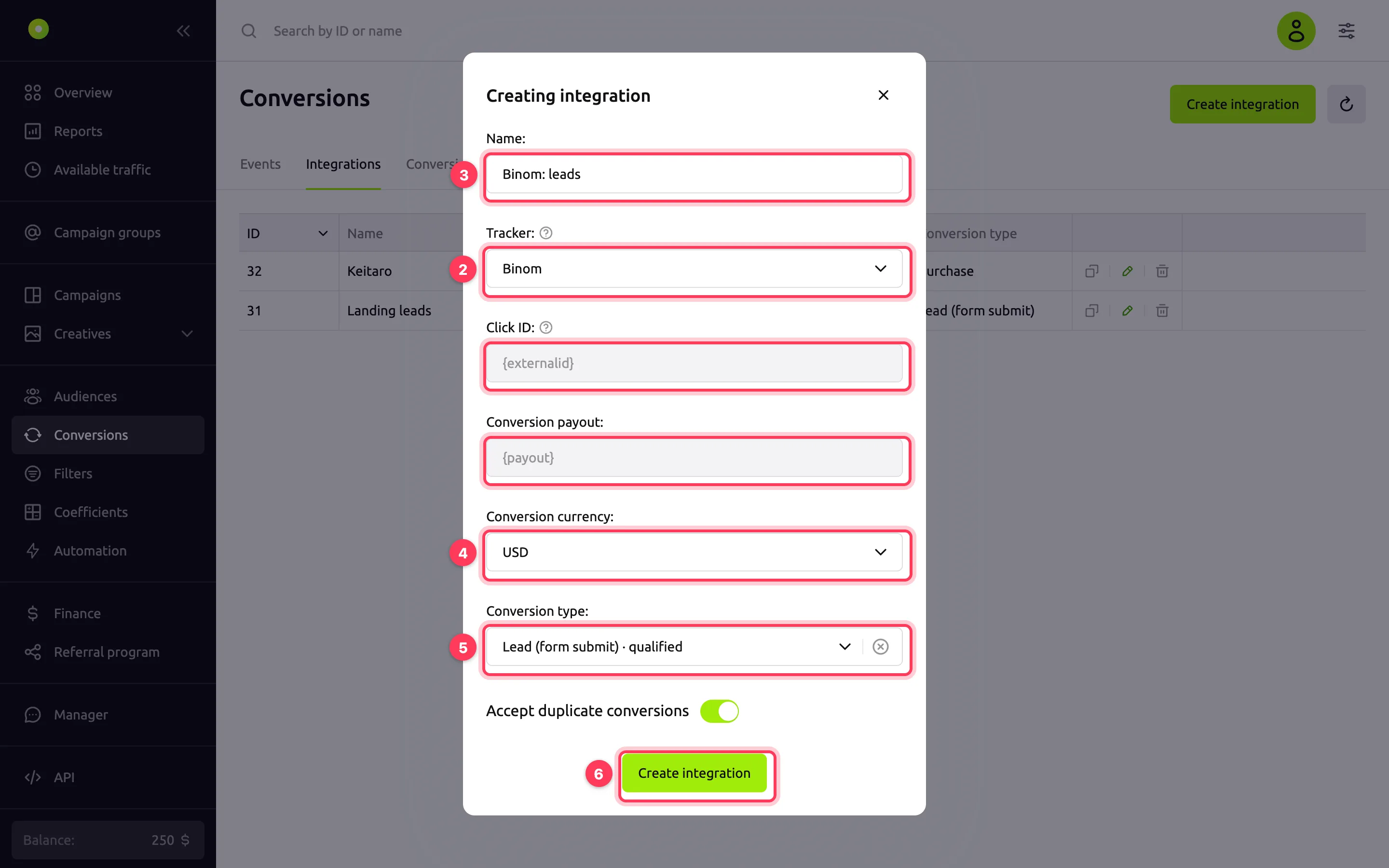
In the Tracker field, select Binom. The dashboard fills the fields with Binom macros: Click ID gets
{externalid}, Conversion payout gets{payout}. You cannot edit these fields while the template is selected.In the Name field, replace the default "Binom" with a name that makes sense to you, for example "Binom: leads". Up to 20 characters.
In the Conversion currency field, select USD or RUB: the currency in which Binom sends the conversion revenue. The dashboard writes it into the postback link as is. The link has one currency for all conversions: if Binom has payouts in different currencies, the platform still counts them in the selected one.
In the Conversion type field, select the event, for example Lead (form submit). For details on the conversion type and Accept duplicate conversions, see the general guide.
Click Create integration.
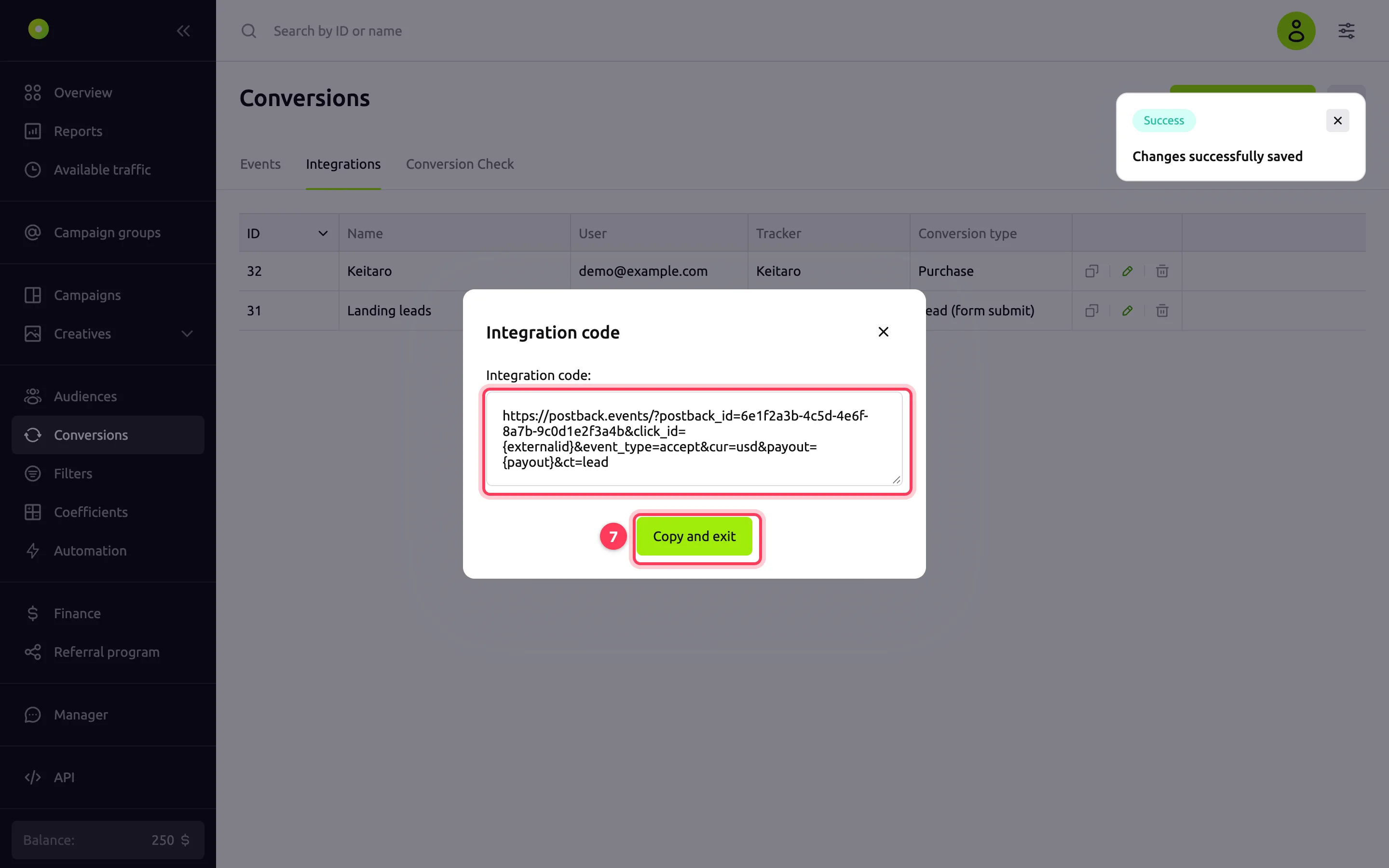
In the Integration code window, click Copy and exit. The postback link is copied to the clipboard.
In Binom, open the settings of the Youtarget traffic source and specify which link parameter carries the external click ID: Binom puts it into the
{externalid}macro. For example, theexternalidparameter.In the same source settings, paste the copied link as the postback. Paste the whole link and do not change the
{externalid}and{payout}macros: Binom replaces them.In the dashboard, open the campaign and paste the Binom campaign link with the parameter from step 8 and the
{click_id}macro into the Target URL field. For example:https://tracker.example.com/k4Tz9p?externalid={click_id}.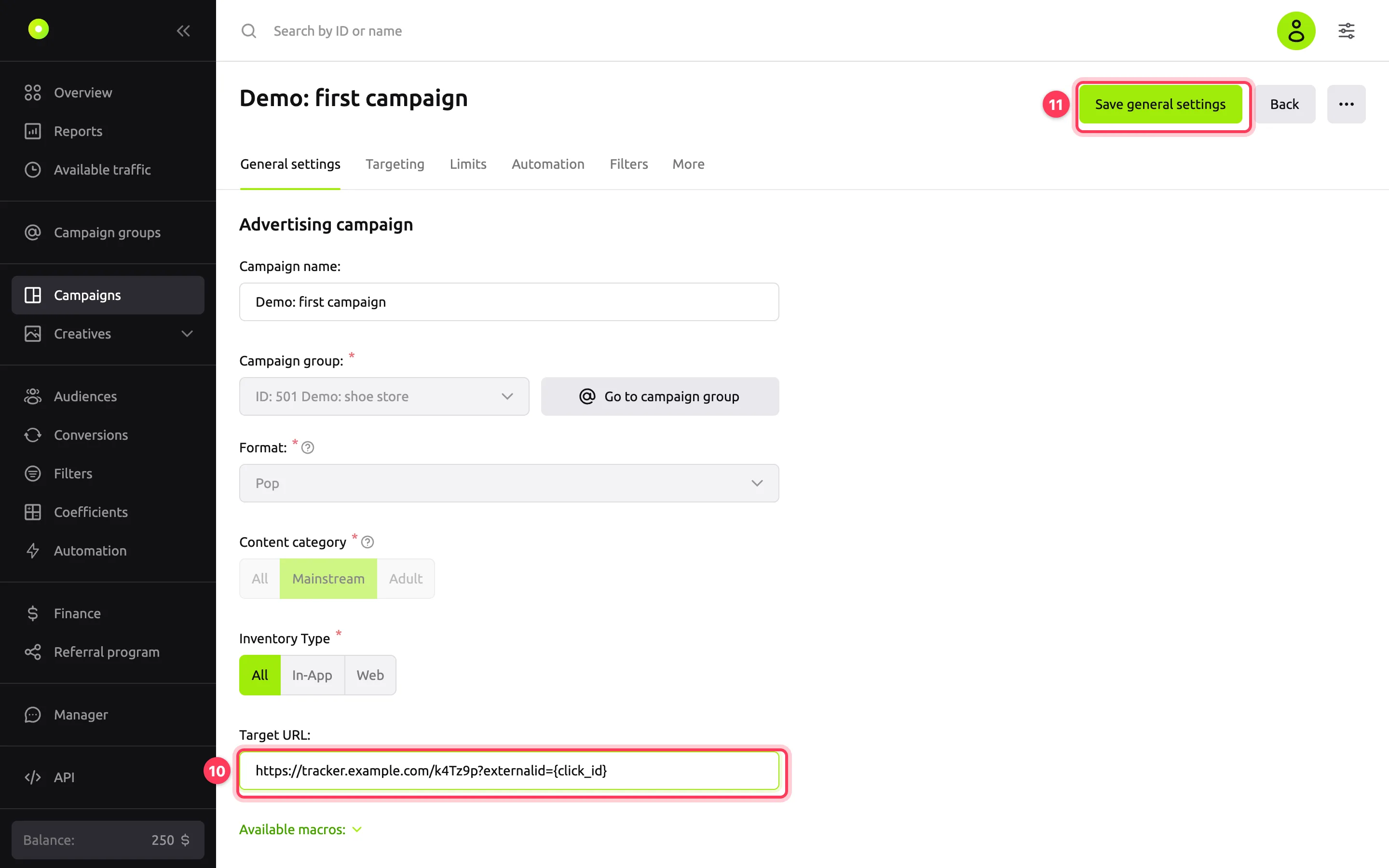
Click Save general settings.
If the link is set in the creative rather than in the campaign, add the parameter with {click_id} to the creative's Target URL (Landing page for banner and video creatives).
Result
The chain works like this. On a click, the platform puts the click ID into {click_id}, and Binom stores it as the external click ID. When a conversion appears in Binom, Binom sends a postback and puts this ID in place of {externalid}.
The postback link for Binom looks like this:
https://postback.events/?postback_id=<integration id>&click_id={externalid}&event_type=accept&cur=usd&payout={payout}&ct=lead| Parameter | Value in the link | Where it comes from |
|---|---|---|
postback_id | Integration ID | The dashboard. Do not change it |
click_id | {externalid} | Binom template. Binom puts in the click ID it got from {click_id} |
payout | {payout} | Binom template. Binom puts in the conversion revenue |
cur | usd or rub | The Conversion currency field |
event_type | accept | The dashboard. Does not affect tracking. For details, see Conversions are not coming in |
ct | Conversion type key, for example lead | The Conversion type field. If no type is selected, the parameter is absent |
Test the setup with a test conversion: on the Conversion Check tab, select a campaign and a creative, open the link and complete the target action on the site. The conversion appears on the Events tab with the integration name and the payout from Binom. To learn when to expect the conversion and how to read the platform's response in the Binom log, see Conversions are not coming in.
NOTE
The platform counts every conversion it receives as approved. Set up Binom to send the postback only for approved conversions.
Troubleshooting
| Symptom | Cause | Fix |
|---|---|---|
The Binom log shows the response invalid uuid format | Binom did not get the click ID: the Target URL has no parameter with {click_id}, or the parameter name does not match the source settings | Compare the parameter name in the Target URL and in the Binom source settings |
The Binom log shows the response invalid payout | Binom did not put in the revenue: {payout} arrived empty or unreplaced | Check that the conversion in Binom has revenue. Details: Conversions are not coming in |
| The Click ID and Conversion payout fields cannot be edited | The Binom template is selected: the macros come from the template | To enter other macros, select Your own option in the Tracker field |
| You changed the currency or conversion type in the integration, but the platform still receives the old values | The currency and conversion type are written into the postback link itself. Binom still has the old link | After you save the integration, the dashboard shows the Integration code window again. Copy the new link and replace it in Binom |
| The dashboard shows conversions that Binom rejected | The platform counts every postback it receives as approved | In Binom, turn off the postback for rejected and pending conversions |
Next steps
- To optimize the campaign by CPA and take the conversion cost from the postback, see "Next steps" in the general guide.
- The same setup for Keitaro: Postback for Keitaro.
- If conversions did not appear: Conversions are not coming in.