Dashboard overview
After you sign in, the campaign list opens. A summary built from charts and tables is in the Overview section. For details, see Track metrics on the overview.
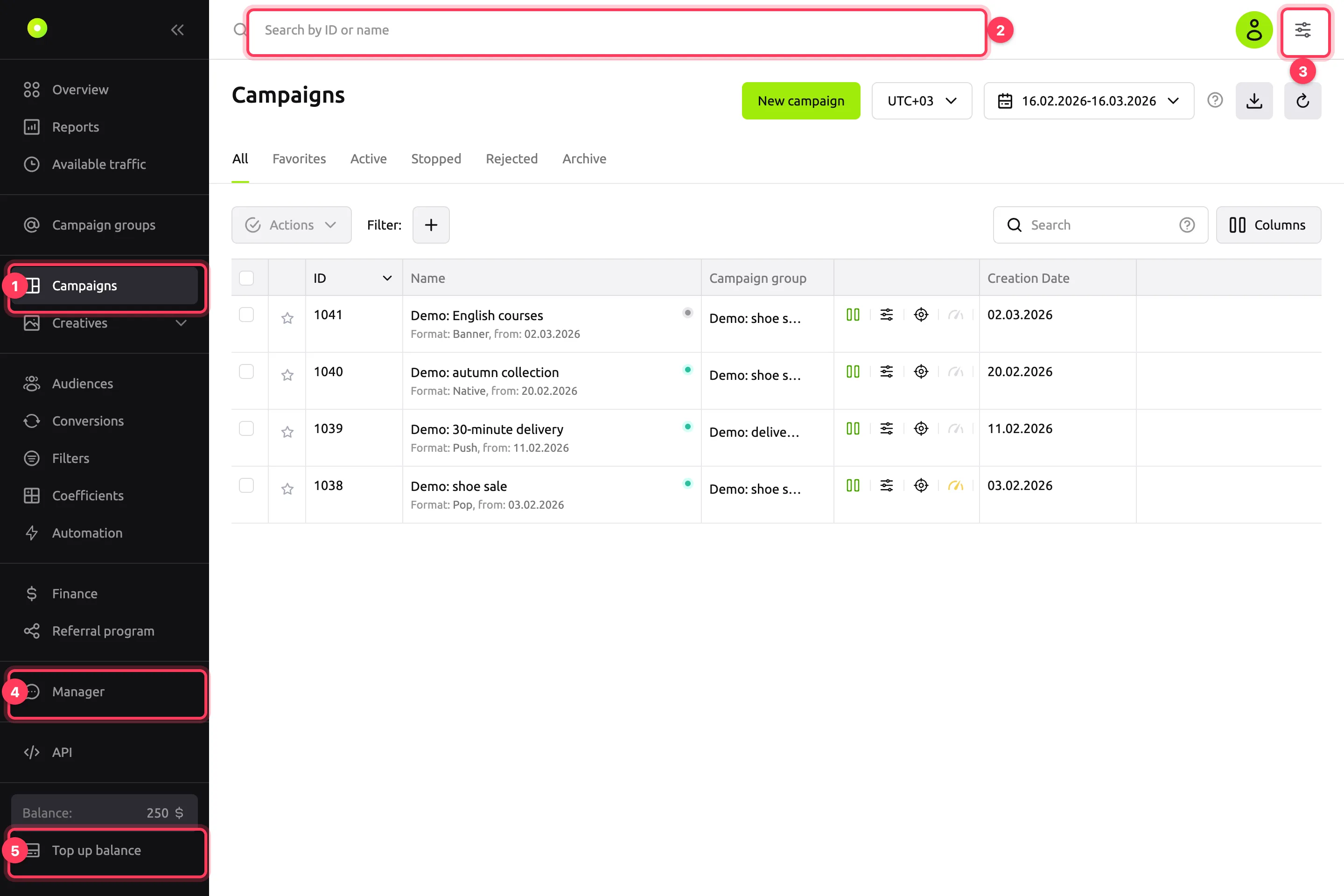
- Section menu. All items are listed in the table below. The "<<" button at the top collapses the menu to icons.
- Search by ID or name. Finds campaigns and creatives. Each result has quick links: Edit and Report. Campaigns also have Creatives, Create creative and Coefficients, and banners and video have Preview.
- View settings: theme, compact tables, language, number format, time zone and report currency. Next to it is the profile icon: its menu shows the email you signed in with and your balance.
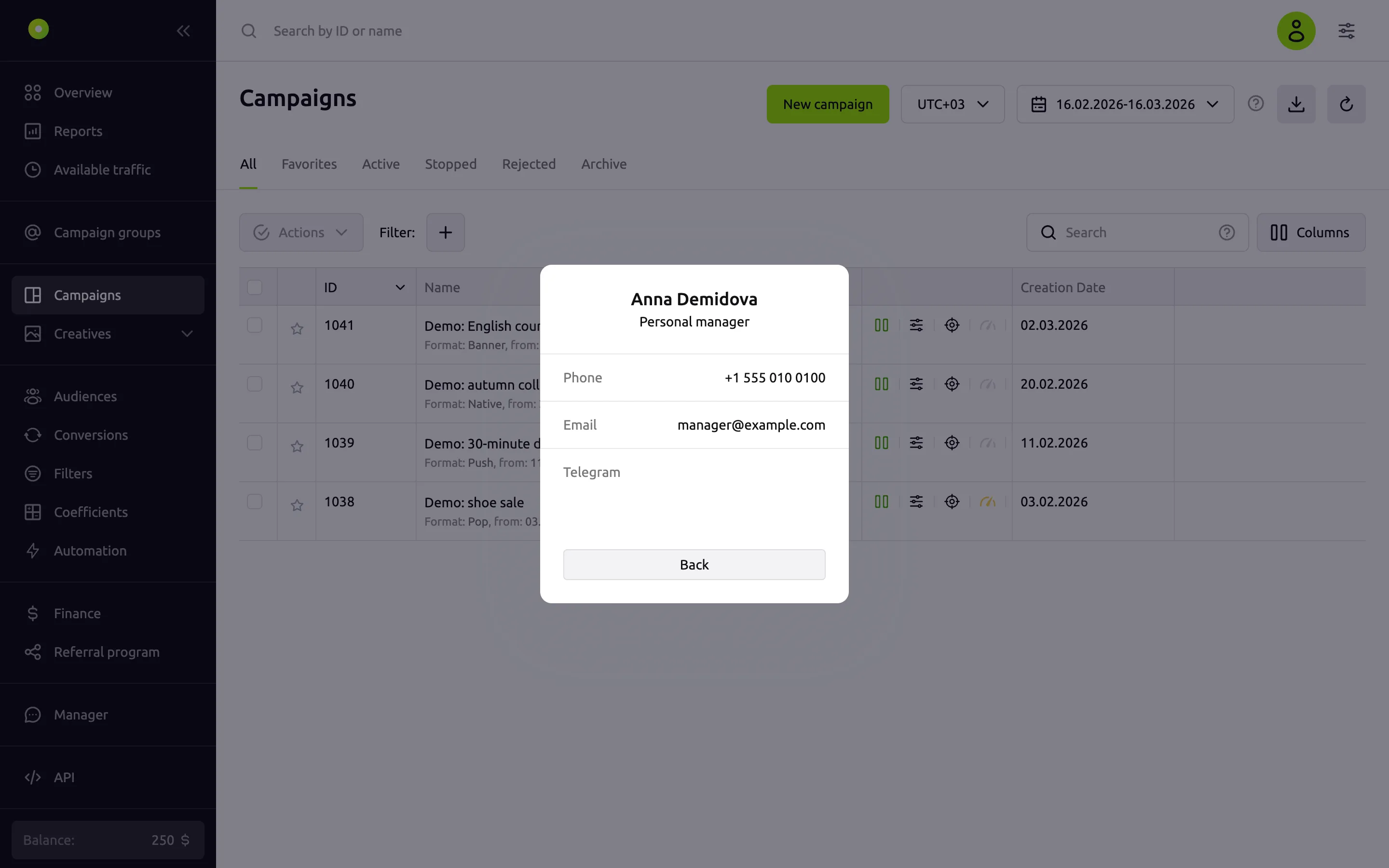
- Manager: contacts of your personal manager.
- Balance and the Top up balance button.
Section menu
| Item | What it contains |
|---|---|
| Overview | Your own summary built from widgets: Track metrics on the overview |
| Reports | Statistics by campaign, placement, creative, geo and device: Build a report with nested groupings |
| Available traffic | Traffic volume by country and the bid at which the campaign gets impressions: Choose a bid with Available traffic |
| Campaign groups | Campaign groups with shared limits |
| Campaigns | The campaign list: Manage the campaign list |
| Creatives | Creatives by format: Native, banners, Push, Pop, video. For bulk actions, see Change the price and URL and copy creatives in bulk |
| Audiences | Retargeting audiences: Retargeting: pixel and audiences |
| Conversions | Events, tracker integrations and postback checks: Set up postback and conversion tracking |
| Filters | Blacklists and whitelists of zones, IP addresses and other values: Turn off poor placements with a filter, the Filters reference |
| Coefficients | Bid coefficients for specific zones: Raise or lower the bid on specific placements |
| Automation | Rules that block placements, change the bid or stop a campaign based on statistics: Set up automation rules |
| Finance | Operation history: Top up your balance |
| Referral program | Your invitation link and payouts: Invite an advertiser through the referral program |
| Manager | Manager contacts, see below |
| API | Opens the API documentation in a new tab. To get a token, see Use the API |
| Balance and Top up balance | The current balance and the way to pay: Top up your balance |
| Settings | Profile, password, notifications, access and integrations, see below |
| Logout | Sign out of the dashboard |
The set of items depends on the account permissions. For example, an agency client does not have Finance, Referral program and Top up balance.
View settings
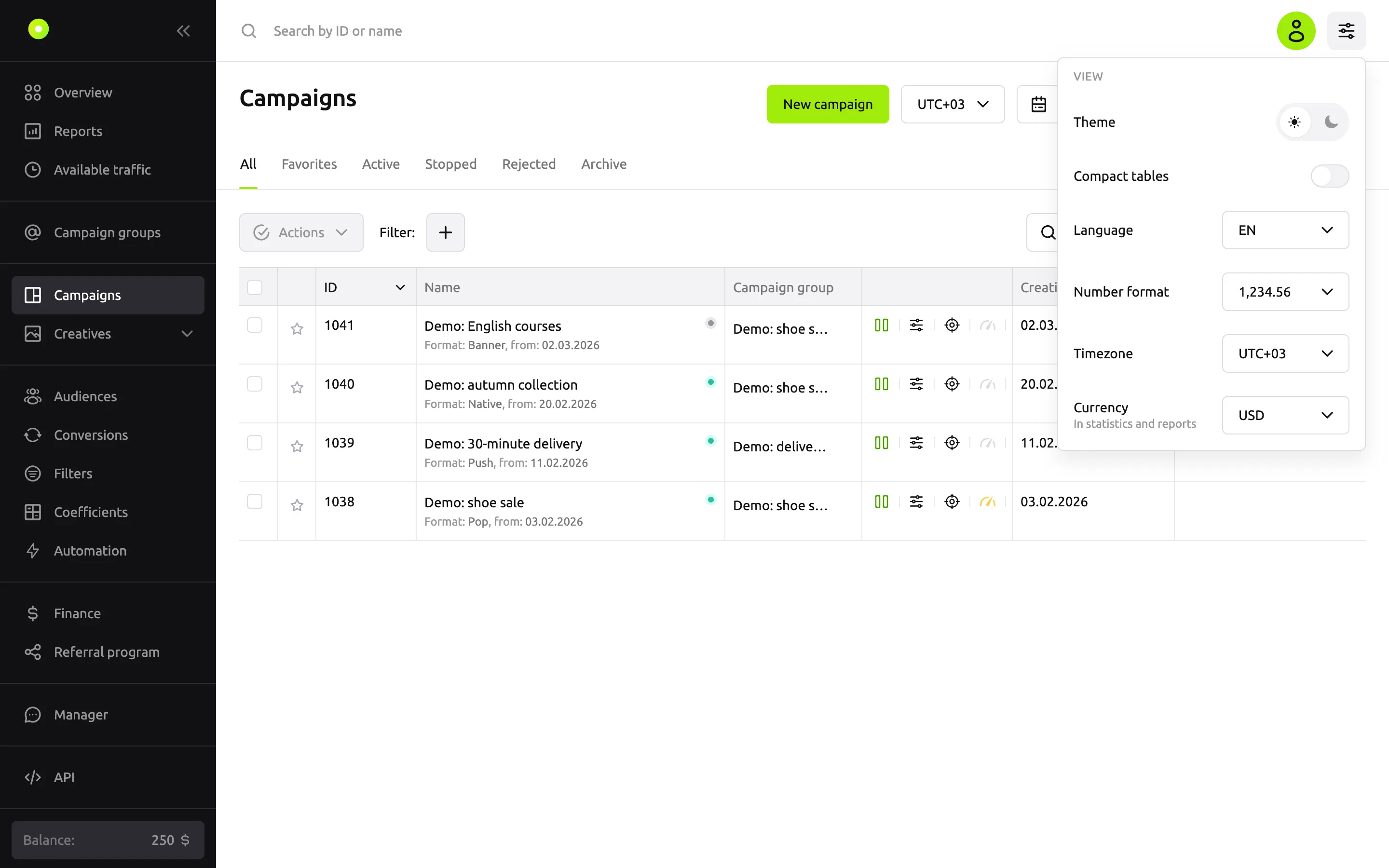
- Theme and Compact tables apply immediately.
- Language: Russian or English. When you change the language, the dashboard warns you that the page will reload.
- Number format changes the separators in amounts: 1,234.56, 1 234,56 or 1.234,56. Before it changes the format, the dashboard also asks you to confirm a page reload.
- Timezone and Currency affect dates and amounts in statistics and reports.
Settings
At the bottom of the left menu, open Settings. Tabs:
- Common settings: your name, contact and the same view settings. For details, see Profile and password.
- Notifications: balance, limit and automation rule messages by email or Telegram. See Get balance and limit notifications.
- Password settings: change your password. See Profile and password.
- Shared access: agency clients' access to campaigns. See Work as an agency: clients and shared access. Agency clients do not see this tab.
- Integrations: API tokens and connected AI assistants. See Use the API and Connect an AI assistant via MCP.
Manager contacts
Click Manager in the left menu. The window shows the manager's name, phone, email and Telegram.