
Get balance and limit notifications
Goal
Learn right away when your balance is running low, a campaign has hit a limit or an automation rule has fired. Notifications arrive by email, in a private Telegram chat or in a team Telegram group.
Before you start
- Access to the mailbox or Telegram where notifications will arrive.
- For a Telegram group, permission to add bots to this group.
Steps
At the bottom of the left menu, open Settings and go to the Notifications tab. The tab has two blocks: Delivery channels and Notifications.
Click Add channel. You can connect up to 10 channels in any combination. The Account email channel is created automatically: it is the email the account is registered with.
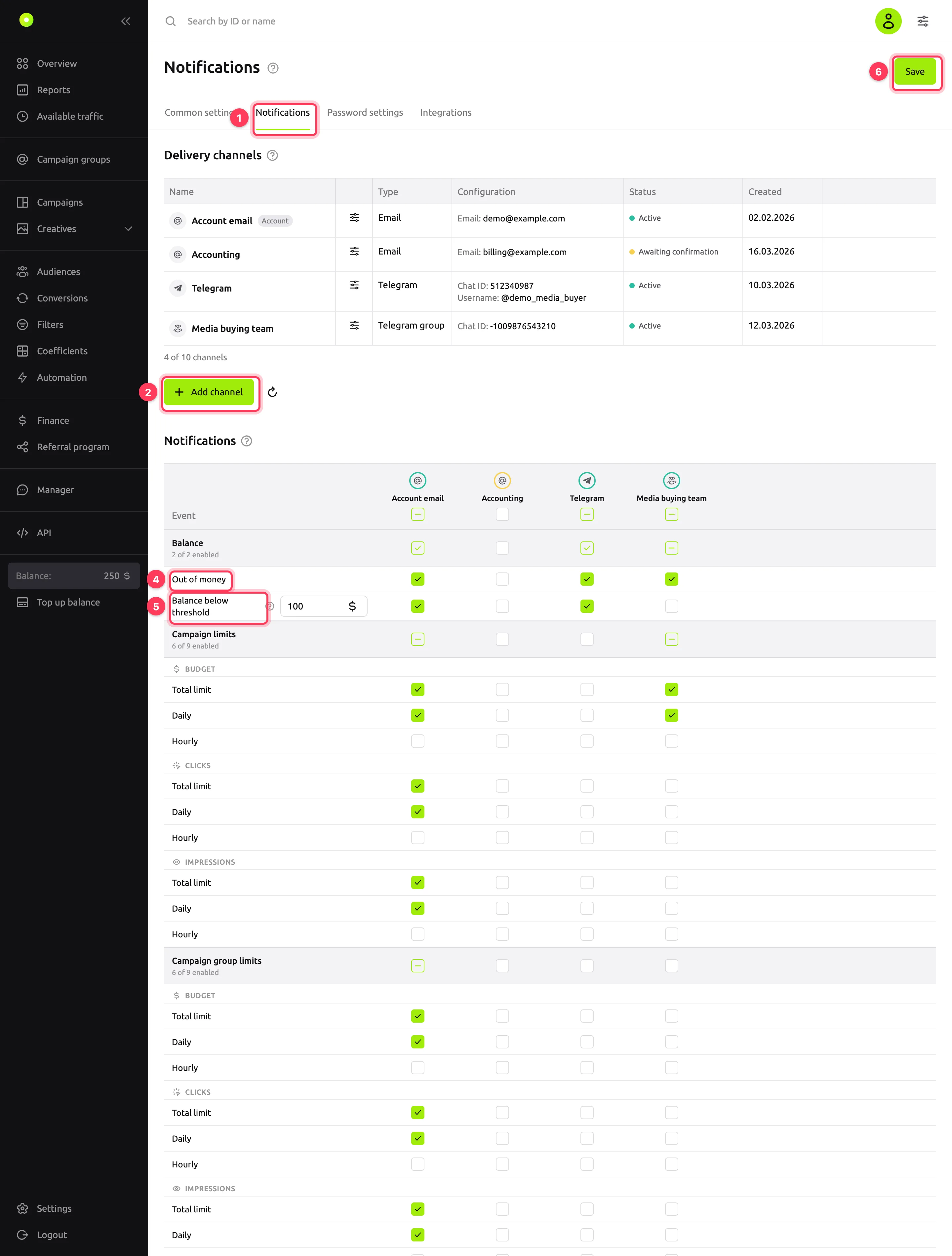
Choose where to send notifications and connect the channel:
- Email: enter the Email and, if needed, a Name, then click Add. You will get an email: follow the link in it. Until you confirm, the channel has the Awaiting confirmation status and does not receive notifications. You cannot add the email the account is registered with as a separate channel: it is already the Account email channel.
- Telegram: click Open the bot, send /start in the chat with the bot and return to the dashboard. The channel appears in the list on its own. To open the bot on another device, copy the link with the Copy link button.
- Telegram group: click Choose a group and select a group in Telegram. Telegram adds the bot to it and sends the code on your behalf. Allow the bot to send messages in the group and return to the dashboard. If the bot is already in the group, send the command from the window there; the Copy command button copies it.
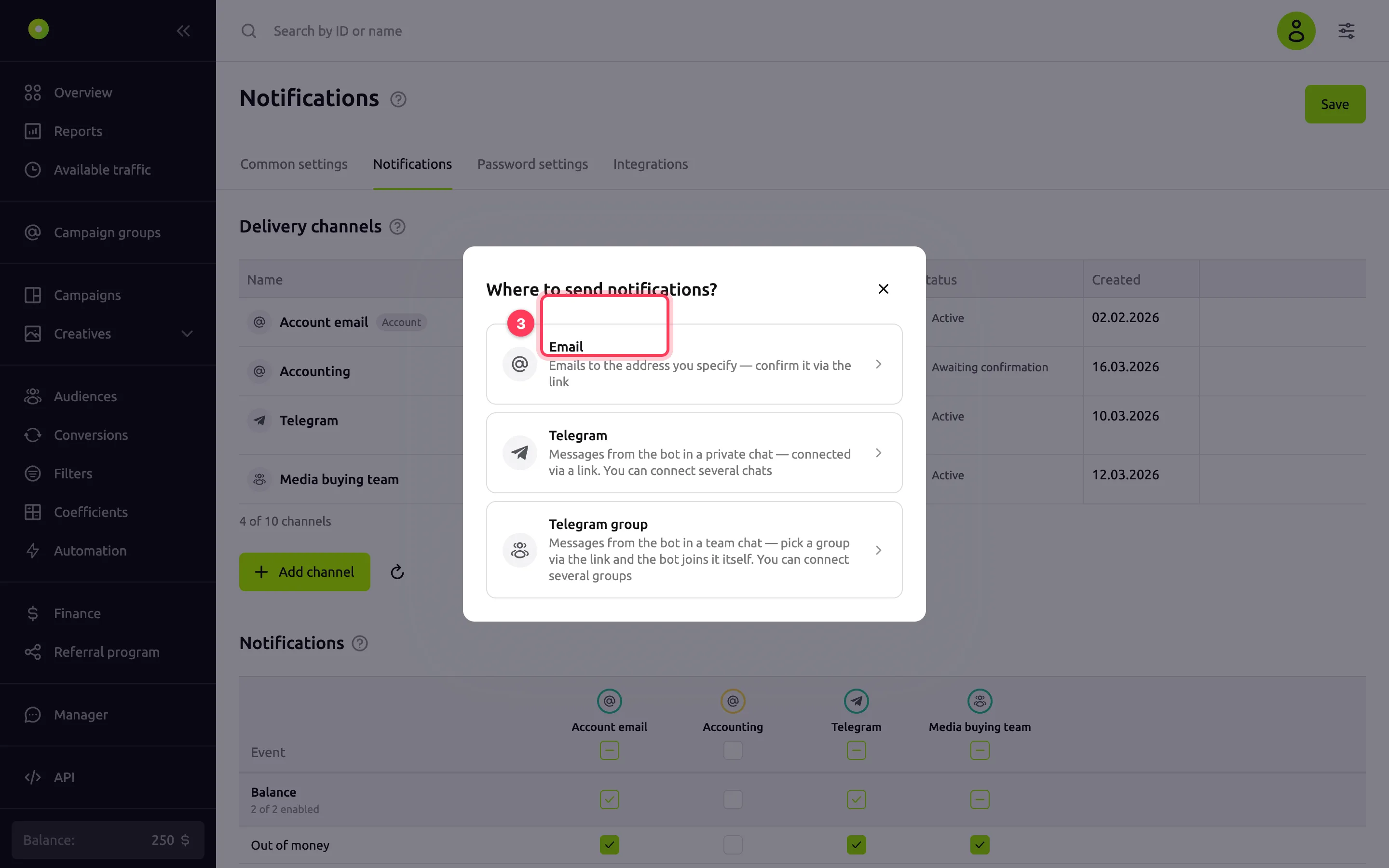
In the Notifications block, mark which channel each event goes to. Each channel is a separate column. The checkbox in a column header turns on all events for the channel; the checkbox in a block header turns on all events of the block. A row with no marks means the notification is off.
If you marked the Balance below threshold event, enter the threshold in the field next to it. Without a threshold, the settings are not saved.
Click Save.
Result
The message "Changes successfully saved" appears. Connected channels have the Active status.
Check Telegram: in the channel row, open the actions menu and select Send a test message. The bot sends a message to the chat. There is no test message for email.
Delivery channels
Notifications arrive only in confirmed channels, those with the Active status. You can connect up to 10 channels: emails, private Telegram chats and Telegram groups in any combination. The Account email channel is created automatically. A new channel is connected with no events selected: select them in the channel column yourself.
Event types
| Event | When it arrives | Block |
|---|---|---|
| Out of money | The balance has dropped to the level at which campaigns stop: $10 (€10, RUB 1,000) or less | Balance |
| Balance below threshold | The balance has become less than or equal to the threshold from the field in the row. After you change the threshold, you are notified again when the balance drops to the new value | Balance |
| Total limit, Daily, Hourly under Budget, Clicks, Impressions | The campaign has used up this limit from the Limits tab and stopped serving until the end of the period. To set limits, see Limit budget and impression frequency | Campaign limits |
| The same nine rows | The same for the limits of a campaign groupA folder for one advertiser's campaigns with shared settings and limits. | Campaign group limits |
| Auto-rules triggered | An automation rule has performed an action. It arrives only for rules with Notify on trigger turned on. Learn more in Set up automation rules | Auto-rules |
For a new account, notifications about total and daily limits of campaigns and campaign groups are already sent to Account email. Turn on hourly limits, balance and auto-rules yourself.
How to manage a channel
Channel actions are in the menu in its row:
- Rename: give the channel a clear name, for example "Accounting". An empty name restores the default caption.
- Delete: delete the channel together with its marks in the Notifications block. You cannot delete Account email: its address changes together with the account email.
- If you delete your private Telegram and connect it again, it appears as a new channel with no events selected: select them again.
Troubleshooting
| Symptom | Cause | Fix |
|---|---|---|
| Awaiting confirmation status | The address is not confirmed | Follow the link in the email. No email? Check the Spam folder or select Send the email again in the channel menu |
| Link expired status | The link in the email was not opened in time | Select Send the email again in the channel menu |
| Bot unavailable status for a private Telegram | The bot is blocked or removed from the chat | Select Reconnect the bot in the channel menu, unblock the bot and send it /start |
| Bot unavailable status for a Telegram group | The bot was removed from the group | Select Activate again in the channel menu, add the bot back to the group and send the code. The event marks and the channel name are kept |
| "No events selected" under the channel | The channel's column has no marks | Mark events in the channel's column and click Save |
| Telegram is connected, but the channel is not in the list | The list has not refreshed | Click the Refresh button (circular arrow) next to Add channel |
| The Add channel button is inactive, "The limit of 10 channels is reached" | 10 channels are connected | Delete a channel you do not need |
| "Set the threshold" | A channel is marked for Balance below threshold, but the threshold is empty | Enter the threshold or clear the marks in this row |
| "You already have a channel with this address" under the Email field | This address is already connected as a separate channel | Enter another address or mark events in the column of the existing channel |
| "This is your account address — it is already used by the account channel" under the Email field | This is the email the account is registered with | Mark events in the Account email column |
| "Too many test messages have been sent today. Try again later" | The number of test messages per day is limited | Try again later |
| "The message was not delivered: the chat is unavailable. Reconnect telegram" | The bot is blocked or removed from the chat | Select Reconnect the bot (private Telegram) or Activate again (Telegram group) in the channel menu |
| "Telegram is temporarily unavailable. Try again later" | A temporary failure on the Telegram side | Try again later |
| Disabled status | A Youtarget administrator has turned off delivery to the channel | Contact your manager |
Next steps
- Limit budget and impression frequency: set the limits you will be notified about.
- Set up automation rules: turn on notifications when rules fire.