
Filters
A filterA whitelist or blacklist of values, such as zones or IP addresses. It limits where ads are shown. is a whitelist or a blacklist of values of one type: zones, IP addresses, domains and others. Filters are kept in the library, the Filters section in the left menu. A filter applies only to the campaigns it is linked to. You can link one filter to several campaigns, and a change to it applies to all of them at once.
To create a filter and link it to a campaign, see Turn off poor placements with a filter.
Filter library
In the left menu, open Filters.
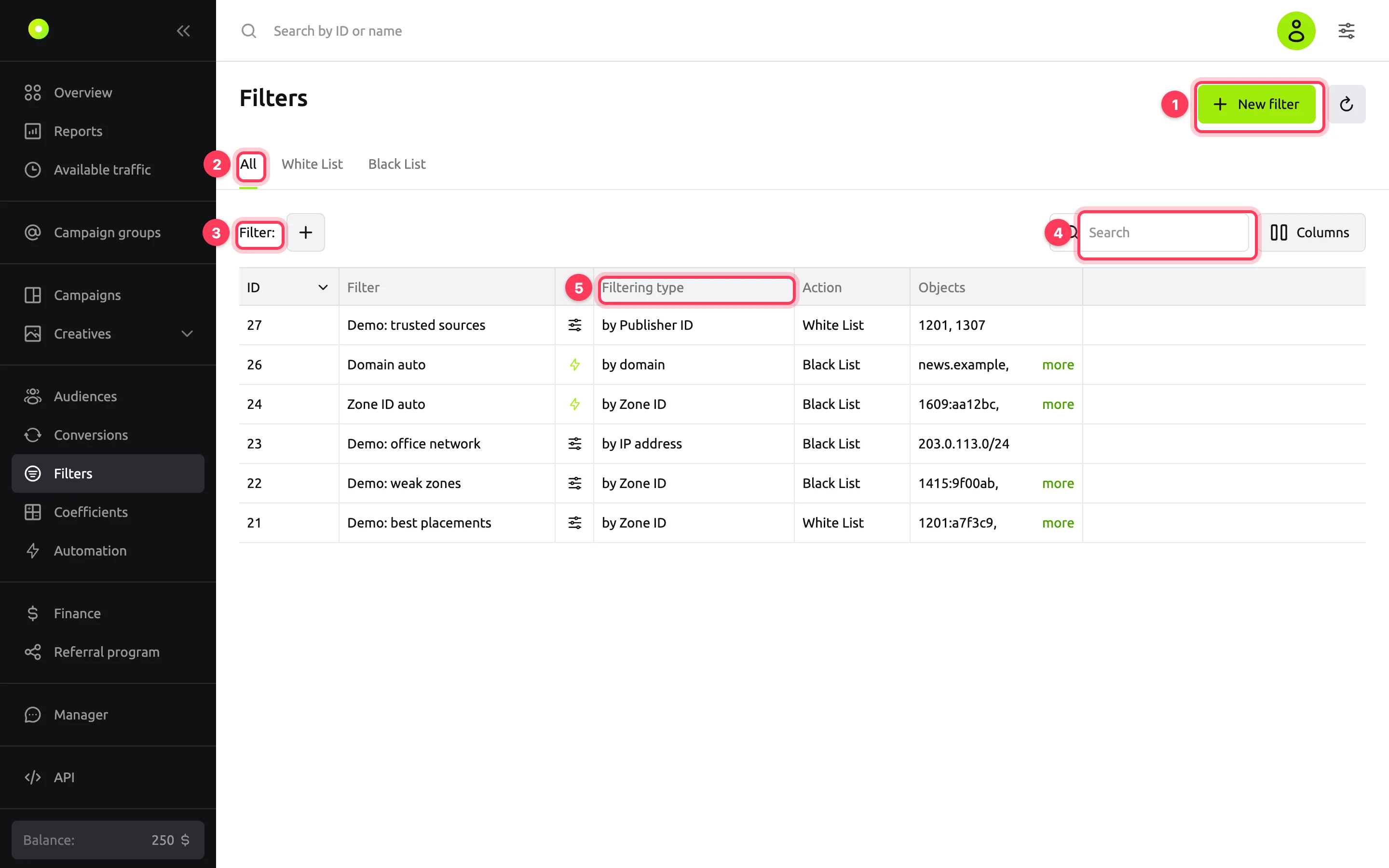
- New filter creates a filter in the library. It is not linked to any campaign yet: link it on the Filter usage page or on the campaign's Filters tab.
- The All, White List and Black List tabs show all filters, only whitelists or only blacklists.
- Filter: and + narrow the list by filter status.
- Search finds a filter by ID or name.
- The table columns.
The button to the right of New filter resets the selection and refreshes the list. The Columns button hides and shows columns.
| Column | What it shows |
|---|---|
| ID | The filter number. You can find the filter by it with search |
| Filter | The filter name |
| No header | The filter menu icon, or a lightning icon for filters created automatically. See Filter menu |
| Filtering type | Which values the filter uses to select traffic. See Filter types |
| Action | White List: the campaign buys only these values. Black List: the campaign does not buy these values |
| Objects | The filter values. The more link expands the full list |
Filter types
In the filter form, you can select two types: Zone ID and IP-Address. Filters of other types are created by automation rules or by your manager. A manager's filter is shown in the library and on the campaign's Filters tab if it is linked to your campaign.
| Type in the form | In the Filtering type column | What it selects | Who creates it |
|---|---|---|---|
| Zone ID | by Zone ID | ZonesA specific ad slot on a site or in an app, for example a block on a site page.: ad placements on sites and apps. A zone ID looks like 1201:a7f3c9 | You, automation rules, your manager |
| IP-Address | by IP address | User IP addresses: single addresses, ranges and subnets. For formats, see Turn off poor placements with a filter | You, your manager |
| Domains | by domain | Sites where the ad is shown | Automation rules, your manager |
| Bundle ID | by Bundle ID | Mobile apps: the app ID in the store, for example com.example.game | Automation rules, your manager |
| Publisher ID | by Publisher ID | Whole traffic sources, with all their zones | Your manager |
| SUB ID | by SUB ID | Sub-sources within a traffic source. The source itself passes the SUB ID with the impression | Your manager |
| Keywords | by keywords | Keywords that the traffic source passes with the impression | Your manager |
For how several filters work together, see How multiple filters combine.
Filter statuses
To narrow the list by status, click + next to Filter: and select Status.
| Status | Which filters |
|---|---|
| User | Regular filters: created by you or by automation rules, and filters that your manager linked to your campaigns |
| Selective coefficients | Blacklists of zones turned off in the Coefficients section. Such a filter is named "Selective coeffs of campaign …". Manage it in the Coefficients section, see Raise or lower the bid on specific placements |
| System, Antifraud, Discrepancies | Service statuses: your list has no filters with them |
NOTE
Campaign traffic can also be limited by filters that your manager set up for the whole account or the platform. They are not shown in the library or on the campaign's Filters tab. If the campaign gets no traffic from the placements you need, although your filters do not exclude them, ask your manager: click Manager in the left menu.
Filter menu
The icon in a filter row opens the Tools menu:
- Using Filter opens the Filter usage page.
- Edit Filter opens the filter form: name, type, values and action. Changes apply to all campaigns the filter is linked to.
- Delete filter deletes the filter after you confirm it in the Confirm deletion window. The filter stops working in all campaigns. You cannot undo the deletion.
On the campaign's Filters tab, the menu has Unlink filter instead of Delete filter: it removes the filter from this campaign only. After that, click Save filter settings.
Filters created by automation rules have a lightning icon instead of the menu, with the hint "Filter created automatically. It can't be edited or deleted". To stop such a filter from growing, stop the rule. See Set up automation rules.
If the menu items are disabled, you do not have permission to edit filters or campaigns. This happens to agency clients: permissions are given by the agency that gave you access.
Filter usage
This page shows the campaigns the filter is linked to. To open it, select Using Filter in the filter menu.
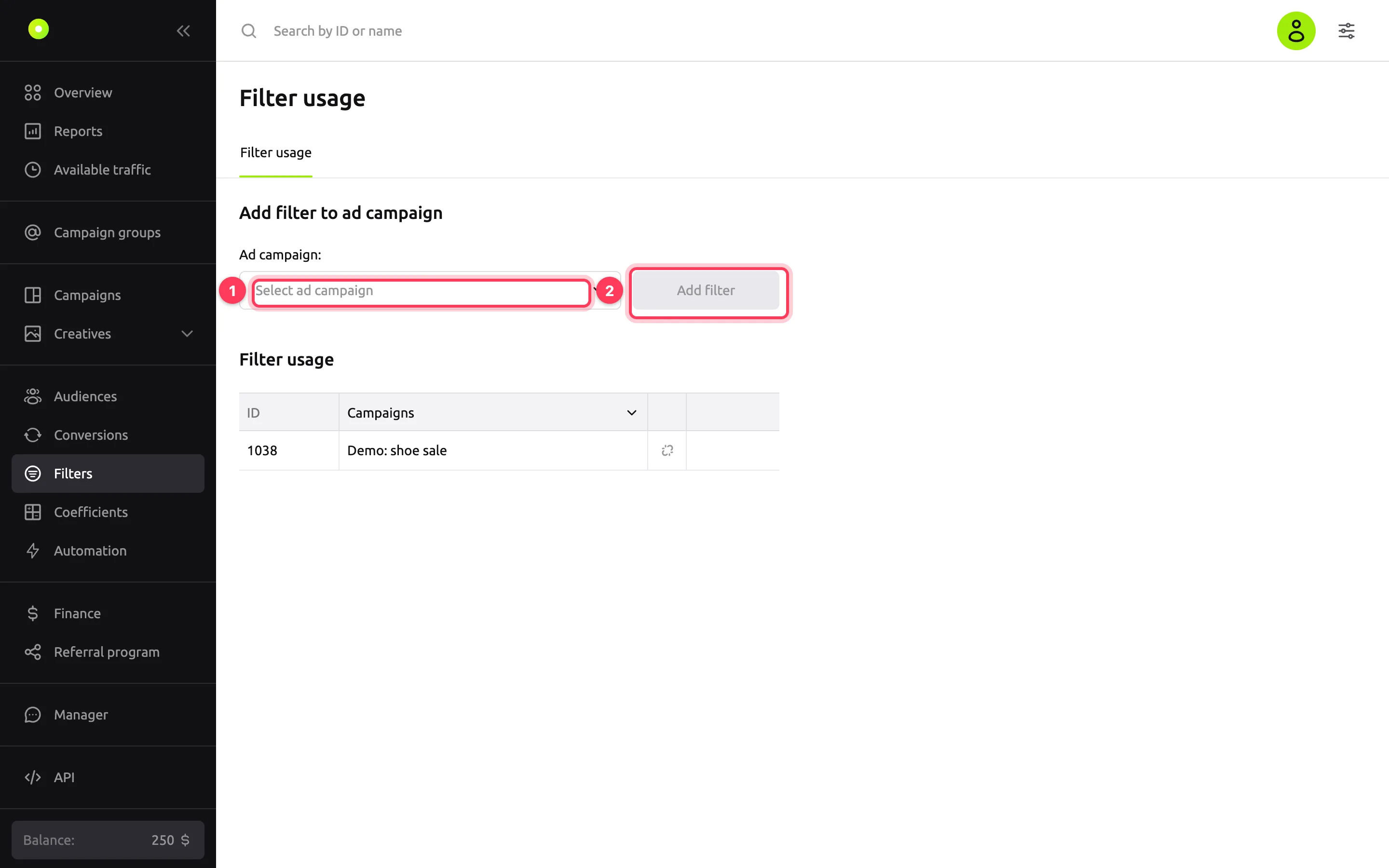
- To link the filter to a campaign, select the campaign in the Ad campaign field (1) and click Add filter (2). The campaign appears in the table right away, you do not need to save separately.
- To unlink the filter, click the icon in the campaign row, then click Unlink filter in the Unlink filter from campaign? window. The filter stays in the library, and you can link it again.
You can sort the table by campaign name.
Related pages
- Turn off poor placements with a filter: create a filter and link it to a campaign.
- Set up automation rules: filters that fill up by themselves.
- Raise or lower the bid on specific placements: if you do not want to turn a zone off completely.
- No impressions: if the campaign stopped showing after you linked a filter.